Classroom Cloud Login: Your Complete 2026 Guide

You’re usually reading about classroom cloud login when something practical is already happening. A teacher is waiting for a class to appear. A safeguarding lead can’t see the right site. A student joins on a Chromebook but not on a Windows laptop. An admin has synced users, but the wrong people have the wrong access.
That’s the core job. Login isn’t a box to tick. It’s the handoff between identity, teaching, safeguarding, and device management.
I’ve seen the same pattern across school groups and trusts. The schools that get classroom.cloud working well don’t treat login as a one-off setup task. They treat it as an operational workflow. Who signs in, how they sign in, what they should see, and what they must not see all matter just as much as getting the platform live.
Navigating Your First Classroom Cloud Login
A common starting point looks like this. Year 9 are in front of you, a few pupils are working from home, and the lesson has already begun before everyone is technically ready. The teacher doesn’t need another tab, another password issue, or another vague message saying access failed.
That’s where classroom.cloud makes sense in a school context. It was developed in the UK to meet demand for flexible blended learning tools, it’s hosted on Microsoft Azure, and it’s used by UK schools as a 3-in-1 platform for instruction, online safety, and IT management. It also supports safeguarding expectations tied to KCSIE 2024, and its Risk Index feature can significantly reduce alert fatigue according to internal claims at portal.classroom.cloud.

The login part is the first pressure point. If it works cleanly, staff get straight into teaching. If it doesn’t, the platform gets blamed for problems that are usually caused by identity setup, enrolment gaps, or permissions.
What a good first login looks like
For a teacher, a good first login means:
Fast access: They reach the portal, sign in, and see the classes they expect.
No extra chasing: Students can join with a class code or through synced class data.
Useful control immediately: Screen view, instruction tools, and safety features are available without extra setup mid-lesson.
For schools testing processes across several tools, it also helps to keep one dependable route to access the login portal for comparison during sign-in checks and browser testing.
Practical rule: If staff can’t explain the login journey in one minute, the setup is too complicated for live classroom use.
Where schools usually trip up
The first issue usually isn’t the teacher account. It’s the mismatch between what the school thinks is deployed and what is deployed. A synced roster may exist, but devices may not be enrolled correctly. A user may authenticate successfully, but not land in the right place.
That’s why the best first deployment approach is simple. Test login with one teacher, one student device type, one class, and one site before you scale it trust-wide.
A Practical Walkthrough of the User Login Process
Most teachers don’t need the platform explained. They need the steps that get them into a live class without delay. The same applies to students. If login takes too long, the lesson slips.
Teacher login in practice
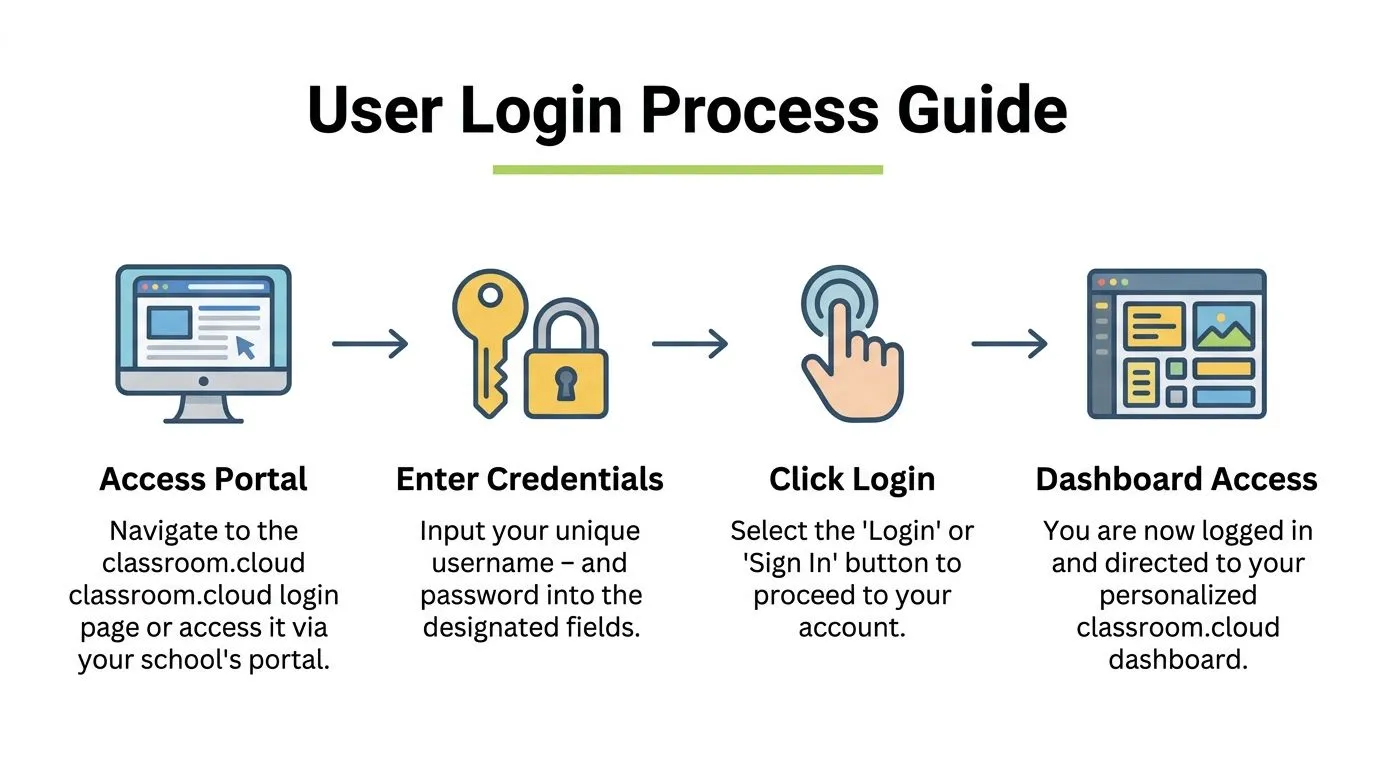
The teacher journey is usually straightforward when the school has already configured identity and classes.
Open the classroom.cloud portal
Staff either go directly to the login page or enter from the school’s preferred route.Sign in with the assigned method
In most schools, that means Microsoft or Google credentials. If the environment is already connected properly, the teacher should land on a dashboard with the classes and tools relevant to their role.Choose the class
Some schools rely on synced rosters. Others prefer using a class code for speed and flexibility, especially for temporary groups, interventions, or cover lessons.Start the session
Once the class is live, the teacher can begin instruction, viewing, or monitoring without asking pupils to learn another platform workflow.
Student login and join methods
Students usually join in one of two ways:
Class Code join: Quick, easy, and useful for ad hoc sessions.
Automatic join: Better for schools that want less manual input from pupils and already have roster sync and device deployment working consistently.
The student agent has light requirements, which helps when schools are supporting mixed estates. The published specifications are Windows 10/11 with 200MB free space, ChromeOS 116+ with 5MB, plus support for Android 12+, iPadOS 14+, and macOS 10.15+. It uses only outbound port 443, which keeps network configuration simpler, and students can connect by class code or join automatically, as detailed at classroom.cloud/the-finer-details.
What to check before a live lesson
I don’t advise testing this for the first time during registration. Check these points first:
Device coverage: Confirm the student agent is deployed to the actual devices pupils will use, not just a sample set in IT.
Correct account: Make sure the pupil is signed into the school-managed Microsoft or Google account if your setup depends on roster identity.
Assigned groups: If the device isn’t attached to the right group, the class may never appear properly.
Browser session: On shared devices, stale sign-in sessions cause more confusion than failed passwords.
If a class code works but automatic join doesn’t, the problem is usually not the teacher account. It’s normally enrolment, group assignment, or roster mapping.
What works best for busy staff
For teachers, the most reliable setup is the one with the fewest decisions at lesson start. If your roster sync is clean and stable, automatic join is easier to support at scale. If your timetable shifts often, or if staff frequently teach outside normal group structures, class code access is often more forgiving.
Both can work. The mistake is trying to force one method on every school, year group, and device estate.
Configuring the Admin Portal and Single Sign-On
Admin setup is where classroom cloud login either becomes a smooth school service or a constant support queue. The portal matters because it controls who gets in, what they can access, and how much manual admin your team carries week to week.
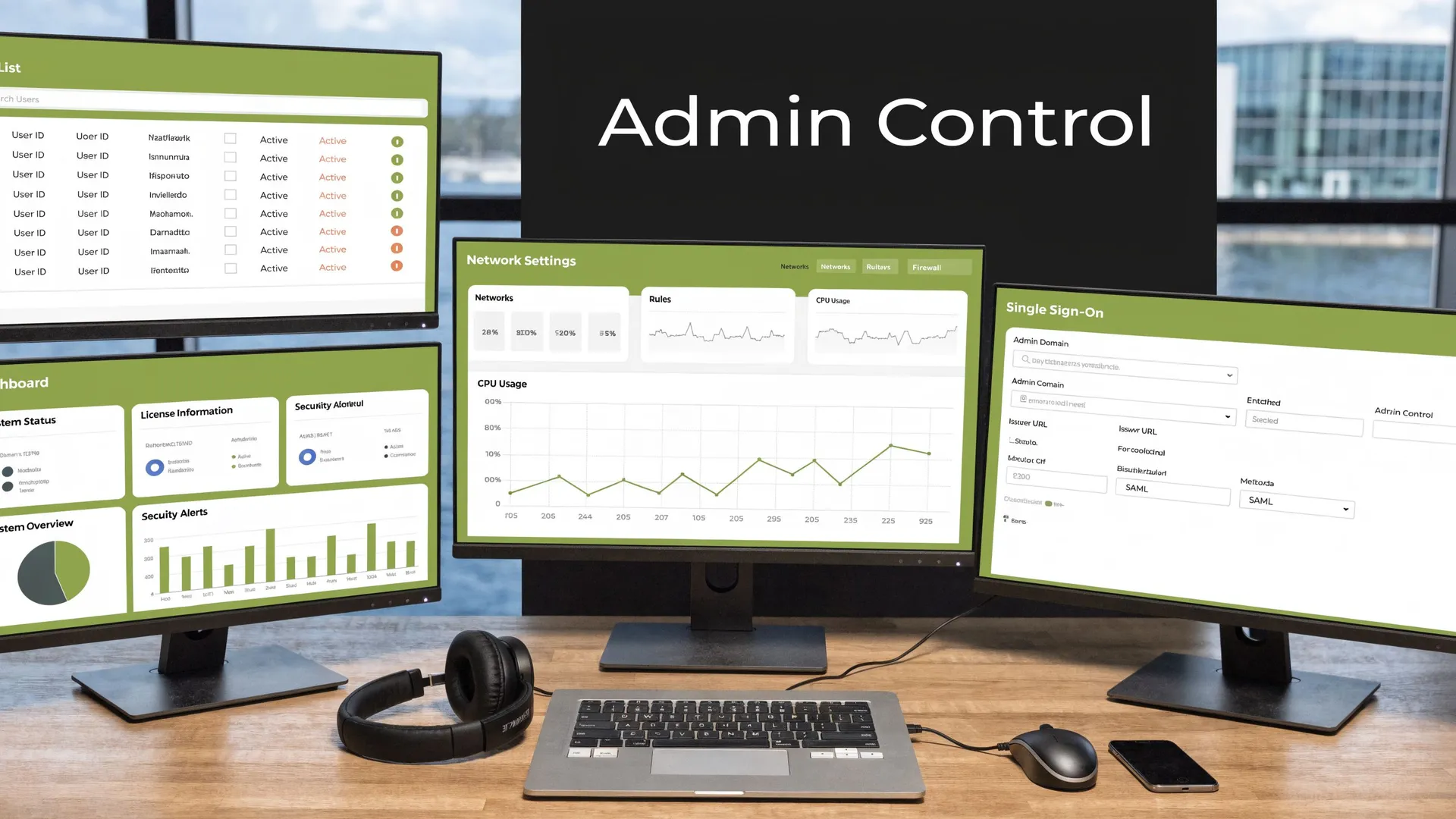
For administrators, Organisation Admins access the portal via an Account ID after email registration, and they can pull classes directly from Google Classroom or Clever. Integrations with Microsoft, Google, and ClassLink can cut setup time from hours to seconds, and schools using the platform report a significant reduction in IT workloads according to classroom.cloud/classroom-instruction.
Start with identity, not features
The cleanest deployments begin with identity alignment. Before turning on every option, decide:
Authoritative source: Will Microsoft 365, Google Workspace, ClassLink, or another connected system be the source of truth?
Role boundaries: Which users are teachers, which are safeguarding staff, and which are central admins?
Provisioning logic: Are users and classes arriving through sync, CSV import, or a phased mixture of both?
If you skip those decisions, SSO becomes a patch rather than a system.
A practical admin sequence
I use this order because it reduces rework:
| Admin task | Why it comes first | What to watch |
|---|---|---|
| Register the organisation | Establishes the core tenant and admin access | Use the right person, not a temporary project account |
| Link the identity provider | Reduces separate passwords and duplicate accounts | Match user identities exactly |
| Import or sync classes | Gives teachers meaningful groups on login | Check naming consistency |
| Deploy student agents | Makes classroom functions usable in real sessions | Don’t assume all device types behave the same |
| Test with real roles | Confirms permissions make sense | Include teacher, student, and safeguarding views |
Microsoft and Google trade-offs
Microsoft-heavy schools usually benefit from a tighter fit if their wider estate already runs through Entra ID, Teams, and SDS-style data practices. Google-heavy schools often value the speed of user familiarity, especially where Chromebooks dominate and staff are already managing classes in Google Classroom.
Neither route is automatically better. The better route is the one your identity estate can support consistently.
If your team is comparing sign-on models across platforms, this guide on https://www.medial.com/post/openid-connect-vs-saml-a-guide-for-modern-lms-integration is useful background because it clarifies the practical differences between modern identity approaches without burying the decision in jargon.
Admin check: The fastest setup is not always the most supportable one. If your sync looks clever but local staff can’t understand who owns user provisioning, problems multiply after the first timetable change.
What not to do
Don’t build login around a single senior admin’s account. Don’t leave old CSV imports in place once directory sync becomes live. Don’t give broad permissions to solve a narrow visibility problem.
Shortcuts work for pilots. They create trouble in term time.
Integrated Login via Your Learning Management System
Schools and colleges don’t need another isolated sign-in experience if staff already live inside an LMS. If teachers launch lessons, assignments, and resources from Moodle, Canvas, Blackboard, or Brightspace, login should feel joined up there too.
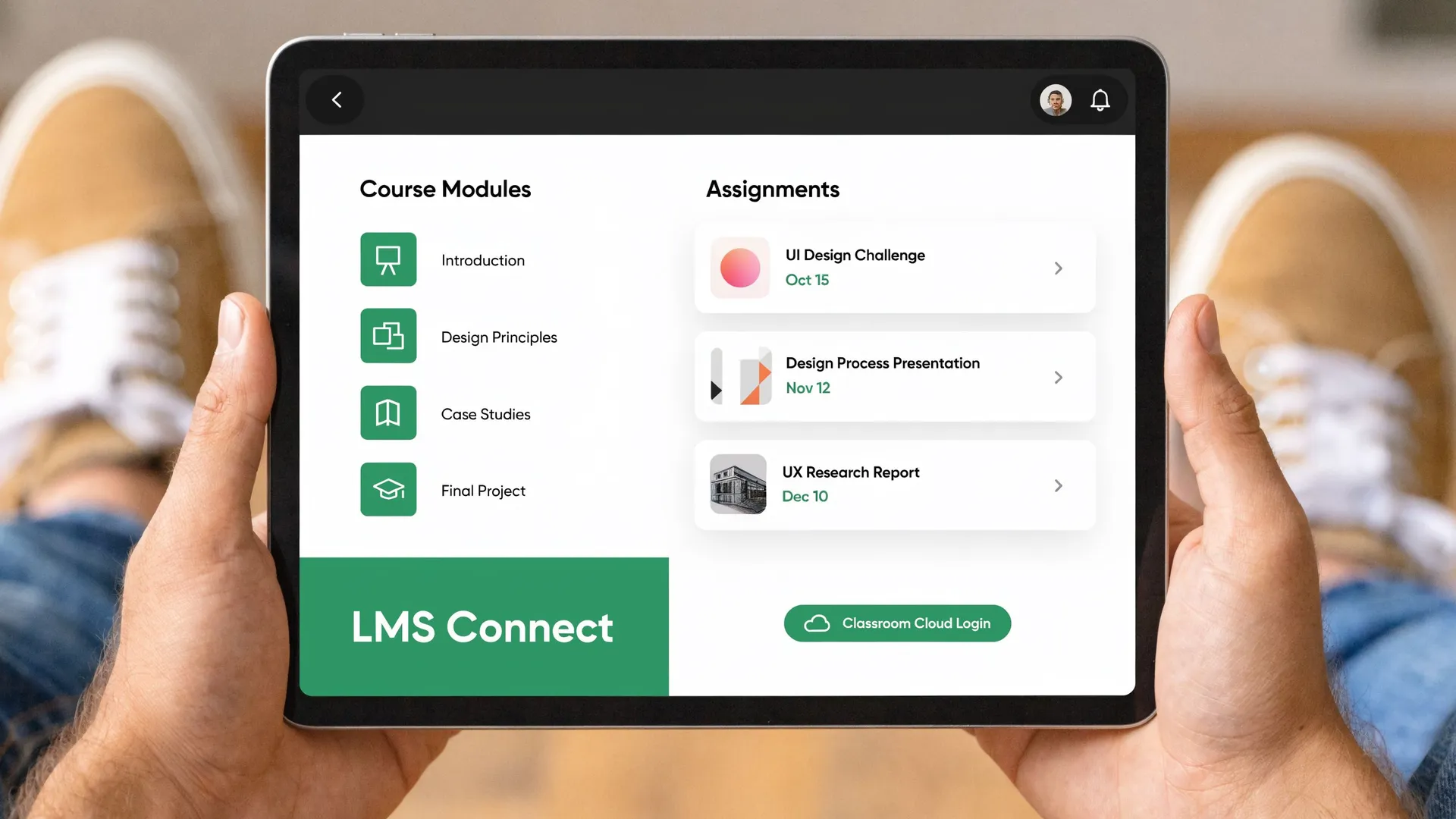
The operational benefit is simple. When identity, course context, and learning activity sit closer together, staff stop wasting effort switching systems and explaining duplicate workflows to students.
Why LMS-linked access feels easier
Teachers usually judge a login flow by interruption. If pupils can move from the course page into the required activity without a second round of confusion, staff see the setup as reliable.
A joined-up model helps with:
Less context switching: Teachers stay in the course space they already use every day.
Cleaner student journeys: Students follow the lesson path rather than hunting for another portal.
Fewer support questions: “Where do I click?” drops when access points live inside existing modules and assignments.
What good integration changes
In practice, the strongest LMS integrations don’t just pass users through a login gate. They carry context. The course, module, or assignment becomes part of the access flow.
That matters because the best digital learning systems feel consistent. The user shouldn’t need to remember whether a task lives in the LMS, in a separate media platform, or behind another sign-in route.
For teams reviewing how LMS connections can simplify authentication and workflow design, this practical overview of integration patterns is worth reading: https://www.medial.com/post/mastering-learning-management-system-integration
Keep the user journey short. If a student needs a teacher, an email, and a second browser tab just to reach a task, the integration isn’t finished.
The mistake schools make
The mistake is thinking “integrated” only means “linked”. A button inside an LMS isn’t enough if users still hit permission friction, duplicate accounts, or mismatched roles after clicking it.
The better standard is this. A teacher launches from the system they already trust. A student reaches the right activity in the right context. Support staff can explain the route in plain English. If one of those fails, the integration still needs work.
Managing Complex Access for Multi-Academy Trusts
Standard classroom cloud login advice usually runs out at this point. Single-school guidance doesn’t solve trust-wide safeguarding visibility, central oversight, and UK GDPR data minimisation at the same time.
The gap is real. Existing guidance for MATs is limited, even though videos show that Designated Safeguarding Leads can be restricted to one school, and there’s a wider challenge around balancing trust-level access with data minimisation. The same source notes a significant number of academies in the UK, and a majority of MATs report login permission issues in NetSupport surveys, as referenced in this YouTube guidance.
The permission model MATs need
A trust shouldn’t default to broad access just because central teams exist. That creates unnecessary exposure and usually causes confusion during audits.
A stronger model uses site-based visibility by default and expands access only where the role requires it.
Use this principle set:
School-first access: A DSL should see their school unless there is a documented reason for wider access.
Trust-wide oversight for named roles only: Central safeguarding leaders, trust IT leads, or audit roles may need broader visibility, but that should be deliberate and reviewable.
Separate admin from safeguarding: Technical control and pastoral visibility are not the same job. Don’t merge them into one oversized role.
Provision by role and site together: “DSL” on its own is too vague. “DSL at School A” is actionable.
What goes wrong in bulk provisioning
Bulk provisioning failures in MATs often come from bad mapping logic, not from the platform itself. The sync creates users, but the site relationship is wrong. Or a central account inherits more schools than intended because the role template was too wide.
I push trusts to test permissions with named scenarios, not just account creation checks.
| Test user | Should see | Should not see |
|---|---|---|
| School DSL | Their own site alerts and users | Other schools in the trust |
| Trust safeguarding lead | Cross-site patterns where authorised | Device management functions unless assigned |
| Local teacher | Their classes and teaching tools | Trust-wide safeguarding dashboards |
| Central IT admin | Technical estate controls | Sensitive safeguarding views unless specifically required |
Privacy-first access is not a blocker to safeguarding. It’s what makes safeguarding access defensible.
The practical position
If you run a MAT, resist the temptation to solve login frustration by widening permissions. That fixes today’s complaint and creates tomorrow’s compliance problem.
The better approach is slower at first. Map roles carefully. Tie them to sites. Test every exception. Then document who approved trust-wide visibility and why.
Troubleshooting Common Classroom Cloud Login Issues
Most login failures aren’t dramatic. They’re repetitive. The same few faults show up in different forms, especially when staff don’t have full admin rights.
That matters because a commonly missed issue is non-admin access failure. Official setup guidance often assumes administrator rights, but NetSupport forum data referenced in this YouTube video states that a significant portion of support tickets are login-related issues for roles such as safeguarding leads without administrator permissions.
Common Login Problem Solver
| Symptom | Likely Cause | Solution |
|---|---|---|
| Teacher can sign in but sees no classes | Class sync exists, but roster mapping or role assignment is incomplete | Check whether the teacher is attached to the correct imported class set and site |
| Student agent is installed, but the pupil doesn’t join the lesson | Device is not assigned correctly, or the student is using the wrong school account | Confirm device group assignment and verify the signed-in identity on the device |
| Class code doesn’t work for some pupils | Pupils entered an expired, incorrect, or mismatched code | Regenerate or recheck the code and test with one known-good device first |
| Continue with Google or Microsoft loops back to sign-in | Cached sessions or conflicting browser identities are interfering | Sign out of unused accounts, clear the active session, then retry in a clean browser window |
| Safeguarding lead logs in but can’t see the expected site | The account exists, but site-level permissions were not mapped correctly | Review role-to-site assignment rather than resetting the password |
| Login works on staff laptops but not on shared Chromebooks | Existing browser sessions are holding the wrong identity context | Fully sign out from previous users and test on a fresh profile or clean session |
| Admin imported users, but some staff still can’t access the dashboard | Import completed, but the wrong role or incomplete user data was applied | Compare a working account and a failing one side by side for role and site differences |
What non-admin users can try first
Support teams get dragged into tasks that staff can often narrow down themselves.
Check the account in use: Many login failures are account-selection problems on shared browsers.
Try a clean session: Private browsing or a fresh browser profile quickly reveals whether cookies are the issue.
Confirm expected access: If login succeeds but data is missing, treat it as a permissions problem, not a password problem.
Test one known-good path: If direct sign-in fails, try the route your school officially supports, rather than mixing login methods.
When to escalate
Escalate when the issue affects role mapping, provisioning, or site visibility. That’s an admin task. Don’t waste time asking teachers or DSLs to repeatedly retry sign-in if the account is authenticated but under-permissioned.
If your team needs a formal support route for wider platform issues and workflow checks, use https://www.medial.com/medial-support as a model for the kind of structured support process that reduces back-and-forth and captures the right technical detail early.
A successful login with the wrong access is not a solved issue. It’s a permissions issue wearing a login mask.
Frequently Asked Questions About Login and Security
How do password resets usually work if the user isn’t an admin
In most school setups, password recovery follows the school’s identity system rather than a separate classroom.cloud-only routine. If the school uses Microsoft or Google sign-in, the user normally needs to follow that account recovery path or contact the local IT team.
If you support staff who regularly lose access, document the recovery route in one line on your staff portal. Long instructions don’t get read during period changeover.
Should admins enforce MFA
Yes. If your school or trust uses Microsoft accounts, this is one of the simplest security upgrades you can make. For teams reviewing implementation basics, this guide to Microsoft 2 factor authentication (MFA) is a useful starting point.
MFA is especially important for accounts with trust-wide visibility, safeguarding access, or admin control.
Can staff stay logged in on more than one device
That depends on the school’s browser, device, and identity policies. Technically, users may be able to sign in across multiple devices, but that doesn’t always mean they should.
For shared environments, I recommend keeping safeguarding and admin access to managed devices only. Convenience matters, but auditability matters more.
What’s the best security habit after initial setup
Audit permissions regularly. Not just passwords. Permissions drift over time because users change schools, gain temporary trust roles, or keep access they no longer need.
A short, scheduled review of role and site assignments usually prevents more problems than another round of password guidance.
Is classroom.cloud suitable for GDPR-conscious schools
Yes, provided the school configures access carefully and applies data minimisation in the way roles are assigned. The platform is described as GDPR-compliant in the verified product information, but local configuration still matters.
The platform can support compliant practice. The school still has to deploy it responsibly.
If you’re building a cleaner digital teaching environment around your LMS, MEDIAL is worth a look. It helps schools, universities, and training teams manage video, assignments, recording, and streaming inside platforms such as Moodle, Canvas, Blackboard, and D2L Brightspace, without forcing staff into clunky extra workflows.