Cross Platform Compatibility: A 2026 Education Guide
A teacher records a lesson on a school Windows laptop, uploads it to the learning management system, and checks the video before class. It plays perfectly. Later, a learner opens the same clip on an iPad and sees a black frame. Another student tries an Android tablet and gets sound without captions. The teacher hasn't changed the content, but the learning experience has changed because the device, browser, player, and LMS are interacting differently.
That problem appears in corporate training too. An L&D manager may find that a recorded compliance module loads for office staff but stalls for contractors using Linux laptops or older mobile devices. An IT administrator then has to investigate reports from teachers, learners, parents, and support teams without knowing which combination of browser, operating system, player, caption file, or embedded workflow failed.
Cross platform compatibility is no longer something education teams can leave to chance. It's a measurable engineering discipline based on documented browser coverage, a device testing matrix, reliable media standards, and accessibility requirements such as WCAG 2.2's Robust principle. This guide translates that discipline into practical checks for video upload, playback, captions, and LMS embeds.
The Day a Video Only Worked on One Laptop
A familiar classroom failure
A secondary teacher records a science explanation using her school-issued Windows laptop. She uploads the MP4 to the school LMS, opens the lesson page in her usual browser, and watches enough of the clip to confirm that the audio and picture are present. The lesson appears ready.
That evening, a student opens the same page on an iPad at home. The video area remains black, even though the page itself loads. A second student uses an Android tablet and can start playback, but the captions don't appear. A third learner watches on a Chromebook and reports that the play button freezes after the first frame.
The teacher hasn't made a careless mistake. She tested the content, but she tested only one path through it. A video that works on one laptop has passed a spot check, not a compatibility test.
The support queue tells a wider story
The Trust IT administrator now receives reports from families using Android tablets, Chromebooks, and older iPhones. Each report sounds slightly different, which makes the underlying issue difficult to identify. One learner has a playback failure, another has a caption failure, and another may be blocked by an embedded login flow.
The same pattern affects workplace learning. An L&D manager publishes recorded compliance training, then discovers that remote contractors using Linux laptops can't load the embedded player. The course may be technically available, but those learners can't complete the required activity reliably.
Practical rule: Test the complete learner journey, not just the page you built.
The UK government treats interoperability as a core digital policy goal. Its Digital Standards Strategy for 2026 to 2030 describes standards as a way to help “devices, systems and software work together” and places the UK in a leadership role for technical standards covering areas including AI, cybersecurity, quantum, advanced connectivity, and semiconductors. For public-sector websites and mobile apps, UK rules require WCAG 2.2 AA, including contrast ratios of at least 4.5:1 for normal text and 3:1 for large text.
Those requirements point to the central lesson. Compatibility needs a supported browser list, a repeatable device matrix, accessibility checks, and evidence that core workflows work across the combinations learners use.
What Cross Platform Compatibility Actually Means in Education
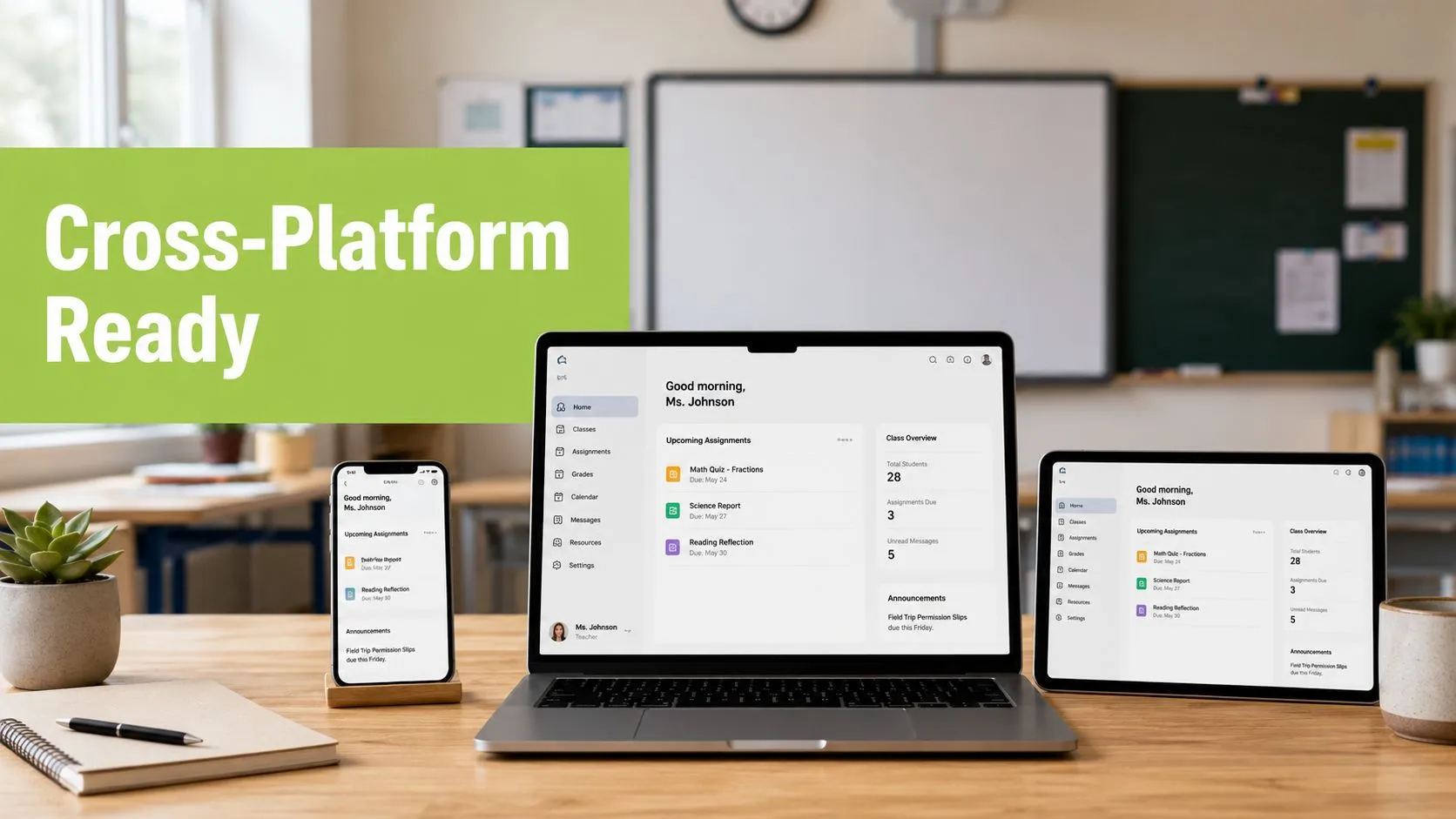
For educational video, cross platform compatibility means that one piece of content can be played, captioned, interacted with, and assessed consistently across the device, operating system, browser, media player, and LMS combination a learner uses. It doesn't mean that every possible device receives identical pixels or behaves in exactly the same way. It means the learning task remains available and understandable across the supported environment.
A useful way to understand the problem is to treat the experience as a set of layers.
Five layers of the learner experience
Device layer: The laptop, tablet, phone, Chromebook, or desktop provides the screen, speakers, keyboard, touch controls, processor, and network connection.
Browser and operating system layer: Chrome, Safari, Edge, Firefox, Samsung Internet, Windows, Android, iOS, macOS, and ChromeOS decide how the page, media APIs, permissions, and authentication behave.
Player layer: The HTML5 player controls loading, seeking, fullscreen mode, quality selection, captions, keyboard access, and playback errors.
Content layer: The video, audio track, WebVTT or SRT captions, transcript, audio description, and visual information must remain usable.
Workflow layer: The LMS embed, identity provider, launch process, progress tracking, assignment submission, and assessment record must connect correctly.
A failure at any layer can break the lesson. A browser may support the video but block autoplay. The player may render correctly but fail to expose captions. The LMS may display the iframe but remove a launch parameter needed for authentication. The video may play while the learner misses important visual information because the transcript and audio description aren't available.
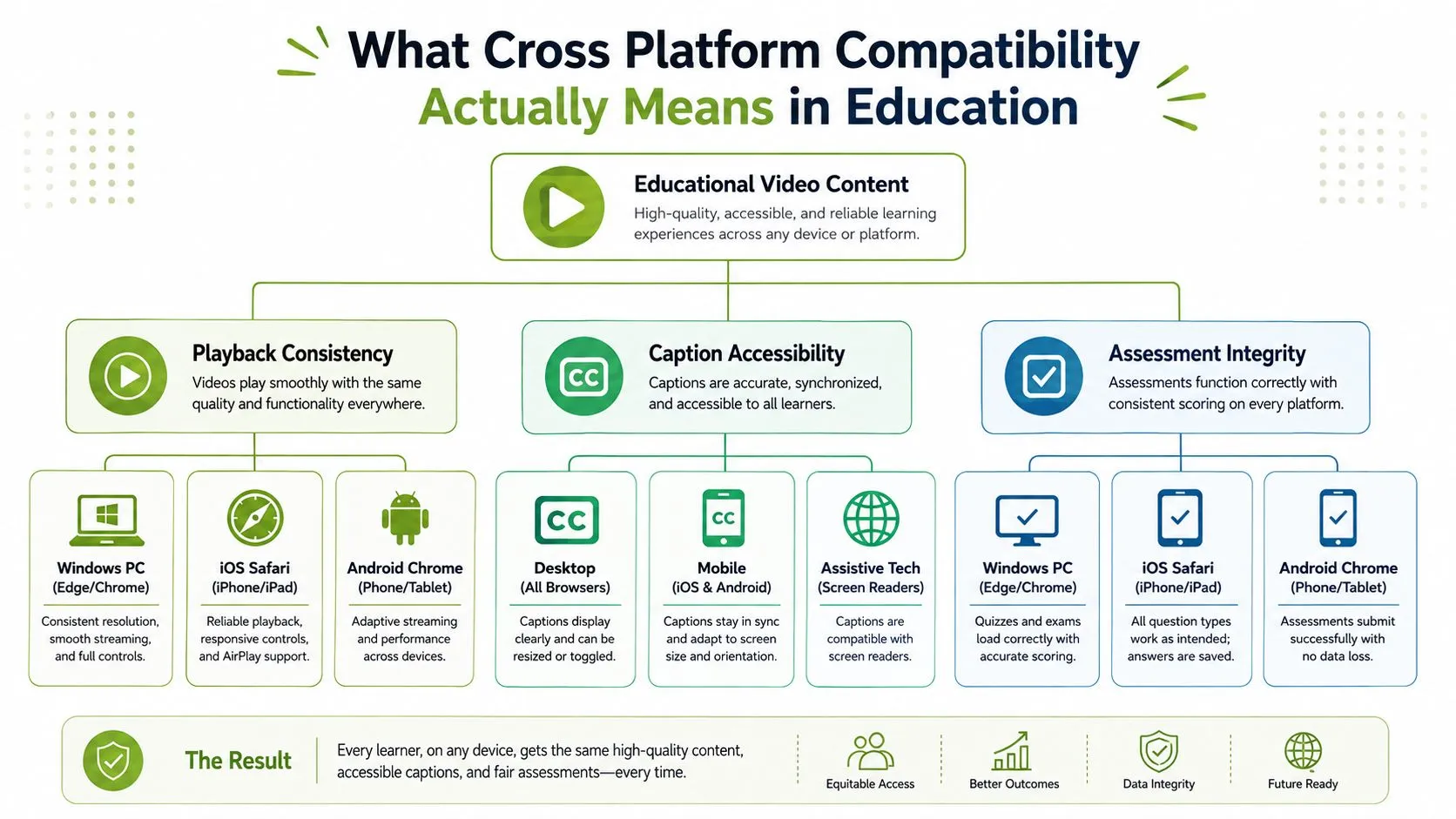
Why “it works in Chrome” isn't enough
GOV.UK's browser and device guidance tests current Chrome, Safari, Edge, Firefox, and Samsung Internet across iOS, Windows, Android, and macOS. This coverage represents approximately 98% of the most popular browsers used on GOV.UK, so it offers a practical model for institutions deciding where to concentrate testing.
For an education team, the equivalent question is not “Does the video play?” It's “Can a learner open the course, authenticate, start the video, turn on captions, seek, complete the activity, and have progress recorded on each supported path?”
Ofcom's Cross Platform Media Tracker has run since 2005, and its 2024 report continues to measure how UK audiences use TV, radio, online, and mobile platforms. That long-running measurement reflects a practical reality for education and training: learners move between screens, and a single-device assumption no longer describes normal use.
Technical Requirements Across Devices, Browsers, and LMSs
Compatibility becomes manageable when teams turn it into technical requirements. A video platform doesn't need a separate course for every device, but it does need reliable media formats, standards-based player behaviour, accessible caption delivery, and integration paths that preserve the learner's identity and progress.
The media and playback foundation
Start with a format that browsers can handle predictably. A common baseline is H.264 or AVC video with AAC audio inside an MP4 container. That combination gives a team a clear source asset to validate before it investigates more complex player behaviour.
Adaptive streaming addresses a different problem. HLS is especially important for Safari and mobile environments, while DASH is commonly used with Chrome and Firefox workflows. The manifest should offer suitable renditions so a learner on a constrained connection isn't forced to download a large stream intended for a desktop network.
The player should use standards-based HTML5 video rather than relying on browser-specific plugins. Media Source Extensions, or MSE, support JavaScript-controlled media segments, while Encrypted Media Extensions, or EME, may be needed for protected content. Each added layer needs testing because encryption, browser permissions, and device support can affect playback independently of the source file.
Captions and LMS connections
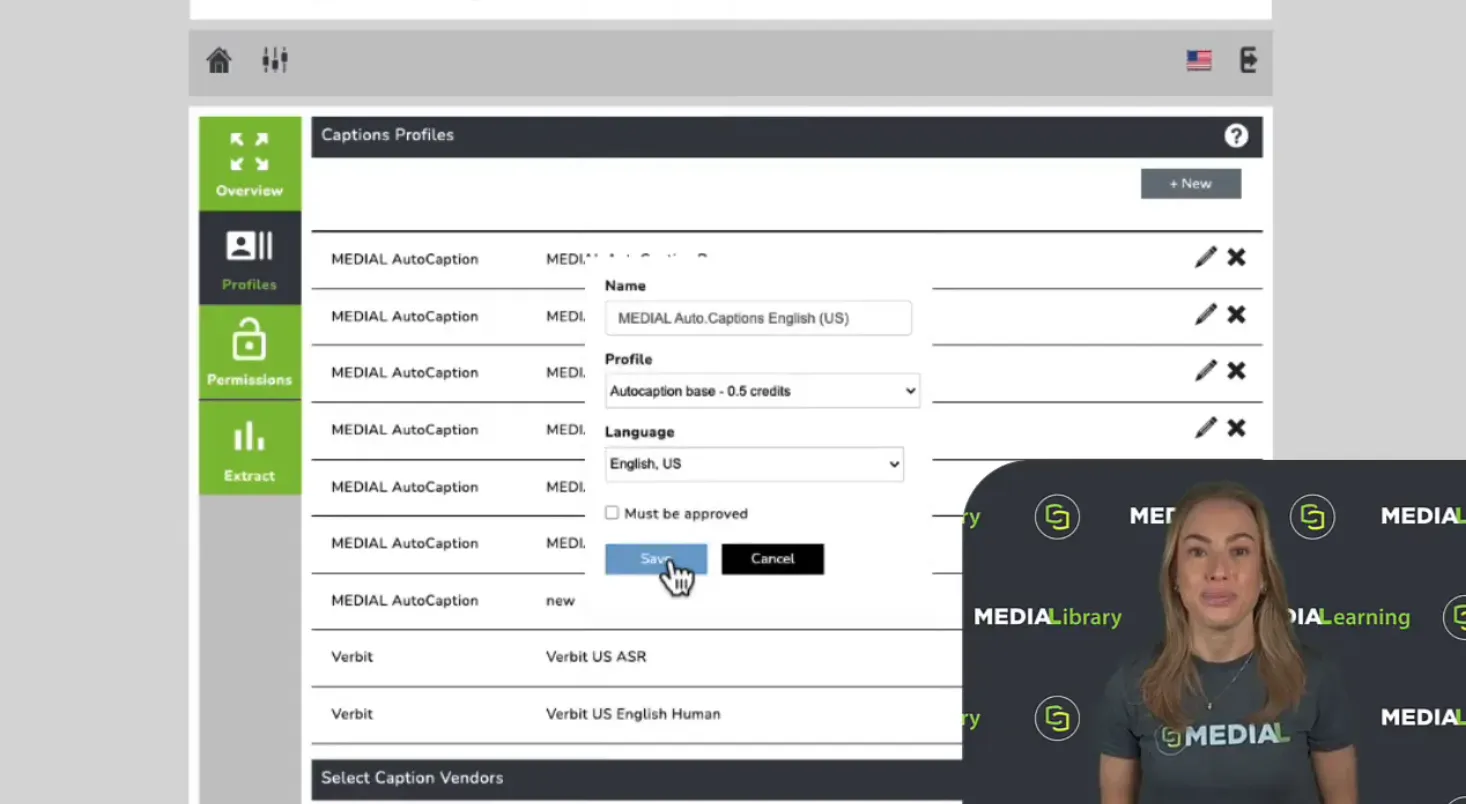
Captions need their own delivery path. WebVTT sidecar files are easy to inspect and update, while in-band CEA-608 or CEA-708 captions can travel within a video stream. Where an LMS requires a managed caption workflow, the delivery method must be verified inside the actual embed rather than only in the media library.
Teams should also document their LMS integration pattern:
LTI 1.3: Handles secure launches between the LMS and an external tool, including identity and course context.
xAPI: Records learning statements such as progress or media interactions where the wider learning record architecture supports them.
SCORM: Remains relevant for legacy platforms that expect packaged learning objects and established completion signals.
The MEDIAL video embedding guidance is useful when reviewing how an iframe is placed in a course page. The embed itself is only one part of the test. The team must also confirm that the player, captions, authentication, and return path survive the LMS environment.
| Technical Pillar | Standard or Format | Primary Browser Coverage | Learner Devices Protected |
|---|---|---|---|
| Video and audio | H.264 or AVC, AAC, MP4 | Chrome, Safari, Edge, Firefox, Samsung Internet | Windows laptops, Macs, tablets, phones |
| Adaptive delivery | HLS and DASH manifests | Safari and mobile browsers for HLS, Chrome and Firefox workflows for DASH | Learners moving between strong and constrained connections |
| Player APIs | HTML5 video, MSE, EME where required | Modern supported browsers | Keyboard, touch, protected-content, and media-control users |
| Captions | WebVTT, SRT, CEA-608/708 where appropriate | Web and mobile players that expose caption tracks | Deaf and hard-of-hearing learners, multilingual learners, noisy environments |
| LMS integration | LTI 1.3, xAPI, SCORM | LMS browser and iframe contexts | Learners whose launch, progress, or completion depends on the LMS |
The WCAG 2.2 Robust principle requires content to be interpreted reliably by a wide variety of user agents and assistive technologies. In practice, standards-based HTML, semantic controls, keyboard operation, and accessible media tracks protect more learners than a visual check alone.
Common Pitfalls That Break Compatibility in Practice
A mixed-device estate exposes different weaknesses from a single desktop test. The fastest way to diagnose a failure is to connect the symptom to one layer, reproduce it on a known browser and device, and then test the smallest possible fix.
The failures teams see most often
A JavaScript-heavy player may stall on a Chromebook because the browser cannot process a script path or media operation as expected. On iPad Safari, autoplay may be refused unless playback is initiated by the learner, and caption tracks may remain hidden if the player doesn't expose the correct control.
Android Chrome can reveal missing or poorly timed WebVTT cues that weren't obvious on a desktop. A learner on a mobile connection may see a slow first frame because the initial segment is too large or the player waits for more data than the device can comfortably receive. An LTI iframe can also fail when the LMS drops query parameters from the launch or return URL.
Use a diagnostic that isolates the suspected fault:
Player behaviour: Open the DASH manifest in a dash.js test player and compare the result with the embedded course player.
Caption timing: Validate the WebVTT file, then check cue visibility and synchronisation on an Android phone and iPad.
Mobile loading: Inspect the network waterfall and test the opening segment on a constrained mobile connection.
LTI launch: Review the LMS developer console and confirm that launch, state, and deep-link return parameters survive the iframe.
Aspect handling: Check that the player preserves the intended frame without cropping controls or captions. Guidance on aspect ratio tips for TikTok and Reels can also help teams understand why source dimensions and display dimensions need to be considered separately.
The adaptive bitrate streaming guidance provides useful context for checking how a stream responds to changing bandwidth rather than treating one fixed rendition as sufficient.
| Pitfall | Symptom | Diagnostic | Fix |
|---|---|---|---|
| JavaScript-heavy player | Stalled controls or frozen first frame | Reproduce in the affected browser with developer tools open | Use standards-based controls, reduce unnecessary script dependencies, and retest the workflow |
| Autoplay assumptions | Video doesn't start on iPad Safari | Test muted and user-initiated playback | Add a clear play control and never make lesson access depend on autoplay |
| Missing captions | Caption button is absent or empty | Inspect the media track and test on mobile players | Attach a validated WebVTT or SRT track and expose the control consistently |
| Caption drift | Text appears before or after speech | Compare cue timing with the recording | Correct cue timestamps and verify on more than one player |
| Slow mobile start | Long wait before the first frame | Inspect segment size and network requests | Use adaptive delivery and a suitable opening rendition |
| Broken LTI return | Launch works but the learner can't return to the LMS | Check launch and deep-link parameters in the LMS console | Preserve required parameters and test the complete launch-to-return path |
How MEDIAL Supports Cross Platform Compatibility
MEDIAL brings several compatibility responsibilities into one media workflow. Its HTML5-based player is designed for use across Chrome, Edge, Safari, Firefox, and mobile browsers, but an implementation team should still validate the exact browser and device matrix used by its learners. The useful question is whether a teacher, learner, or administrator can complete the whole task, not whether the interface merely appears.
A teacher can upload a recording, attach a caption file, and check the result inside the course context. The relevant test is straightforward: open the embedded video on a Windows laptop, an iPad, an Android phone, and a Mac, then confirm playback, seeking, fullscreen behaviour, keyboard access, and caption controls.
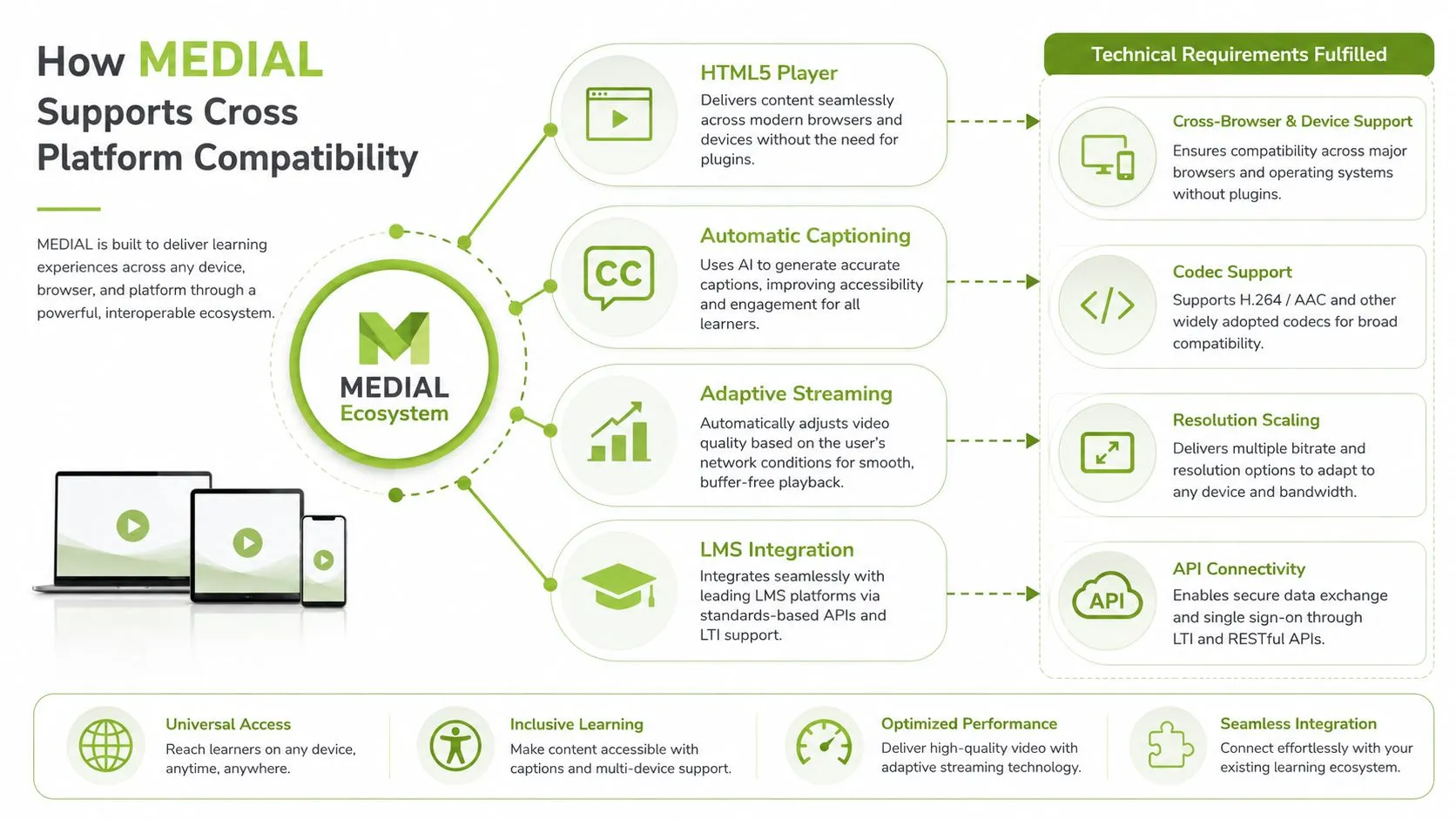
Matching platform features to real workflows
Adaptive HLS and DASH streaming address variation in learner bandwidth and device capability. They don't remove the need for network testing, but they give the player more than one delivery option when a learner's connection changes.
Caption workflows using WebVTT and SRT support the accessibility checks described earlier. The team should confirm that captions remain available in the web player, mobile view, and LMS iframe. UK guidance says public-sector video published on or after 23 September 2020 must include captions under the Public Sector Bodies Accessibility Regulations, and Jisc's video captioning guidance clarifies that the rule applies to pre-recorded, rather than live, content.
For an L&D team, LTI 1.3 can support a cleaner launch from Moodle, Canvas, or Brightspace when the configuration preserves identity and return information. SCORM and xAPI address different institutional requirements, so administrators should choose the path that matches the LMS and reporting model rather than expecting every integration to behave identically.
The media asset management system overview is relevant when a team needs to organise source files, edited versions, caption assets, permissions, and publishing workflows in one controlled environment. An IT administrator can then record browser coverage, failed tests, and corrective actions as part of the service record.
A short demonstration of the player workflow can help teams identify where their own course needs testing.

A Practical Cross Platform Compatibility Checklist
Compatibility testing works best as a repeatable verification routine. Keep the checklist with the course release record, assign an owner for each test, and attach evidence such as screenshots, player logs, caption validation results, and LMS launch results.
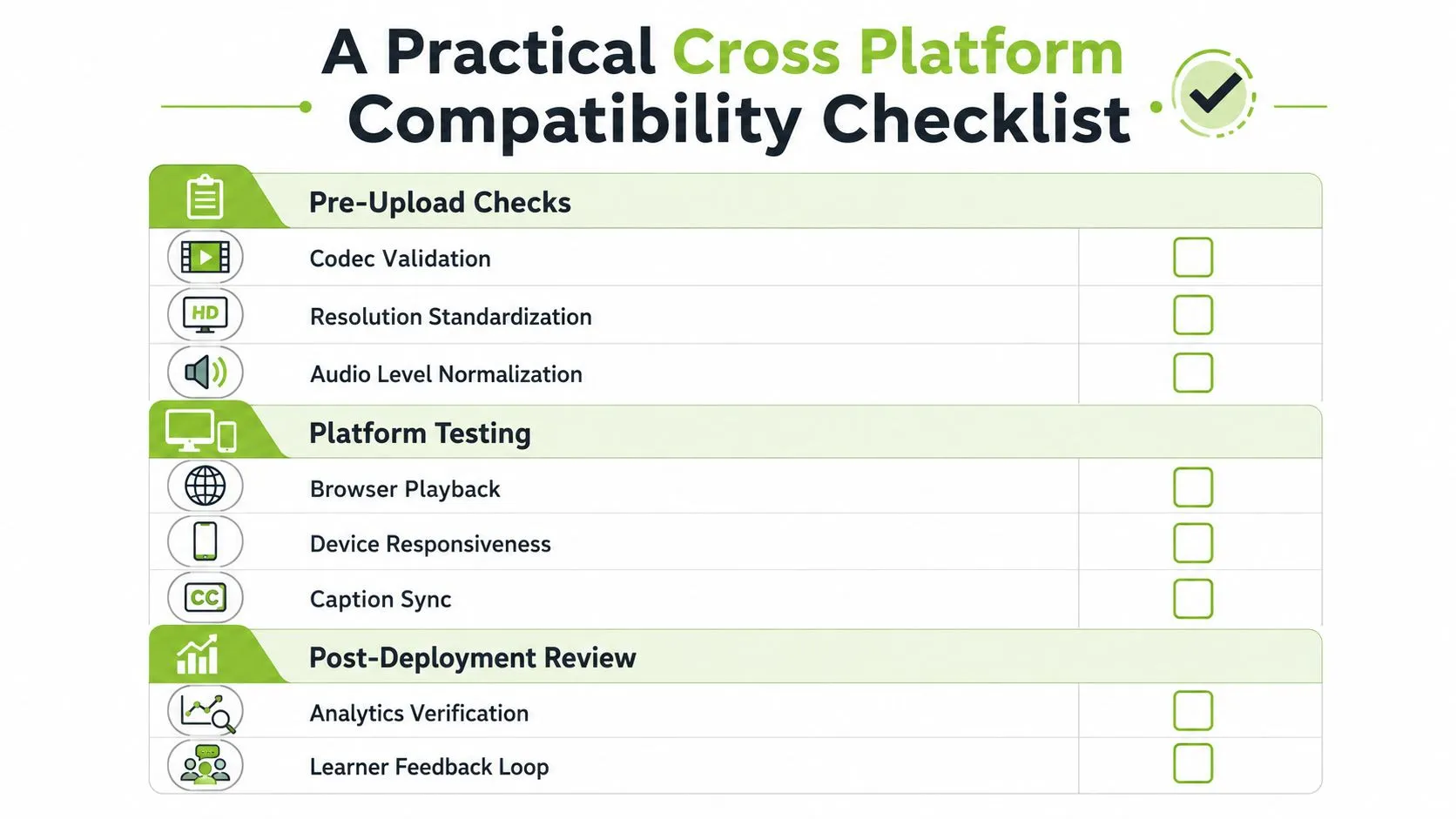
Before publishing the media
Validate the source: Confirm the video uses the agreed codec and container, with a clear audio track and no unexpected encoding error. The pass criterion is a file that imports, processes, and plays in the media platform without a conversion warning.
Check the visual frame: Review the source on a laptop and phone-sized viewport. Make sure text, demonstrations, and speaker framing remain legible without cropping.
Review audio: Listen with speakers and headphones. Check that speech is understandable and that important sounds aren't lost beneath background audio.
Prepare accessibility assets: Attach captions and a transcript where required. If important visual information isn't spoken, provide an audio description or equivalent explanation. UK government guidance recommends synchronised captions for audiovisual content and a transcript and audio description where important visual information is present. See the UK accessibility standards guidance for the broader requirement.
Test the real learning path
Browser playback: Test the supported Chrome, Safari, Edge, Firefox, and Samsung Internet combinations across the relevant operating systems and devices. Record whether learners can start, pause, seek, change volume, enter fullscreen, and activate captions.
Device interaction: Use keyboard navigation on laptops and touch interaction on phones and tablets. The pass criterion is that no core control depends on a mouse hover or an unavailable gesture.
Caption synchronisation: Compare captions with speech and important sounds on at least one desktop and one mobile player. Check timing, line breaks, visibility, and the caption toggle.
LMS launch: Open the course through the normal learner role and confirm that authentication, iframe loading, activity completion, and return navigation work.
Live rehearsal: Run the live session on a mobile device and a low-bandwidth connection before inviting learners. For live subtitles, Ofcom recommends an average delay of no more than 4.5 seconds in its accessibility best-practice guidance.
After launch
Monitor playback failures, caption-related support requests, and LMS completion anomalies. Ask teachers and learners which device and browser they used when reporting a problem, then add repeat failures to the next test cycle.
Making Compatibility an Ongoing Practice
A course can pass testing on its release day and still need attention later. Browsers release changes, operating systems update media behaviour, devices introduce new screen sizes, and LMS vendors modify iframe, authentication, or accessibility handling. Compatibility is a service responsibility, not a tick box attached to one course release.
UK public-sector guidance makes that responsibility concrete. Services, including those using third-party tools, must meet WCAG 2.2 Level AA from October 2024, as described in the GOV.UK Design System accessibility guidance. That doesn't mean an institution can test once and stop. It means accessibility and reliability need to remain visible in release planning, procurement, support, and quality assurance.
Give the work a clear rhythm
A lightweight governance routine can include:
Quarterly browser and device audit: Review the supported matrix, test representative learner journeys, and retire combinations your institution no longer supports only after communicating the decision.
Annual media review: Recheck codecs, caption workflows, streaming manifests, player behaviour, and LMS integration patterns.
Release-triggered testing: Repeat core checks after a significant browser, operating system, player, or LMS change.
Feedback capture: Ask staff and learners to report the device, browser, operating system, course, and exact failure. Convert recurring issues into permanent checklist items.
Shared ownership: Give L&D responsibility for learning workflows, IT responsibility for technical coverage, and accessibility leads responsibility for conformance and inclusive interaction.
Documented decisions: Store test results, exceptions, support boundaries, and known workarounds so new staff don't have to rediscover the same failures.
Governance principle: A compatibility matrix becomes valuable when someone uses it to make a release decision.
For schools, universities, and training providers, the next practical step is to test a representative course rather than a blank demo page. Use MEDIAL with the devices your learners bring, book a demo to walk through the checklist against a real LMS workflow, and subscribe to release notes so your compatibility process evolves with the platform.
MEDIAL provides video hosting, browser-based editing, caption generation, live streaming, and integrations for LMS environments such as Moodle, Canvas, Blackboard, and D2L Brightspace. Visit MEDIAL to explore a free trial or arrange a personalised demo focused on your video, caption, playback, and LMS compatibility checks.