MEDIAL | How to Enable Closed Captions in MEDIAL

Why enabling closed captions matters
Closed captions make content accessible, searchable, and easier to consume in noisy or muted environments. Enabling captions in MEDIAL helps your content reach a wider audience, supports compliance with accessibility standards, and improves engagement by making spoken content discoverable through text. The workflow is straightforward: create a captions profile, set permissions for who can request or auto-generate captions, submit caption requests, and approve or edit captions as needed.
Quick overview of the workflow
with the correct language and settings.
so specific users or groups can request, automatically receive, or approve captions.
when uploading media or rely on automatic captioning.
in the captions area of the admin site.
Step 1 - Create a captions profile
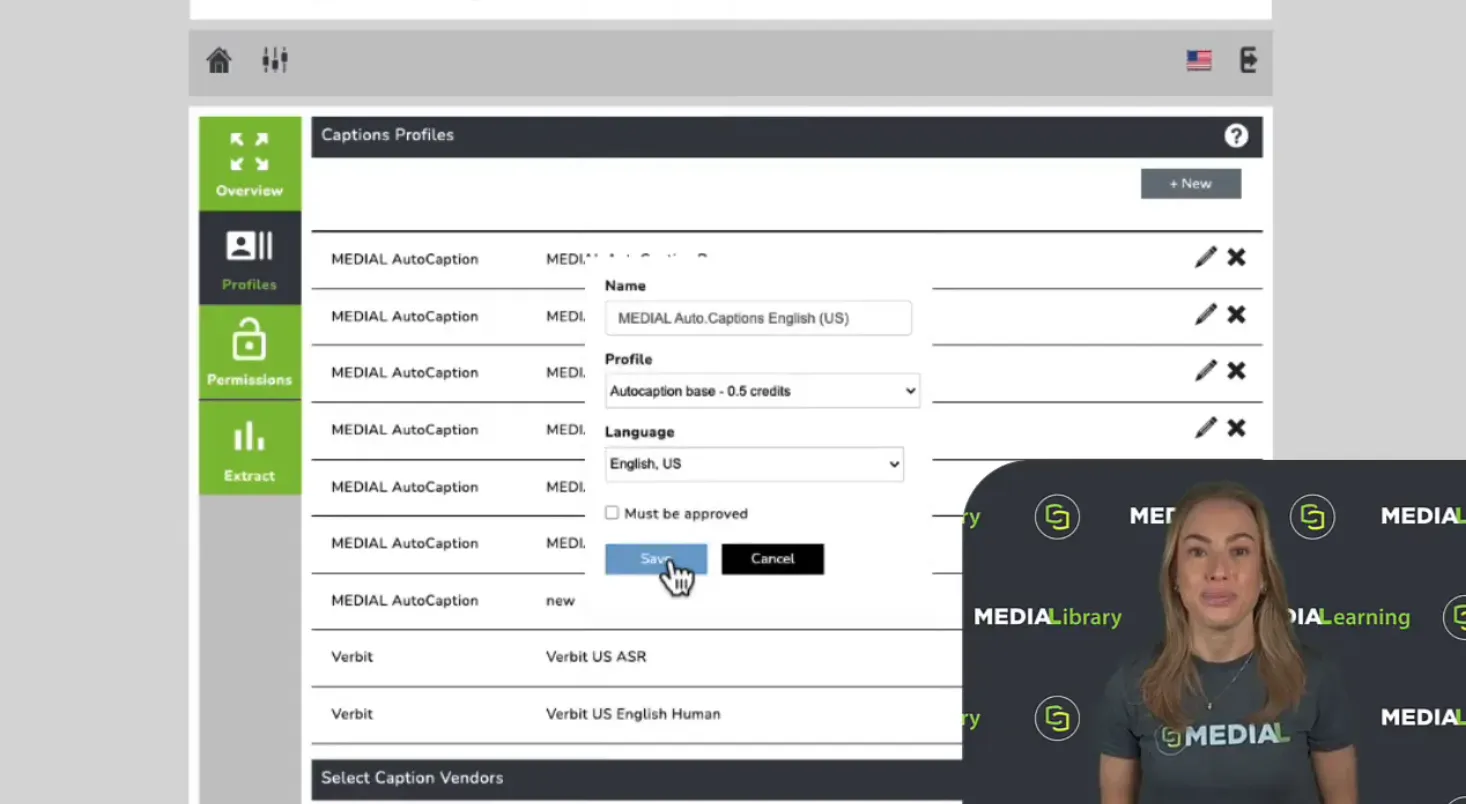
Start by signing in to your admin account and opening the dashboard. From the dashboard, click the closed captions icon and navigate to the profiles section. Click New and give the profile a clear name that indicates its purpose and language, for example MEDIAL Auto Captions EnglishUS. Then select the target language for captions and click Save. The new captions profile will now be available to assign to users or groups.
Step 2 - Set up permissions
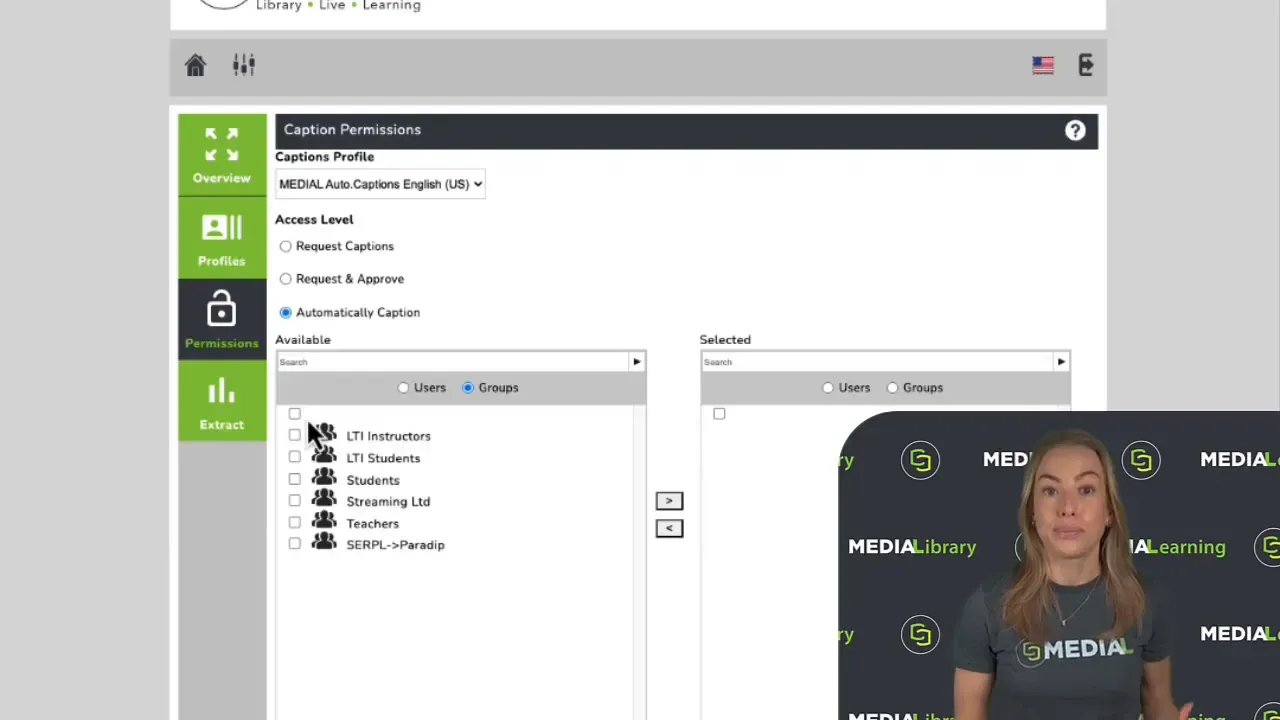
After creating a profile, decide who can use it. Go to the permissions area and select the profile you just created. There are three common access options to choose from:
- Users or groups can manually request captions for specific videos.
- Any upload by the selected users or groups will be captioned automatically without extra steps.
- Selected users can request captions and also act as approvers, giving them rights to approve caption requests from other users.
To grant permission, use the user or group search, select the items you want, and use the arrow controls to move them into the selected box. If you want everyone to receive captions automatically, choose All groups and move them into the selected area. If there are exceptions - for example, student uploads that should not be auto-captioned - remove those specific groups using the back arrow.
Step 3 - Request captions as an uploader
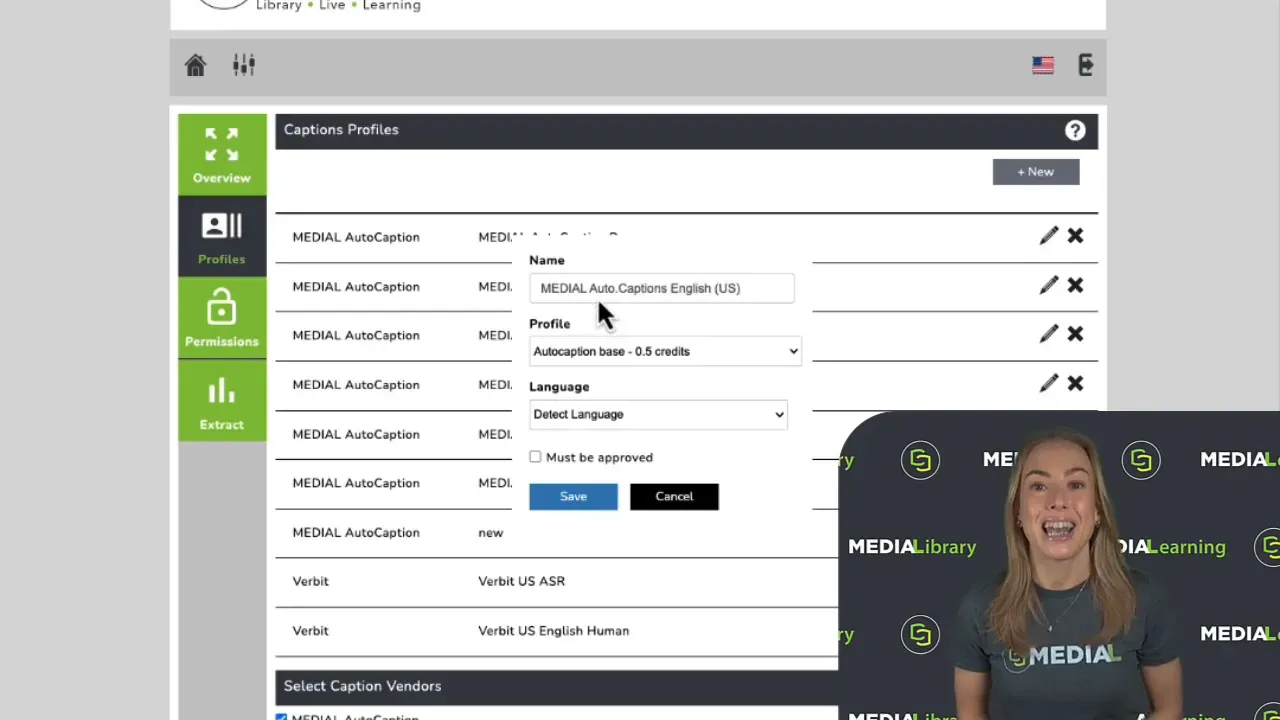
Users who have been granted request permissions will see a captions option during the upload flow. While adding title, description, contact email, and choosing a thumbnail, click Request captions, choose the appropriate captions profile, then proceed to confirm the request. If the uploader belongs to a group with automatic captioning enabled, no manual step is necessary; the captions will be created automatically after upload.
Step 4 - Approve and edit captions
Users assigned the request and approve role get access to the captions area in the media admin site, which looks slightly different in the dashboard. A bell icon will appear on the closed captions control to indicate access to the captions workflow. Under the overview or captions section, requested items appear in a list where approvers can review and either approve or edit the captions. To approve, click the check mark in the actions column. To make changes, open the captions editor using the menu lines and make necessary edits before approving.
Best practices and tips
so administrators and contributors can quickly select the right captions option for each language or use case.
to reduce manual overhead. Reserve request and approve for sensitive or high-stakes videos that require human review.
to avoid captioning content that should remain private or where captions are unnecessary.
so someone with knowledge of the content and language can quickly edit and approve captions.
for proper names, technical terms, and acronyms to improve accuracy and searchability.
Common troubleshooting
- Verify the captions profile was selected during upload and that the uploader is part of the group or user list with permission to request or auto-caption.
- Confirm the captions profile language setting matches the video's spoken language.
- If a request sits pending, check that someone has request and approve rights and that approvers have visibility to the captions area.
- Ensure approvers finish the edit workflow and click the appropriate save or approve action in the captions editor.
Accessibility and compliance considerations
Closed captions support compliance with accessibility standards and improve equity by making audio content available to people who are deaf or hard of hearing. Captions also aid learners, non native language speakers, and anyone in environments where audio cannot be used. Having an organized captions workflow in MEDIAL ensures captions are applied consistently and reviewed when necessary.
FAQ
How do I create a new captions profile in MEDIAL?
Go to the closed captions area from the dashboard, open profiles, click New, name the profile, select the language, and save. The profile will be available for permission assignment.
Who can request captions?
Users or groups added to the profile with the Request captions permission can manually request captions when uploading media. Administrators can also grant Request and approve rights so selected users can approve caption requests.
Can captions be generated automatically for all uploads?
Yes. Assign the Automatically caption permission to the desired user groups to have captions generated automatically for any uploads by those users.
What if captions need editing after generation?
Approvers or users with editing access can open the captions editor from the captions area and make corrections before approving the captions.
How do I prevent certain groups from being auto-captioned?
During permission setup, remove specific groups from the Automatically caption selection by selecting them and using the back arrow to exclude them.