How to Share a Video from YouTube: A Guide for Educators
You've found the right explainer. It's on YouTube, students will understand it in minutes, and your course page needs it today. Then the small decisions start piling up. Do you paste the page URL or use Share? Do you send the whole video or just the key segment? Do you embed it in Canvas, drop it into Moodle, or post it in Teams? And if you're working in a school, university, or corporate LMS, is a public YouTube link the right choice?
That's why knowing how to share a video from YouTube matters more than it used to. The mechanics are simple. The consequences of choosing the wrong method aren't.
Why Sharing YouTube Videos is a Core Skill for 2026
A common teaching problem looks like this. You've got a three-minute clip that explains mitosis better than any worksheet, or a product demo that saves your training team from repeating the same live walkthrough. The content already exists. The main task is getting it to learners quickly, cleanly, and in a format that works on the devices and systems they already use.
That's not a niche workflow anymore. As of 2025, YouTube has surpassed 2.58 billion active users globally, with approximately 79% of UK adults using the platform, and 60% of UK internet users prefer online video platforms over live TV, according to Backlinko's YouTube user analysis. For educators and trainers, that means YouTube isn't just another website. It's one of the default ways people receive information.
The practical reason this matters
Students already expect video links in Moodle, Canvas, Blackboard, Teams, email, and chat. Colleagues share CPD resources the same way. Marketing teams and communications teams do it too, especially when they're scaling your brand's video podcast or turning recorded sessions into reusable teaching assets.
What changes the quality of delivery isn't whether you share a video. It's how you share it.
A few examples:
Quick lesson support works best with a clean link in an LMS announcement or email.
Seminar preparation often needs a timestamped link so learners land on the exact section.
Module design may call for embedding the player directly into a course page.
Sensitive teaching or training may require more control than YouTube can offer.
Practical rule: Use the simplest sharing method that still gives you the control your context requires.
The methods worth knowing
In day-to-day practice, there are four YouTube sharing methods that solve most needs:
Copying a standard share link for email, chat, or LMS text areas.
Using mobile sharing options to send directly into apps like WhatsApp.
Creating timestamped links for precise clips.
Embedding the video player into a website or LMS page.
Each one has a place. Each one also has trade-offs that become more obvious in education and workplace learning.
The Quickest Ways to Share a YouTube Link
If you just need to send a video to a class, colleague, or training cohort, the fastest route is usually the built-in Share button beneath the video.
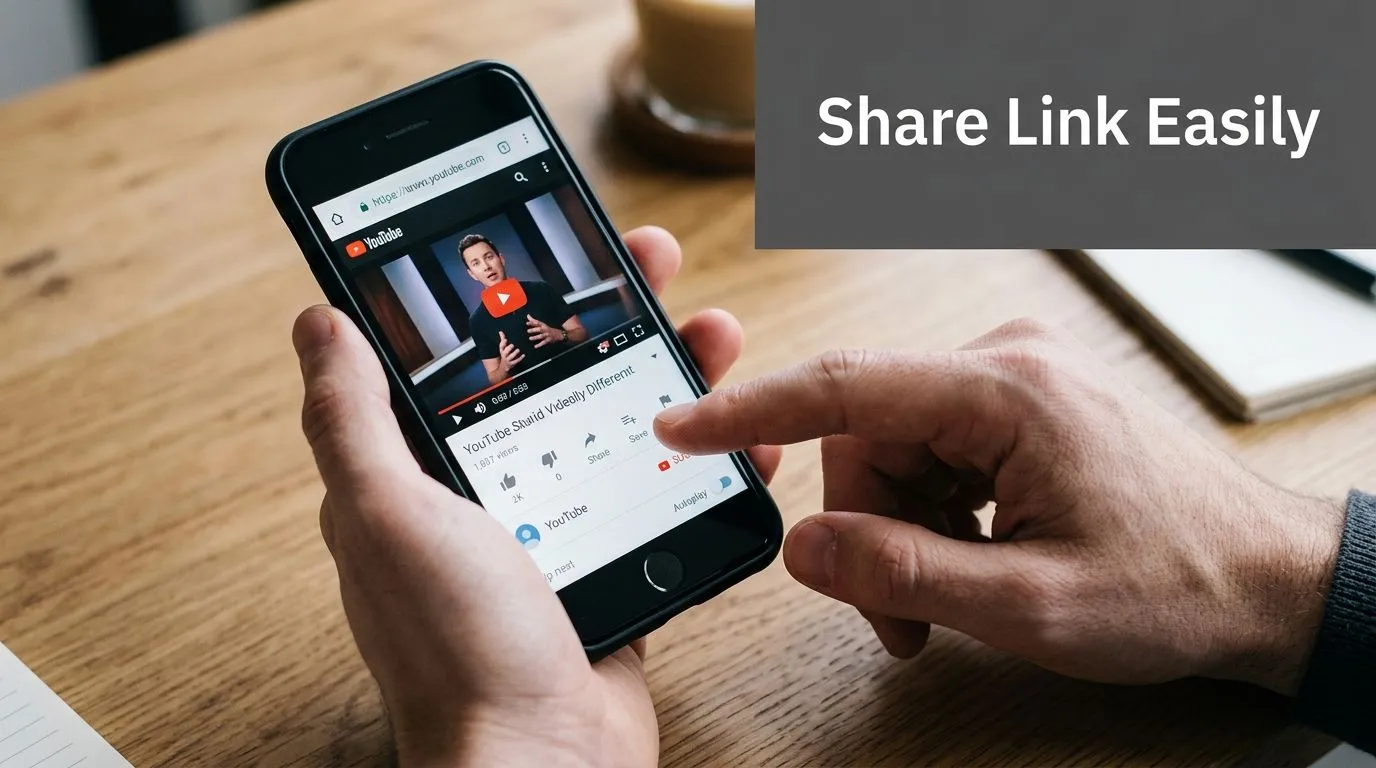
On desktop, click Share, then copy the link YouTube generates. That URL is usually cleaner than grabbing the full address from the browser bar, especially if the original page URL contains extra tracking parameters. For most routine use, this is the link you want in:
Course announcements
Email messages
Teams or Slack posts
Discussion boards
Reading or resource lists
The standard workflow that works
Use this when speed matters more than customisation:
Open the video.
Click Share below the player.
Select Copy.
Paste the link where learners will see it.
That last step matters. A good share workflow isn't only technical. It's about placement. A video buried in week-old announcements gets ignored. A video linked beside the exact assignment prompt gets used.
Put the link next to the task, not in a general resource dump.
Mobile is often faster than desktop
On phones and tablets, YouTube's mobile flow is often the quickest option for peer sharing. For UK users sharing via mobile devices, the Share button below the video triggers a native Android or iOS share menu with options for WhatsApp, Facebook, and X, which are primary communication channels for 78% of UK students and teachers for quick content distribution, as noted in YouTube's mobile sharing demonstration.
In practice, that means a tutor can send a revision clip to a WhatsApp group in seconds, or a trainer can push a product walkthrough into a team chat without copying and pasting anything manually.
Which option should you use
Different channels suit different teaching moments. This quick comparison keeps it simple:
| Situation | Best method | Why |
|---|---|---|
| One-off link to a colleague | Copy from Share | Fast and clean |
| Student group message on mobile | Native share menu | Fewer taps |
| Weekly module page | Paste link into LMS content area | Keeps context with the lesson |
| Staff training chat | Share into app directly | Better visibility than email |
A few habits save time later:
Check visibility first. If a video has been removed, age-restricted, or restricted by the owner, your neatly shared link still fails.
Add one sentence of context. Tell learners why they're opening it.
Avoid dumping raw links alone. A label such as “Watch before Thursday seminar” gets better follow-through.
If all you need is a plain link, stop there. If you need learners to jump to a precise moment, the next method is better.
Sharing Specific Video Clips and Playlists
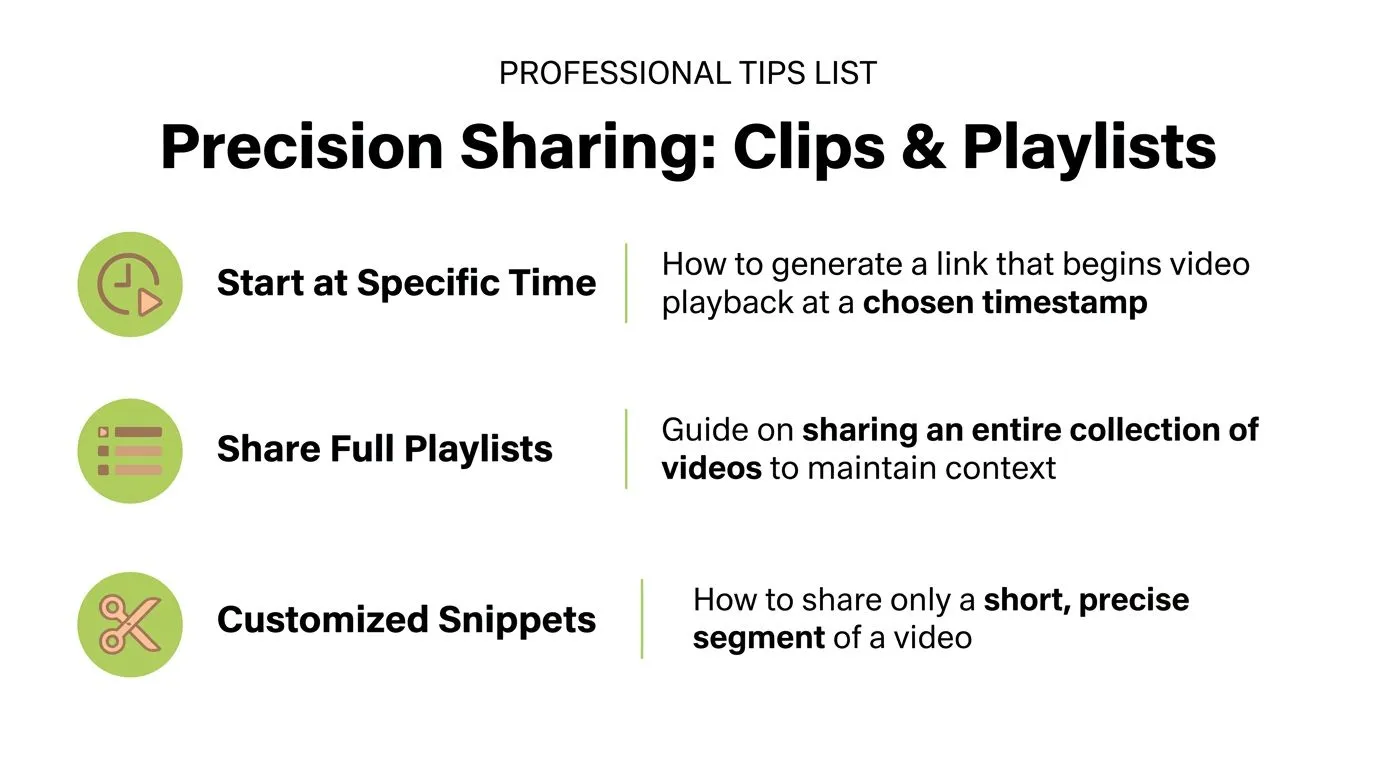
Sometimes the whole video is too much. You only want the part where the lecturer demonstrates the formula, the historian explains the primary source, or the trainer walks through the compliance step your team keeps missing. That's where timestamped sharing becomes useful.
YouTube already supports this. In the Share panel, tick Start at and enter the time you want. YouTube then creates a link with a timestamp parameter so playback begins at that exact point. Google's own guidance confirms that this feature appends the time to the shared URL and sends viewers straight to the relevant moment through the YouTube Help instructions for sharing with a start time.
When timestamped links help most
Timestamp links are especially useful when:
A long lecture contains one assigned segment
A flipped lesson depends on one demonstration
A training video includes a single mandatory procedure
You want to reduce distraction from non-essential sections
This is much better than telling students, “Start at about two and a half minutes.” If you can remove that friction, do it.
The LMS problem most guides skip
In institutional systems, timestamp links aren't always reliable. Analysis of UK-based traffic data indicates that 34% of shared video links with a start time fail to load correctly on older LMS browsers. Educators can bypass this by manually appending to the URL, which ensures 98% success rates across UK institutional networks.
That's a very practical distinction. The link generated by YouTube's Share panel may be fine in a normal browser session, but older Moodle or LMS browser environments can behave differently.
If a timestamped link is going into an LMS, test it in student view before publishing it.
A more dependable way to share a clip
Instead of relying on the Share panel alone, use this approach for course pages:
Copy the normal video URL.
Convert your desired start point into seconds.
Add followed by the number of seconds.
Example:
Standard URL:
Start at two minutes:
The exact URL format can vary depending on the original link style, so always test it after pasting into your LMS. The key point is the method: manual start parameters are often more dependable in education systems than the default share dialogue.
Don't overlook playlists
Playlists solve a different problem. They're useful when one video isn't enough and you want to preserve sequence. A curated YouTube playlist can work well for:
Pre-class viewing bundles
Research methods resources
Staff induction materials
Multi-part technical training
A playlist link helps learners stay in a structured path rather than bouncing into unrelated recommendations. That said, playlists are still public-platform objects. They're convenient for open learning. They're less ideal when you need stronger control over access, completion, or ownership.
Embedding YouTube Videos on Your Website or LMS
Embedding means the video plays directly inside your own page rather than sending users out to YouTube in a new tab. For teaching, that usually creates a smoother experience. Students stay in the course page, instructions remain visible, and the resource feels part of the lesson rather than a detour.
The default YouTube route is simple enough. Open the video, click Share, choose Embed, then copy the code. Paste that code into the HTML area of your website, Canvas page, Blackboard item, or other LMS content block.
Why default embed code often isn't enough
In schools and universities, the default code can break in ways that don't show up during quick testing. Device restrictions, browser privacy settings, and institutional filtering all play a part. Technical benchmarks reveal that 41% of UK educators encounter “access denied” errors when embedding “unlisted” videos due to UK GDPR compliance filters. Manually constructing the iframe with ensures 96% successful embedding across all major LMS platforms.
That's why “it worked on my laptop” isn't a reliable test standard for LMS video.
A stronger embed workflow
When you embed a YouTube video in an LMS, check these elements in the iframe:
Fullscreen support. Include .
Referrer policy. Use .
Loading behaviour. Add so the page doesn't try to load everything at once.
A practical iframe setup often looks cleaner and behaves better than the code copied straight from YouTube, particularly in locked-down environments.
The embed code YouTube gives you is a starting point, not a final draft.
Where this matters most
Embedding is often the right choice for:
| Use case | Why embed instead of linking |
|---|---|
| Canvas page with instructions | Learners can read and watch in one place |
| Blackboard module item | Fewer clicks and less context switching |
| Public course microsite | Better presentation and page flow |
| Staff intranet article | Keeps viewers inside the training environment |
If you're working in Canvas specifically, this practical walkthrough on how to embed video in Canvas is a useful reference for getting placement and page setup right.
One warning is worth keeping in mind. If the video owner disables embedding or changes permissions later, your LMS page may suddenly display an error or empty player. That's one reason many institutions prefer hosting key teaching media in a system they control rather than relying on third-party availability.
Navigating YouTube's Privacy and Permissions
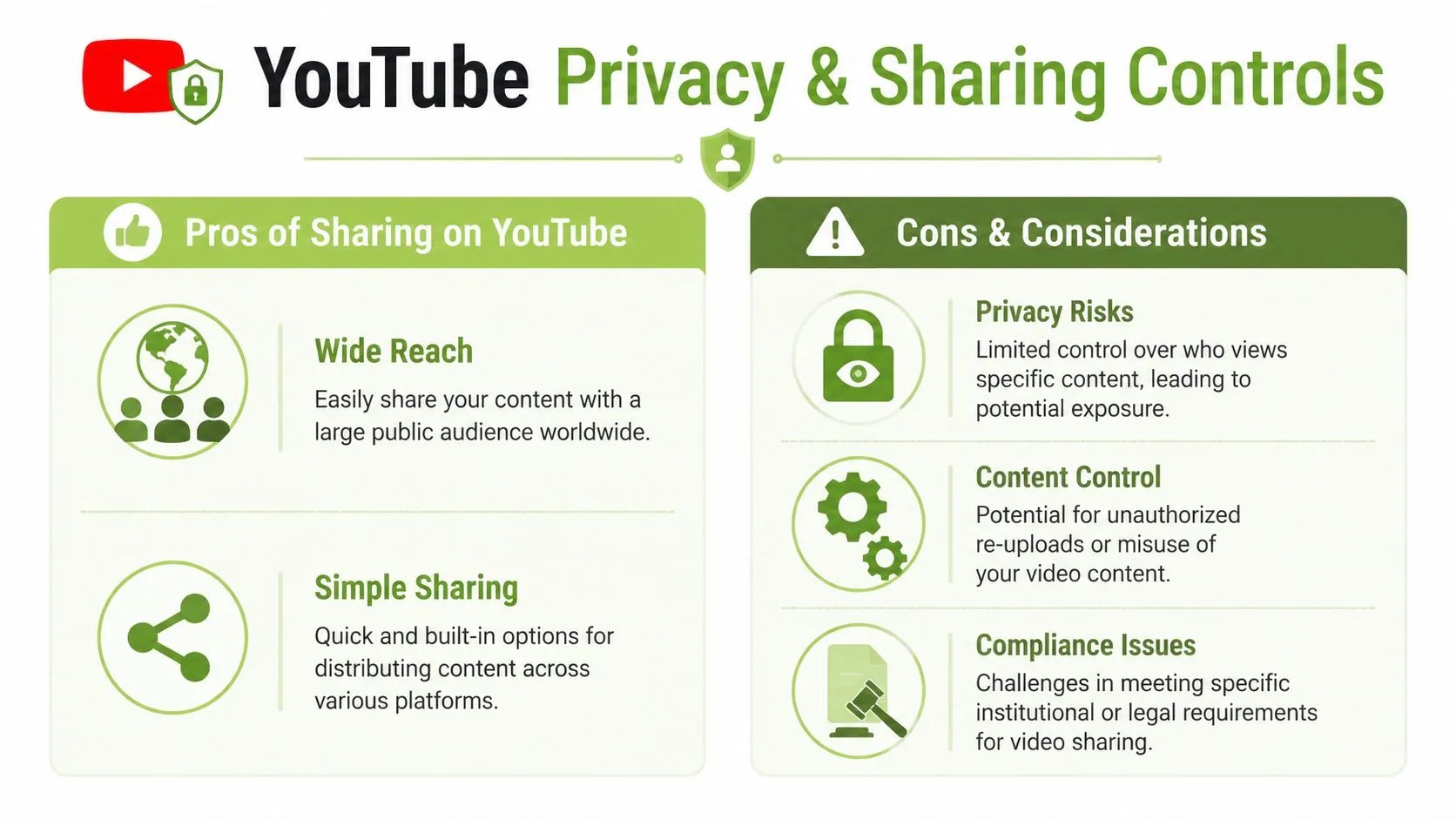
The technical act of sharing a YouTube video is easy. The governance side is where teams get caught out.
Individuals are familiar with the three basic visibility settings, but they often assume those settings answer the compliance question. They don't.
What public, unlisted, and private really mean
A simple comparison helps:
| Setting | What it does | Where it fits | Main limitation |
|---|---|---|---|
| Public | Anyone can find and watch it | Open teaching, marketing, broad awareness | Minimal control over audience |
| Unlisted | Anyone with the link can view it | Small class groups, limited distribution | Links can still be forwarded |
| Private | Only selected accounts can view it | Tight access control | Awkward for larger cohorts and LMS workflows |
Public is fine when the content is meant for open distribution. Unlisted is often treated as “safe enough” for classroom sharing, but that assumption can be risky. If the link escapes the intended audience, access goes with it. Private is stricter, but it's also harder to manage at scale, especially across institutional accounts.
For readers comparing options for more restricted sharing, this overview of how to share a private video on YouTube is worth reviewing before you build a workflow around YouTube permissions alone.
The compliance issue many teams miss
In UK education, privacy settings and legal compliance are not the same thing. A 2024 report by the UK Information Commissioner's Office found that 34% of UK schools accidentally shared non-compliant video content via external platforms like YouTube in their LMS without proper consent or data processing agreements.
That finding matters because staff often focus on whether learners can access the video, not whether the sharing method is institutionally defensible.
Questions worth asking before embedding or posting a YouTube asset in an LMS:
Does the video include identifiable people who haven't consented to this use?
Is the content owned by the institution, the lecturer, or a third party?
Does the LMS placement create a data protection issue?
Would you be comfortable defending this workflow to your data protection lead?
A video can be easy to share and still be the wrong thing to share.
Intellectual property and data handling
YouTube is built for distribution. Education and workplace learning often need restriction, auditability, and tighter content handling. That's why institutions increasingly treat public-platform sharing as one option among many, not the default answer for every video task.
If your role includes event delivery, recordings, or media handling beyond the classroom, this guide on secure data for event professionals offers a useful parallel on how teams think about storage, access, and risk when video assets carry operational or personal data.
The practical takeaway is straightforward. If the video is public, low-risk, and designed for broad access, YouTube can be perfectly suitable. If the content touches student data, staff training records, internal IP, or restricted teaching materials, you need stronger controls than YouTube was designed to provide.
Beyond YouTube Secure Video Sharing with MEDIAL
By the time teams run into repeated YouTube issues, the pattern is usually clear. A link works in one browser but not another. An embed breaks after permissions change. An unlisted video turns out not to be private enough. A compliance review raises questions no one asked when the course page was built.
That doesn't mean YouTube is useless. It means YouTube is best for public or broadly shareable content, not for every institutional video workflow.
A professional teaching environment usually needs more than link sharing. It needs controlled access, reliable LMS integration, support for assessment and feedback workflows, and clearer ownership of the media itself. That's where a dedicated platform becomes the better fit.
What a secure platform changes
Instead of working around a public video platform, institutions can use a system designed for education and training from the start. That typically means:
Direct LMS integration with Moodle, Canvas, Blackboard, and similar systems
Granular permissions so access matches cohort, role, or module
Protected hosting for teaching materials, internal training, and sensitive recordings
Integrated media workflows such as captioning, trimming, assignment responses, and live session capture
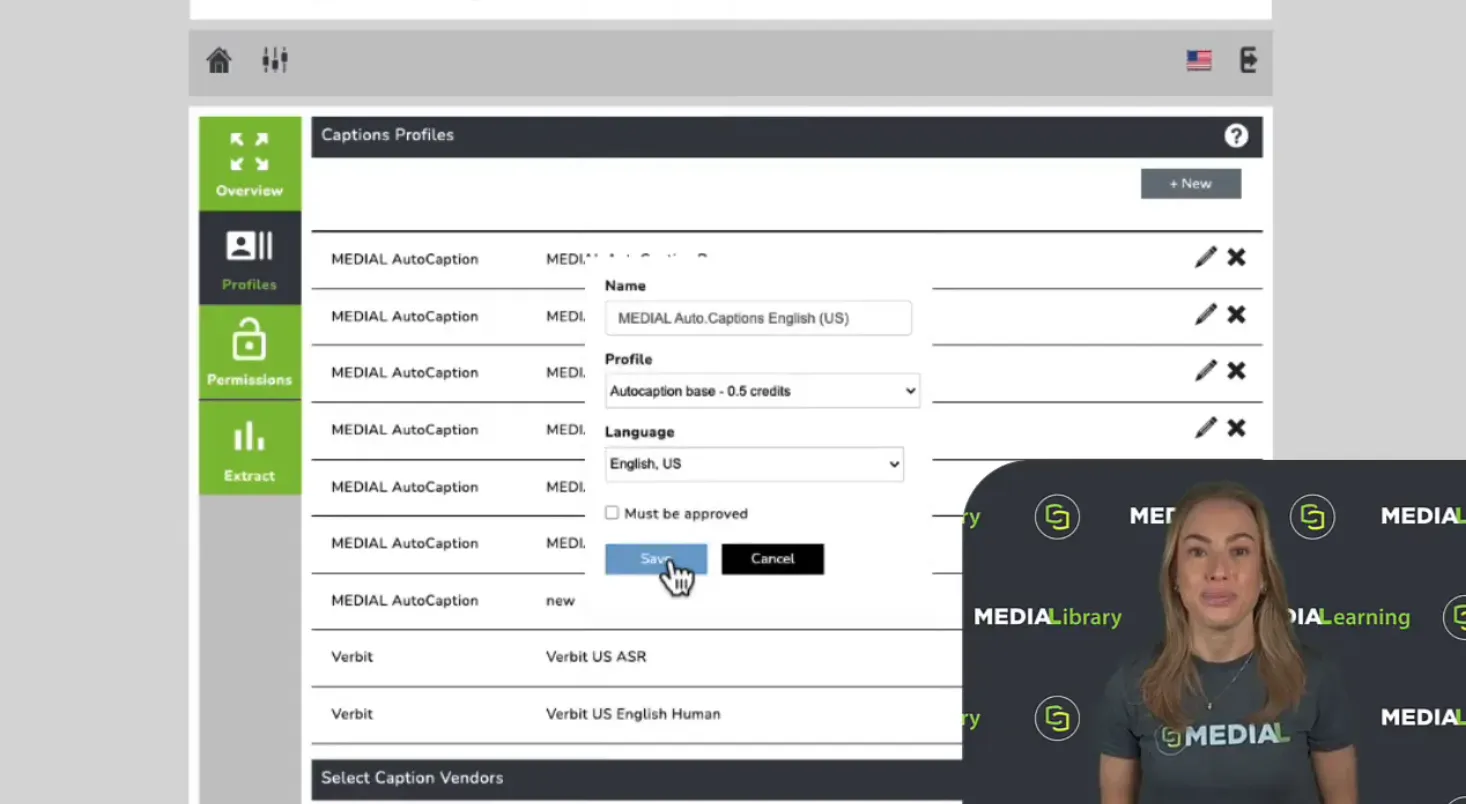
If your current process starts on YouTube because it's convenient, but ends in troubleshooting, policy questions, or support tickets, it's worth looking at a more controlled option. This guide to securely upload from YouTube to your LMS with MEDIAL is a good next step if you're evaluating a safer institutional workflow.
A fundamental shift is mindset. Don't ask only, “How do I share this video?” Ask, “What level of control does this video require?”
If your team needs to share video confidently inside Moodle, Canvas, Blackboard, or corporate training systems, MEDIAL gives you a secure, education-focused alternative to public-platform workarounds. It's built for controlled access, reliable LMS delivery, protected media management, and the day-to-day reality of teaching and training at scale.