MEDIAL Video Editing Feature: Trim, Chop, and Export Videos in Your Browser
Video content is rarely perfect the moment recording stops. There may be a few seconds of setup at the beginning, a pause in the middle, or a longer recording that would be more useful as several focused clips. MEDIAL makes those everyday edits straightforward through a web browser, with editing tools available in both the MEDIAL CMS and your LMS.
The built-in editor gives you three practical options: Trim, Chop, and Export. Together, they make it easy to refine a recording, remove unwanted sections, or create new video assets from a longer piece of content.
Table of Contents
Access the MEDIAL Editor Where You Work
Editing should fit naturally into the way you already manage media. The MEDIAL editor can be opened from several locations, so there is no need to download a file, open separate desktop software, and upload a replacement afterward.
You can access editing tools directly from:
A video in your MEDIALibrary
A video within a playlist
The content listing in the CMS
MEDIAL Search within your LMS
This flexibility is particularly useful for educators and content owners who manage video across courses, modules, playlists, and central media libraries. Whether you are preparing a recording before sharing it or refining an existing asset, the editor remains close to the content itself.
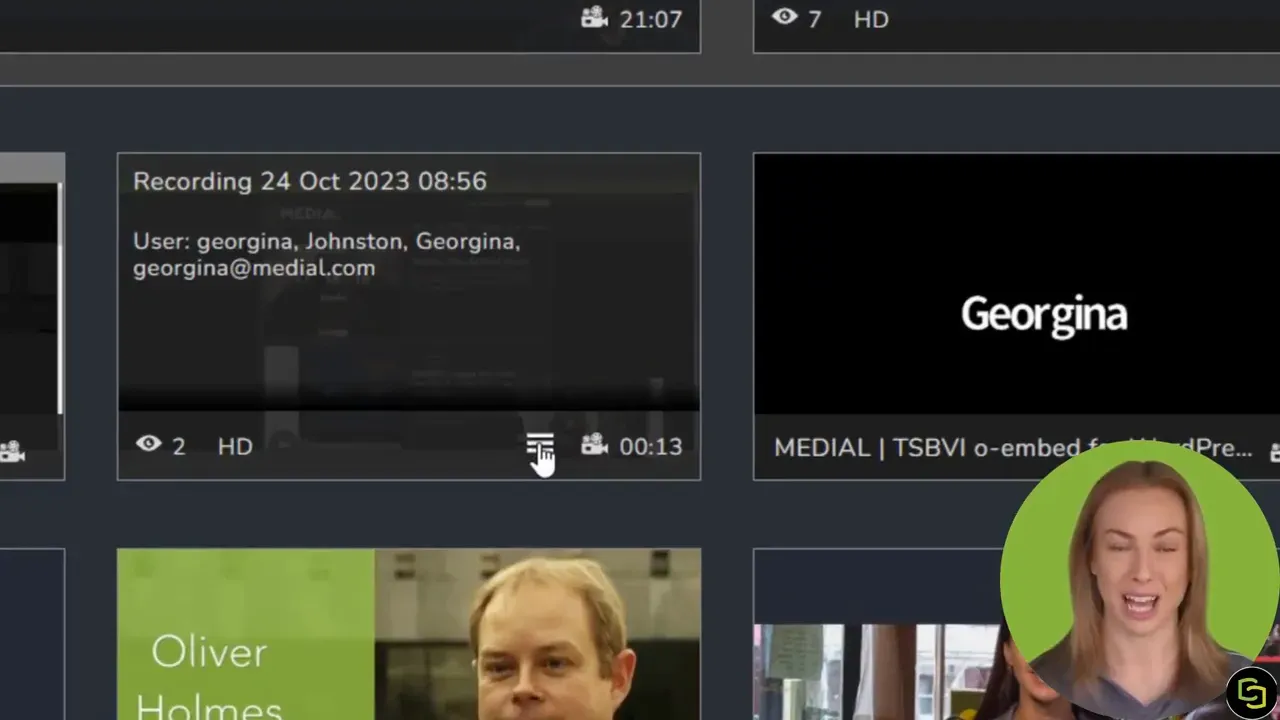
From the video options menu, select Edit to open the editor. The same core editing experience is available regardless of where the media is accessed, helping teams keep their workflow simple and consistent.
For a broader look at browser-based editing workflows, explore the MEDIAL video editing tools and how edited media can be managed alongside your existing recordings.
Three Ways to Edit Video in MEDIAL
Each editing mode has a distinct purpose. Choosing the right one at the start makes the process faster and keeps the final video aligned with what you want learners or colleagues to see.
1. Trim: Clean Up the Beginning and End
Trim is the ideal tool for top-and-tail editing. Use it when the main content is already intact but the recording includes material before it begins or after it finishes.
Typical trim edits include removing:
Quiet setup time before a presenter starts
Accidental recording at the beginning
Closing housekeeping after the relevant content ends
Extra silence at the end of a session
Trimming is a clean, efficient way to make a video feel more polished without changing anything in the middle. Simply set the desired start and end points, then save the edited version according to your chosen workflow.
2. Chop: Remove Unwanted Sections Within a Video
Chop is designed for edits inside a recording. Rather than only shortening the beginning or end, it allows you to mark sections in the middle that should be removed.
This is useful when a recording contains an interruption, an off-topic discussion, a technical delay, or any segment that does not belong in the finished video. You can create as many chop sections as needed, giving you control over exactly what remains.
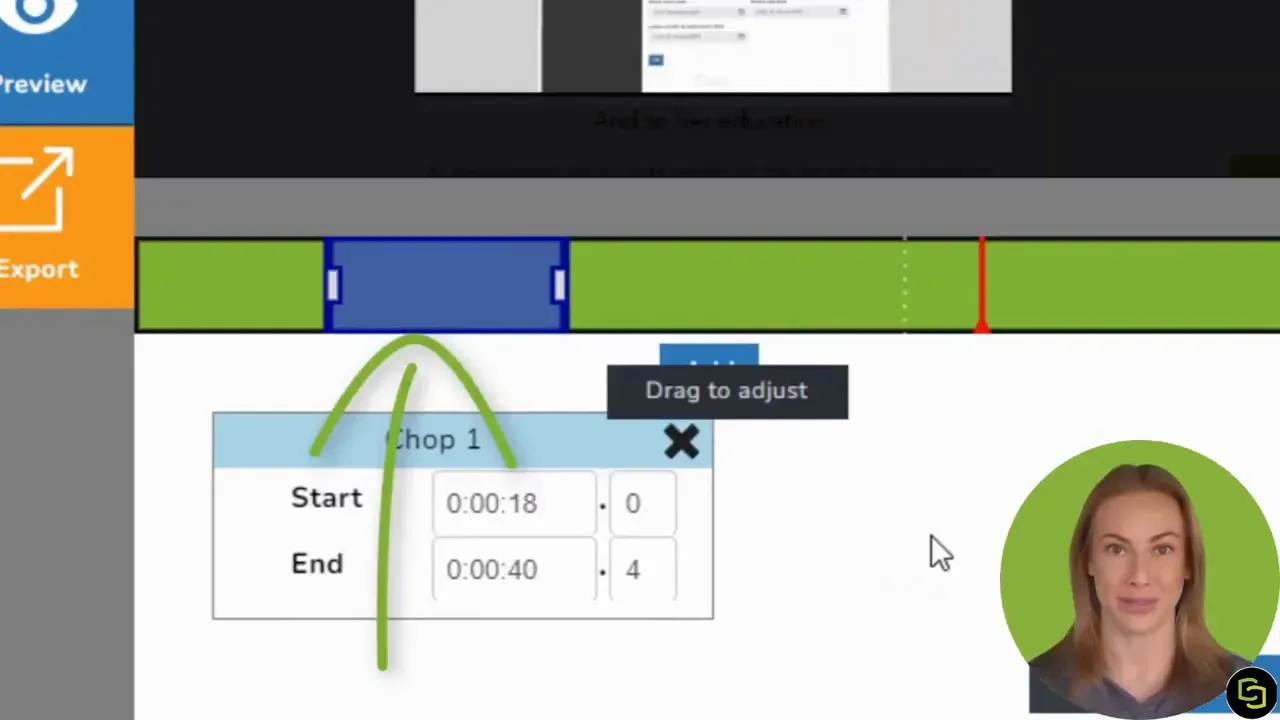
The timeline provides a clear visual reference for each selected section. Add a chop point, move its boundaries to the right moment, and continue adding cuts wherever they are required. This approach is especially helpful for longer recordings where a small number of edits can significantly improve clarity and pacing.
Think of chop as a selective cleanup tool. The content outside the marked sections stays in place, while the unnecessary parts are removed from the edited result.
3. Export: Create New Video Assets From Existing Content
Export has a different purpose. Instead of shortening the original recording, it lets you select a portion of a video and turn that selection into a new video asset.
For example, a one-hour lecture might include several topics that work better as short, standalone recordings. Exporting each topic gives you separate clips that can be added to relevant LMS areas, placed in playlists, or shared as individual resources.
Exporting is a practical way to repurpose longer media without recreating the content. It can help you:
Break a long session into topic-based clips
Reuse a key explanation from a previous recording
Create short revision resources from a lecture
Prepare focused video assets for different courses or audiences
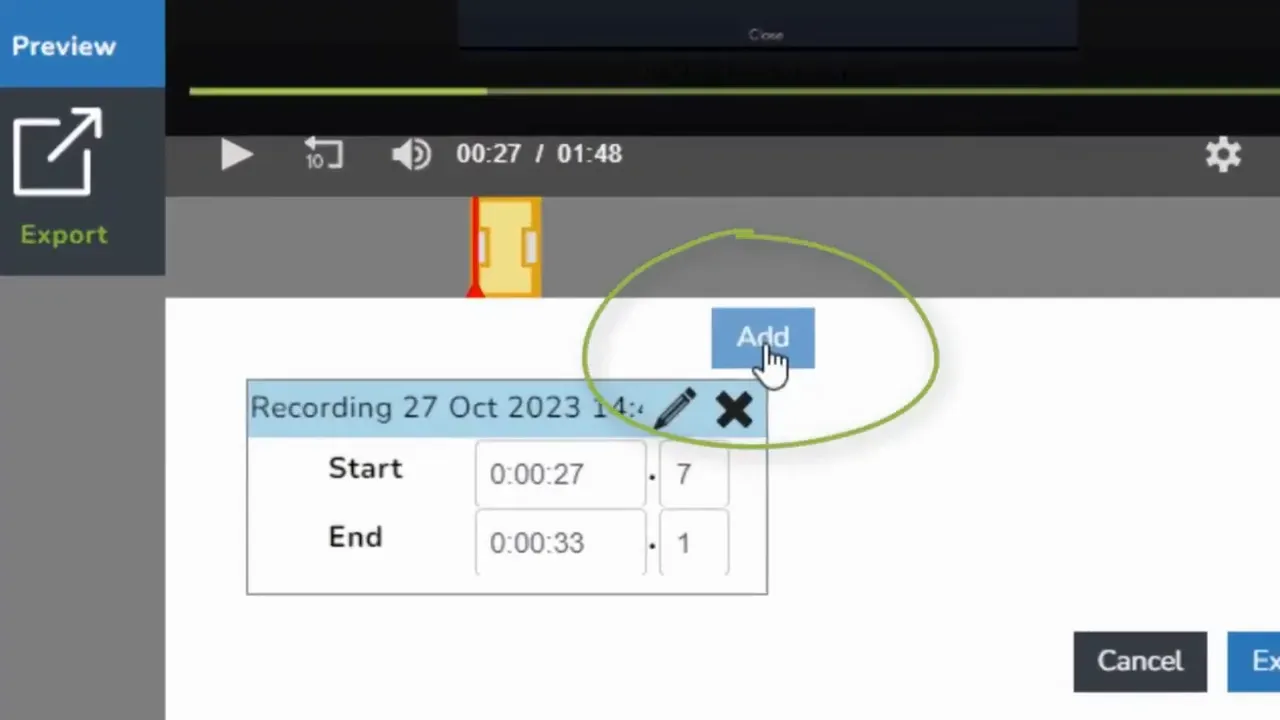
More than one export can be created from the same source video. This makes it possible to identify multiple useful segments in a single recording and produce a collection of new assets from them.
Fine-Tune Every Edit With Markers and Timing Controls
Accurate edits make a noticeable difference. MEDIAL supports both visual and manual control, allowing you to adjust the timing of trims, chops, and exports in the way that works best for the task.
You can drag markers on the timeline to set the approximate start and end of an edit. For more precision, you can manually adjust the timing fields. This is useful when you need a cut to begin or finish at a specific point, rather than relying solely on a timeline position.
A simple workflow is:
Use the timeline to locate the section you need.
Add a trim, chop, or export marker.
Drag the marker boundaries into place.
Check and manually refine the start and end times where needed.
Save the edit or create the export.
Combining visual markers with time-based input provides the flexibility to make quick edits while still allowing detailed adjustments when precision matters.
Choose Whether to Keep or Replace the Original Video
Once edits are complete, MEDIAL lets you decide how the finished version should be handled. You can keep the original recording and create a new edited version, or replace the original with the updated video.
Keeping the original is helpful when you want to preserve the complete source recording for reference or future reuse. Replacing the original may be the right choice when the new version is clearly the final version that should be used going forward.
This choice matters because editing is not always just about removing material. It is also about managing your content library in a way that makes sense for your organisation. A preserved original can be valuable when a different extract is needed later, while a replacement can keep a library concise and reduce confusion around which asset should be used.
Make Existing Video Content Work Harder
MEDIAL video editing is built around practical tasks rather than complicated production workflows. Trim recordings to remove unwanted starts and endings. Chop out interruptions or irrelevant sections. Export the strongest moments as new, focused video assets.
Because the editor is browser-based and integrated with the places where media is stored and shared, it helps reduce the friction of everyday video management. You can focus on shaping content that is clearer, more relevant, and easier to use without moving between multiple systems.
To see how editing fits within the wider platform, review the full MEDIAL features list, including media management, streaming, workflow support, and LMS integration.
Frequently Asked Questions About MEDIAL Video Editing
Where can I access the MEDIAL video editor?
You can access the editor from videos in your library or playlists, through the CMS content listing, and through MEDIAL Search in your LMS.
What is the difference between Trim and Chop?
Trim removes content from the beginning or end of a video. Chop removes selected sections from within the video, and you can add multiple chop sections where needed.
What does Export do in MEDIAL?
Export creates a new video asset from a selected section of an existing video. It is useful for turning a longer recording into shorter, standalone clips.
Can I adjust edit timings precisely?
Yes. You can drag markers on the timeline and manually refine the start and end times for trims, chops, and exports.
Can I keep the original video after editing?
Yes. MEDIAL allows you to keep the original recording or replace it with the newly edited version.