MEDIAL | Canvas Video App | Student Submitting a Video Assignment

Video Tutorial
If you cannot see any menu mentioned, do not know your logins or do not know if you have the correct permissions setup, please contact your MEDIAL Administrator at your establishment; if you are unsure who this is we can try to direct you as best we can
1. Login to Canvas as you would normally and navigate to where the assignment is. You can open the assignment and view as you would usually; there may be a video to watch
2. To submit a video response to the assignment, select the ‘Submit Assignment’ button at the top right of the screen:
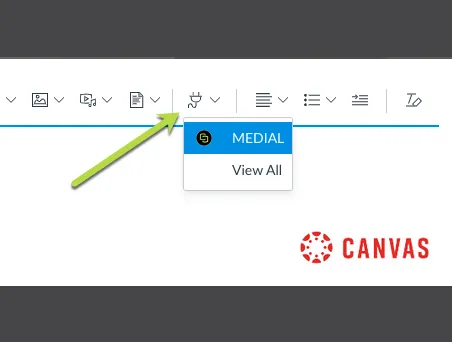
This opens a text entry area for you, where you can add a video via a button on the text editor:
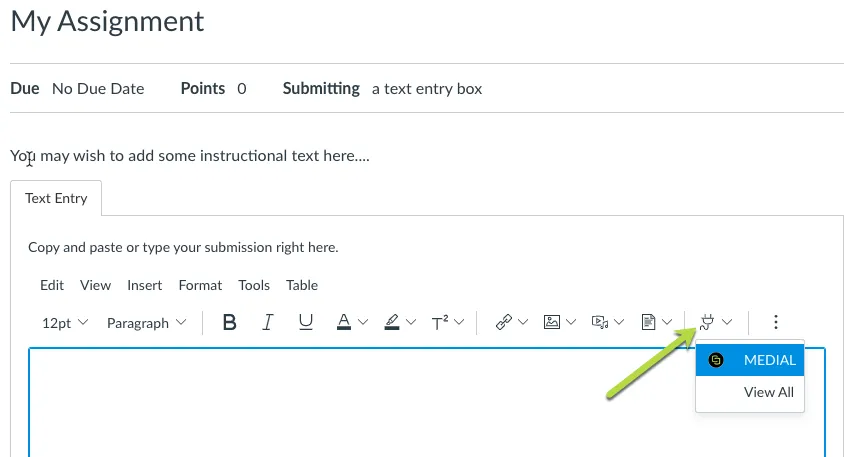
If you are prompted to login please do so using your establishment details, if you are unsure what these are then contact your MEDIAL Administrator
You will be given options depending on your permissions to do some or all of the following:
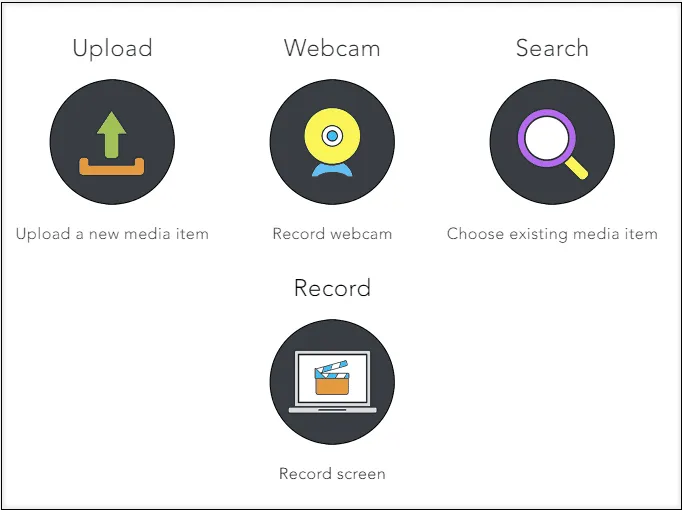
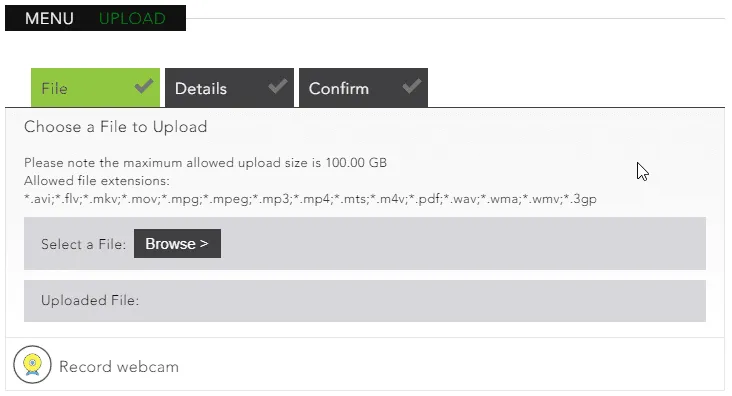
UPLOAD
This will guide you through an UPLOAD Wizard (tabs may vary depending on your establishments workflow):
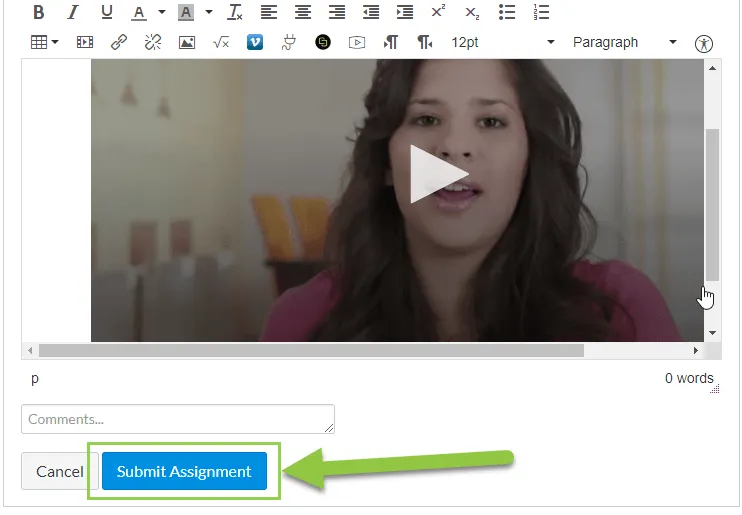
IMPORTANT: Once a file has been added, you MUST make sure you ‘SUBMIT ASSIGNMENT’ on the Canvas page:
WEBCAM
This option allows you to do an ADHOC webcam and audio (or just audio) recording:
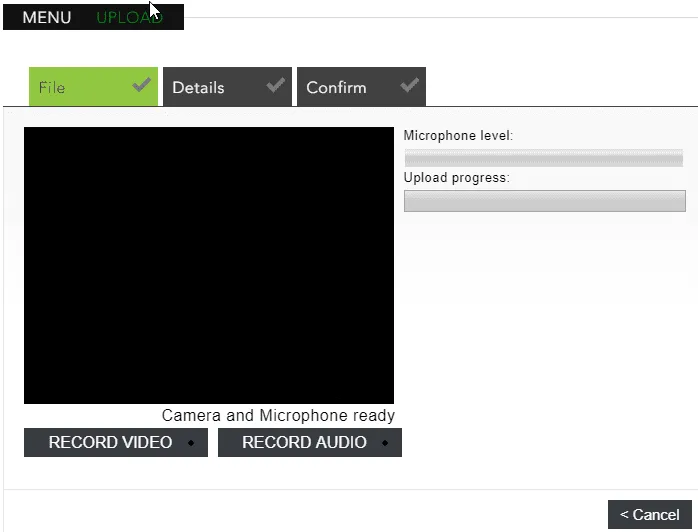
Once you have stopped recording you can adjust the start and end times:
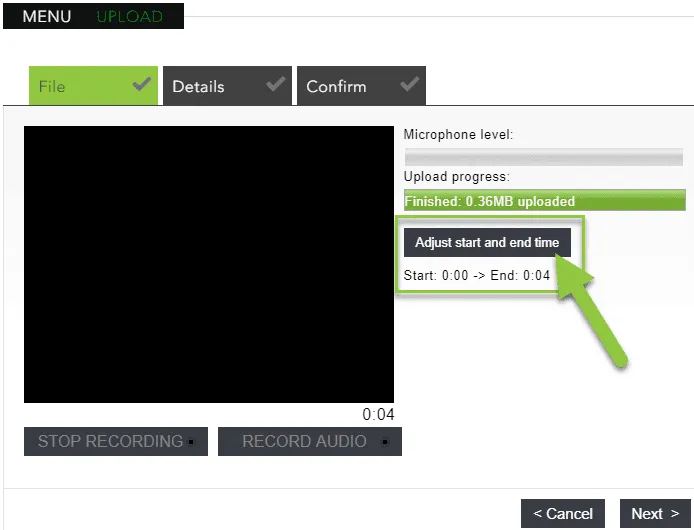
You can then select Next and be guided through the quick upload wizard
IMPORTANT: Once a file has been added, you MUST make sure you ‘SUBMIT ASSIGNMENT’ on the Canvas page:
SEARCH
This option allows you to look through existing or previously uploaded video and audio files:
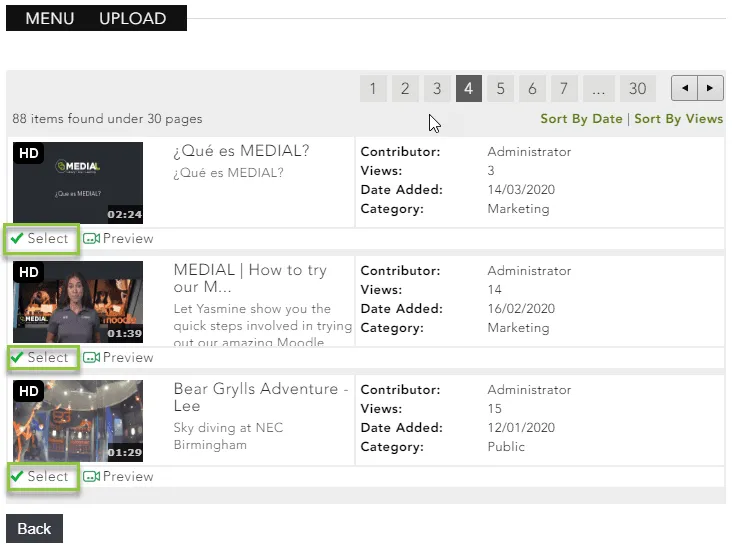
IMPORTANT: Once a file has been added, you MUST make sure you ‘SUBMIT ASSIGNMENT’ on the Canvas page:
RECORD
If you have the record option this allows you to record combinations of your screen, webcam and audio.
The MEDIALecture Screen Capture Tool interface looks like this:
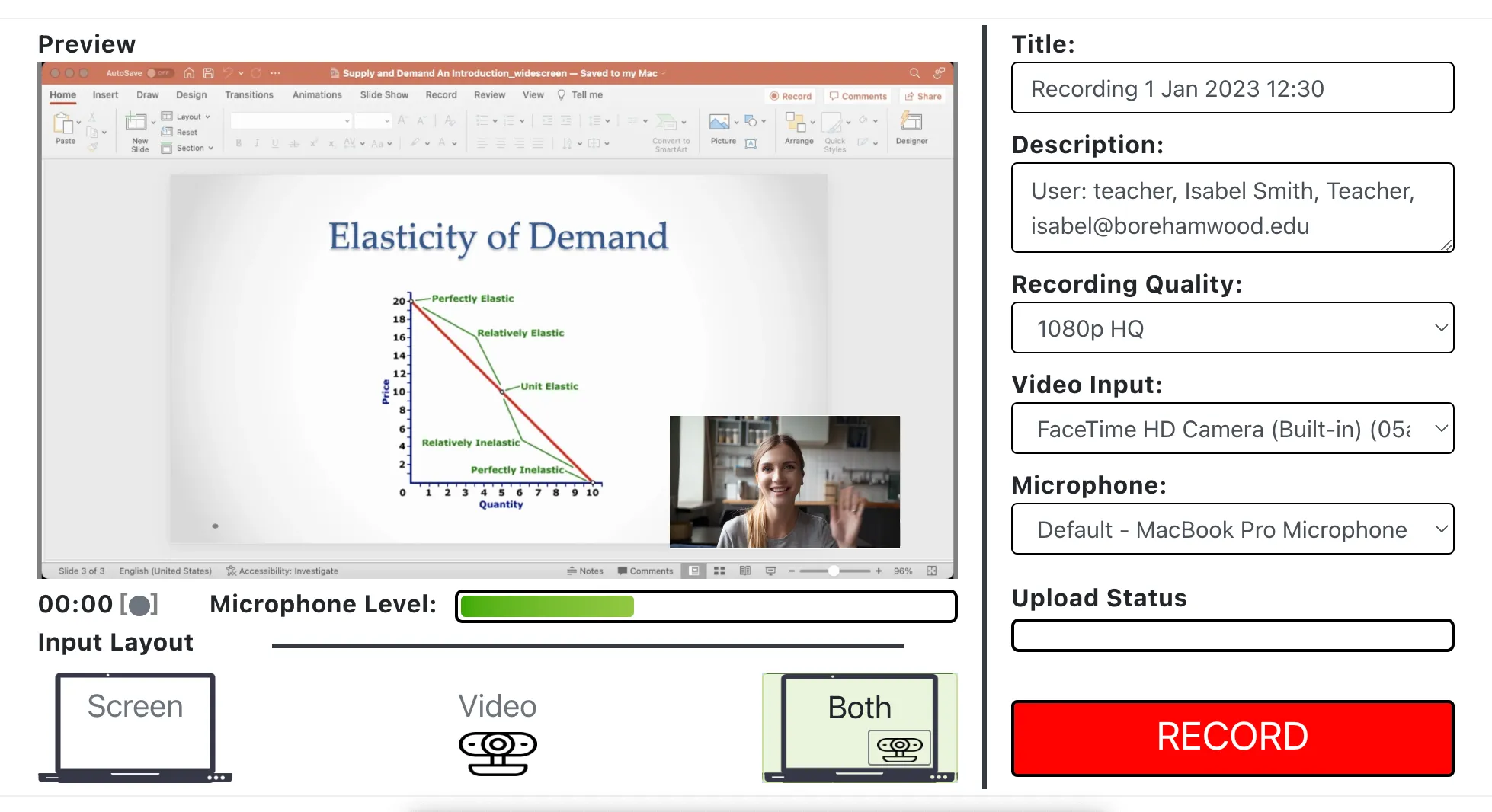
You can get straight on recording by selecting any of the 3 options, ensure to check you have the right webcam and mic selected
IMPORTANT: Once a file has been added, you MUST make sure you ‘SUBMIT ASSIGNMENT’ on the Canvas page: