MEDIAL | Canvas Video App | Full Guide

Welcome to using the MEDIAL Canvas App
Below is a short video that shows in brief how the tool works
The article below runs through the following topics:
How to use Teams Meeting Recordings in Canvas through MEDIAL
How to create a video based assignment using MEDIAL as a Teacher
How to use the MEDIAL Canvas Video App as a Teacher
You can add video using MEDIAL anywhere where there is a Text Editor in Canvas:

When clicking on the MEDIAL button a window will open that will allow you to add a video using any of the following functions
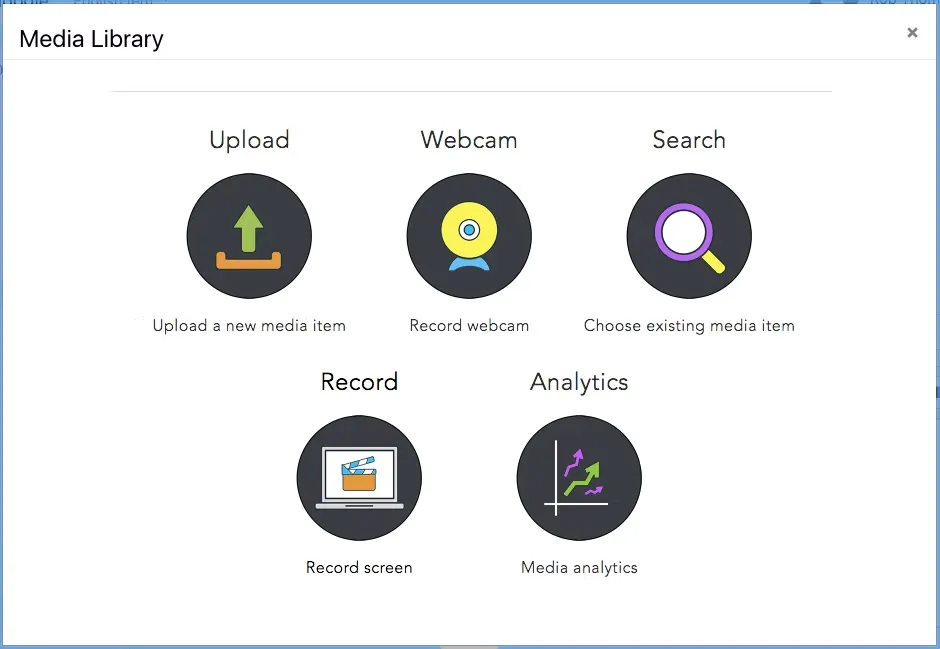
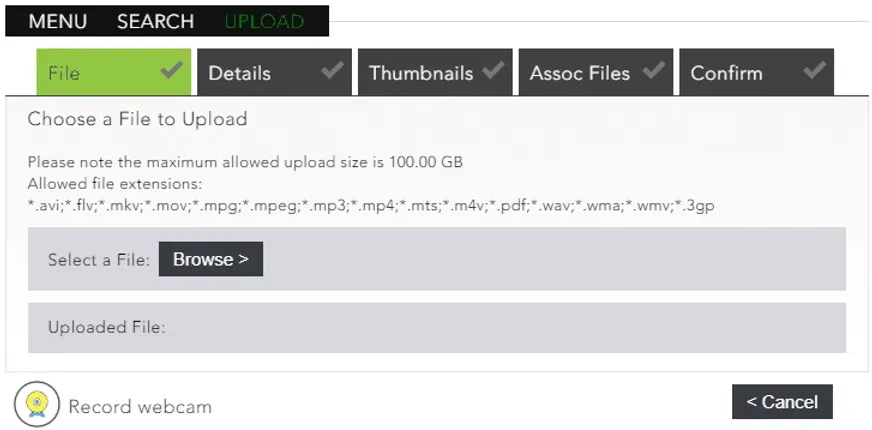
Uploading Video
Follow the wizard to upload your file, you can upload video or audio
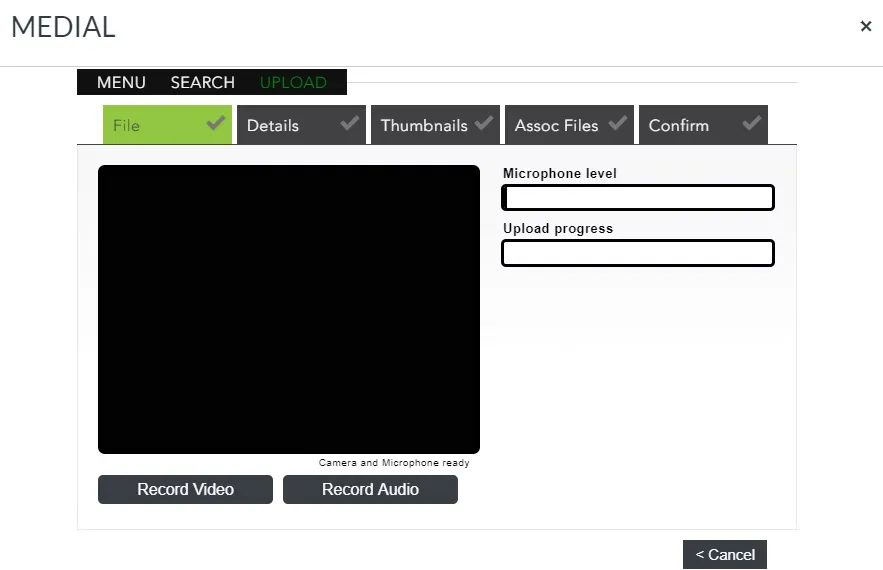
Record Webcam
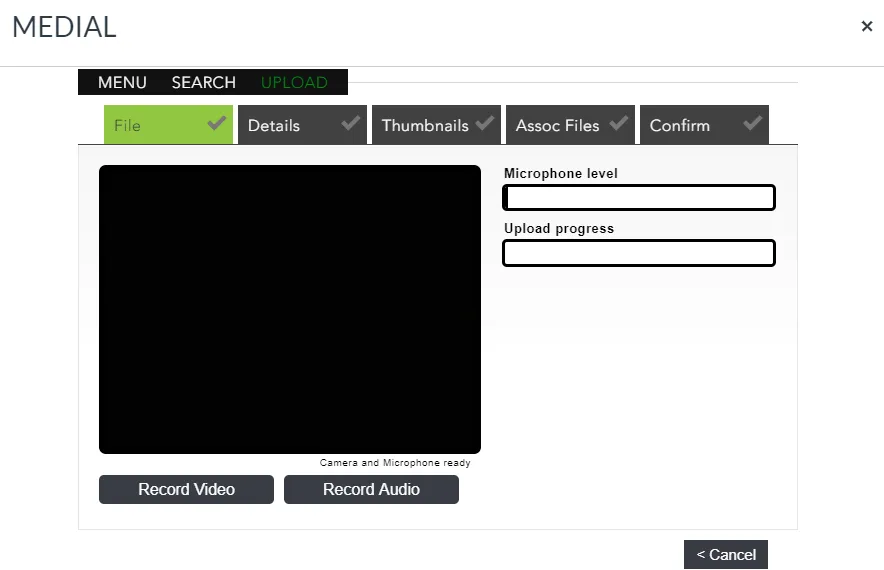
Follow the wizard to record either video or audio
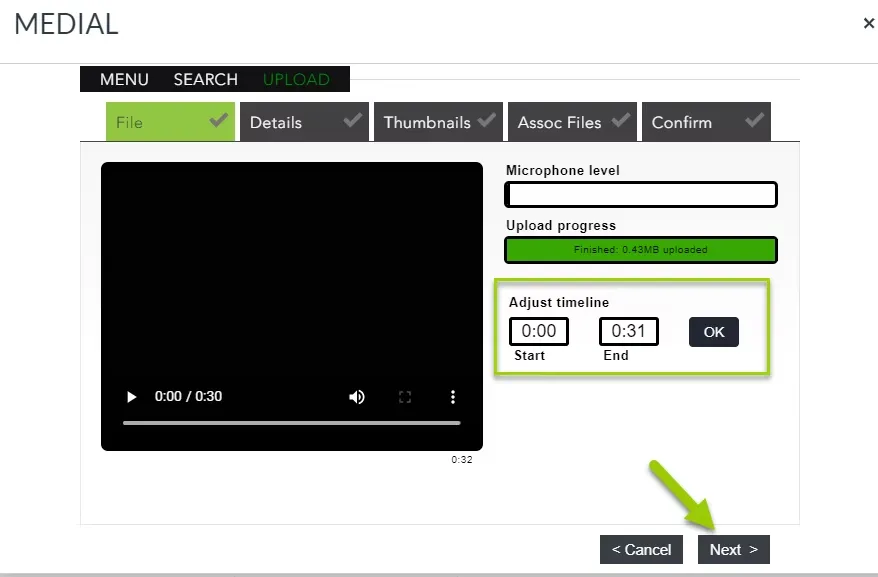
You can edit the duration of the recording using this control
Record Screen
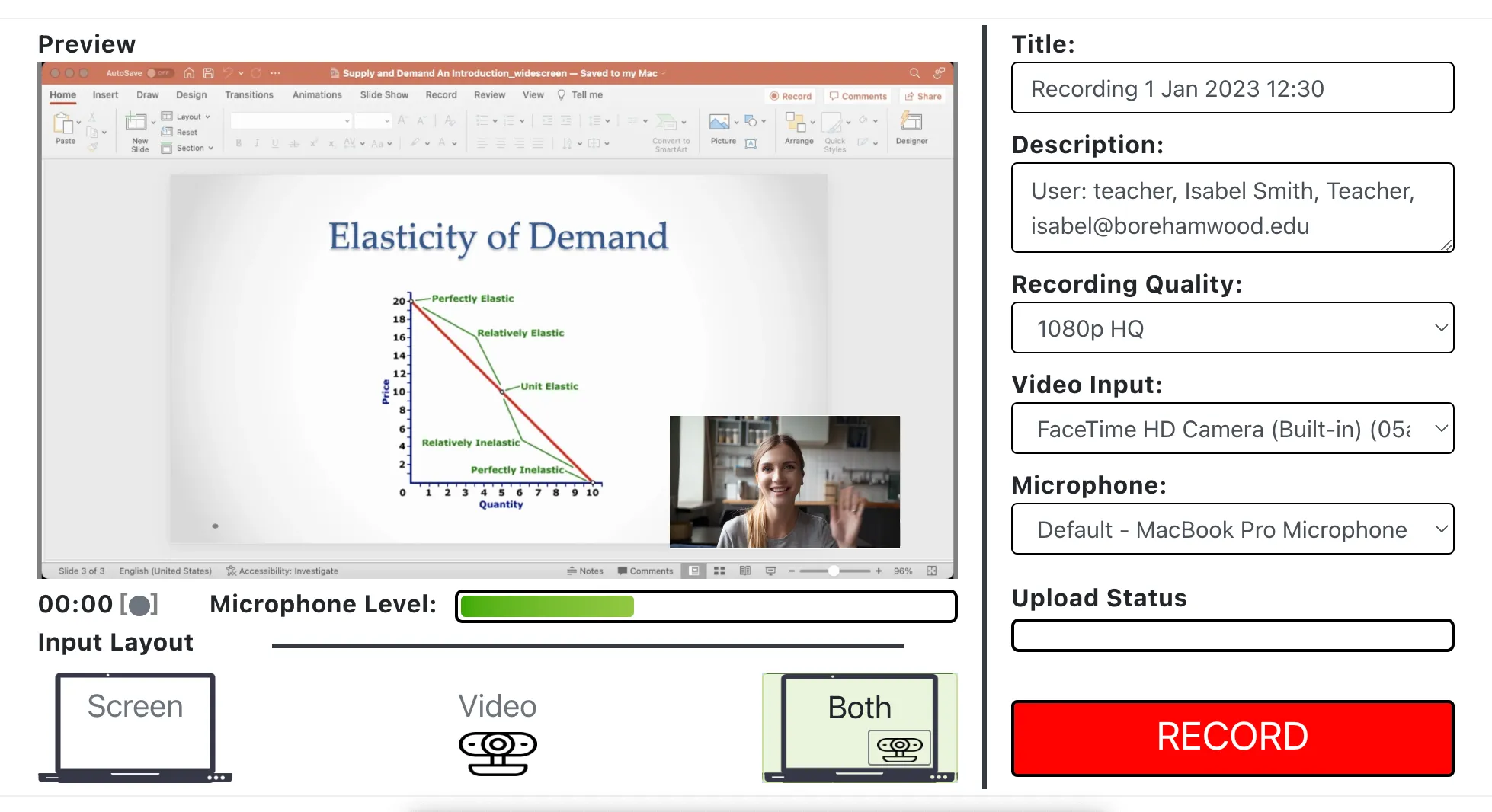
This allows you to record combinations of your screen, webcam and audio.
The MEDIALecture Screen Capture Tool interface looks like this:
Managing your Videos
Accessing your media
By selecting Search you will see all of the videos that you have uploaded to MEDIAL. You will be able to select, edit, download or even share your video outside of Canvas
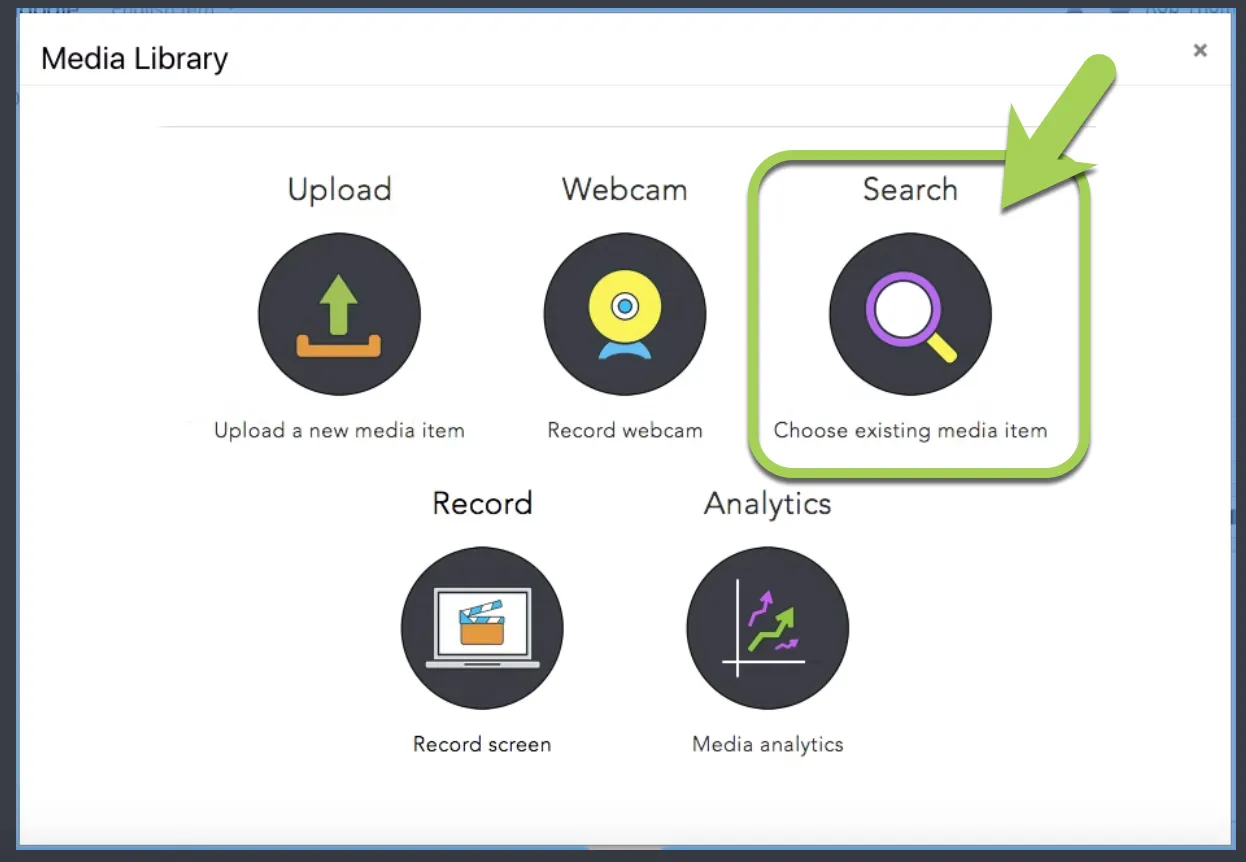
The search page where you can manage your media files looks like this
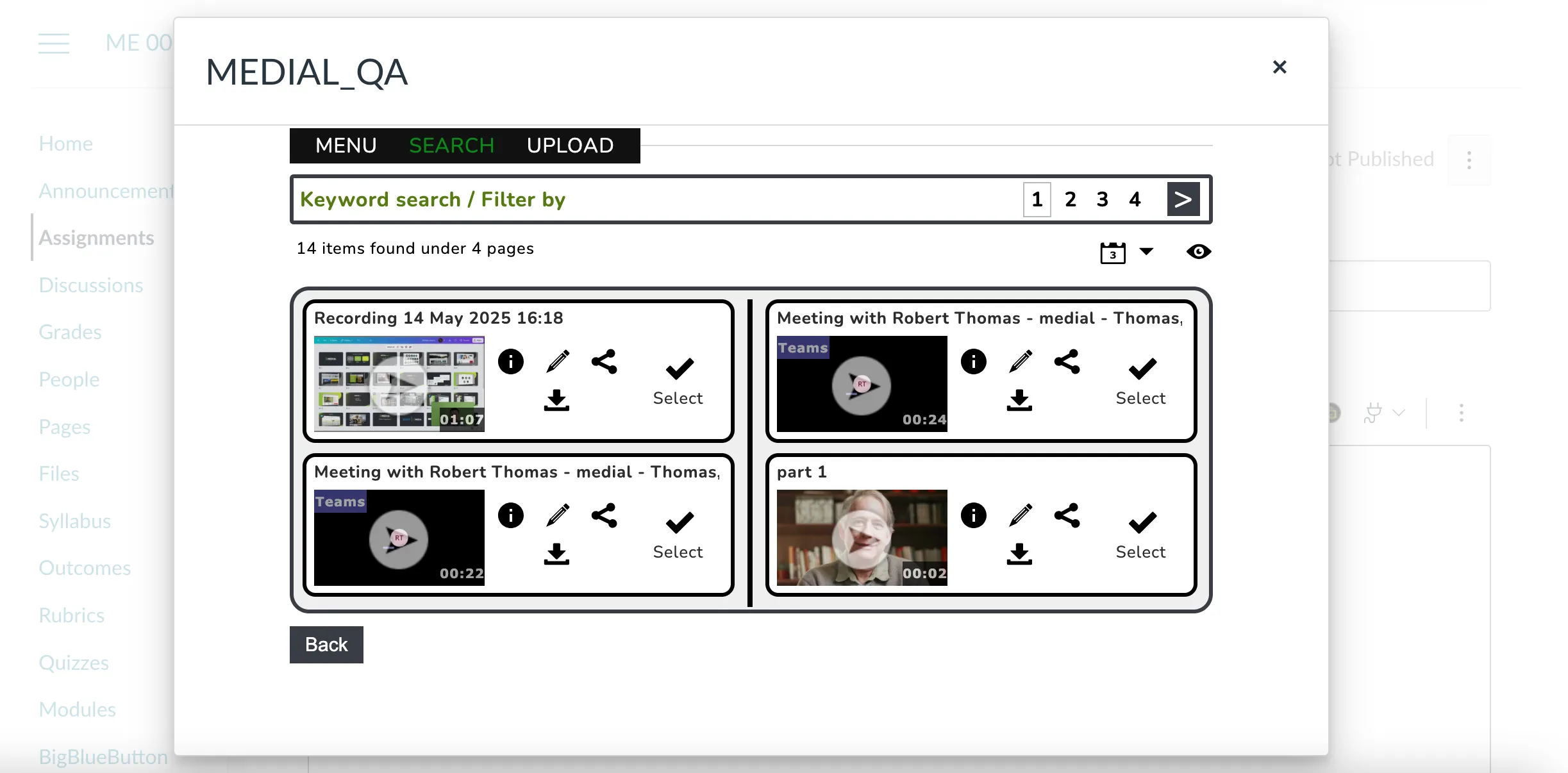
Editing your media
Simply click on the pen icon as shown
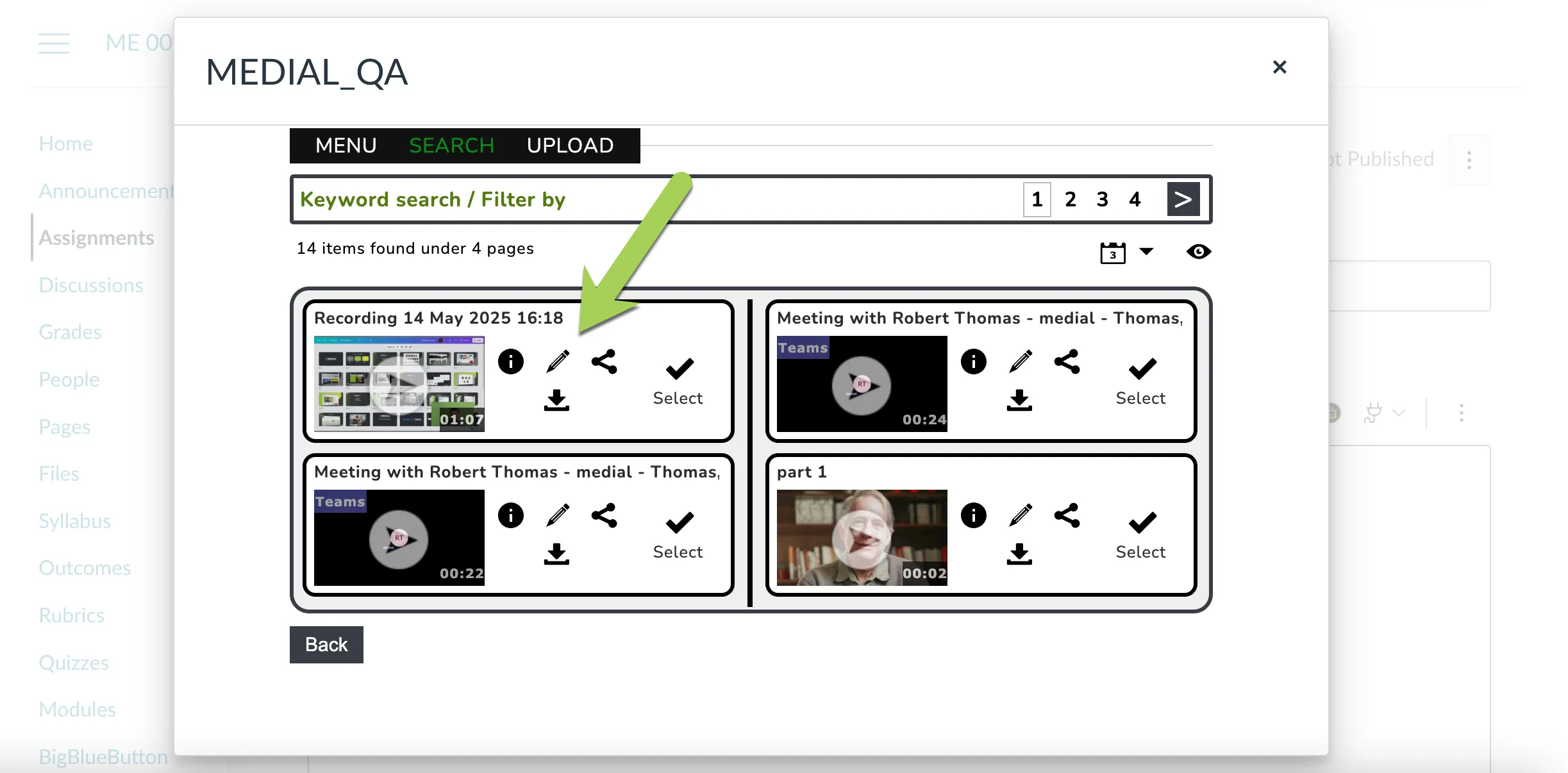
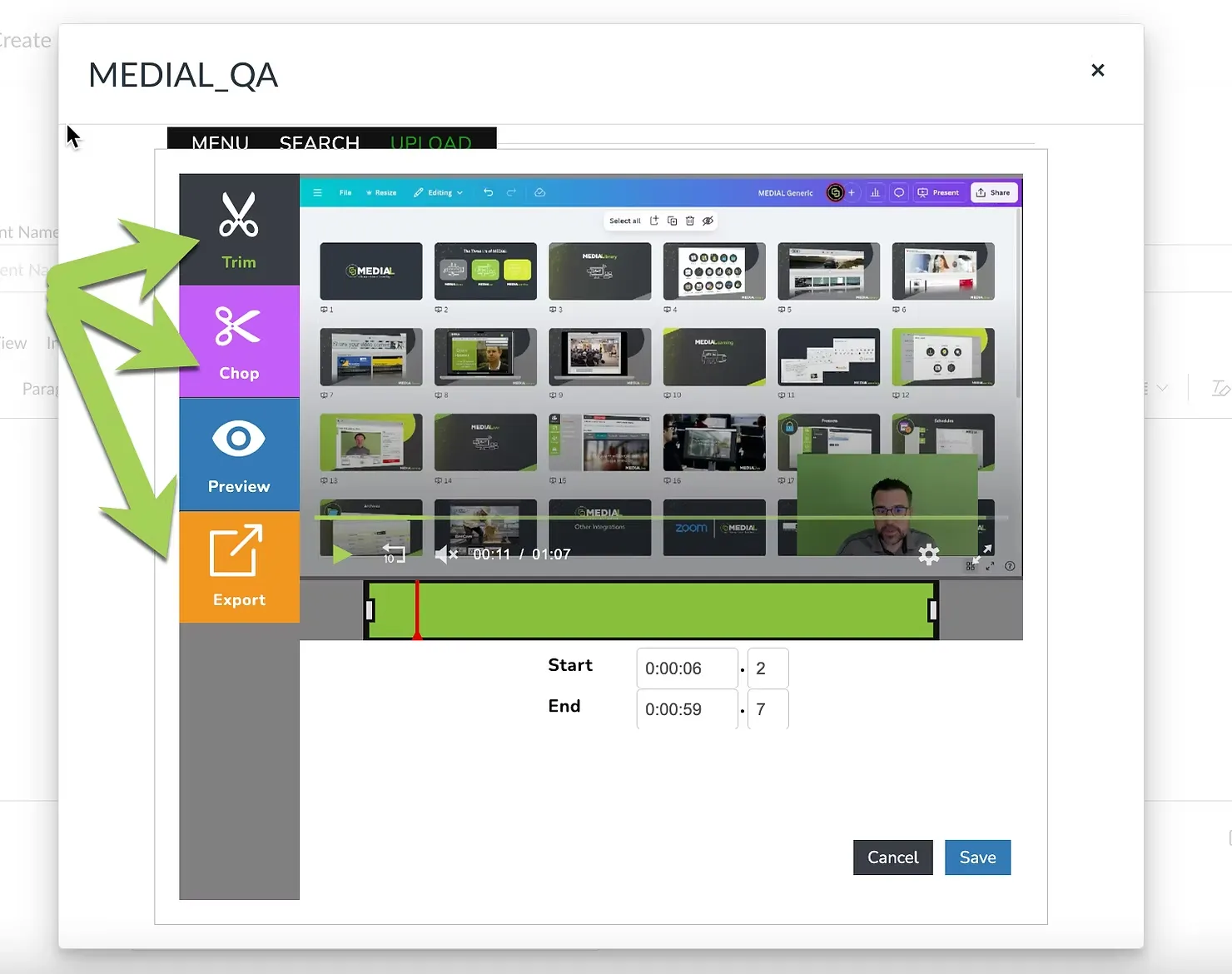
You will then be able to edit your media using the Trim, Chop or Export functions
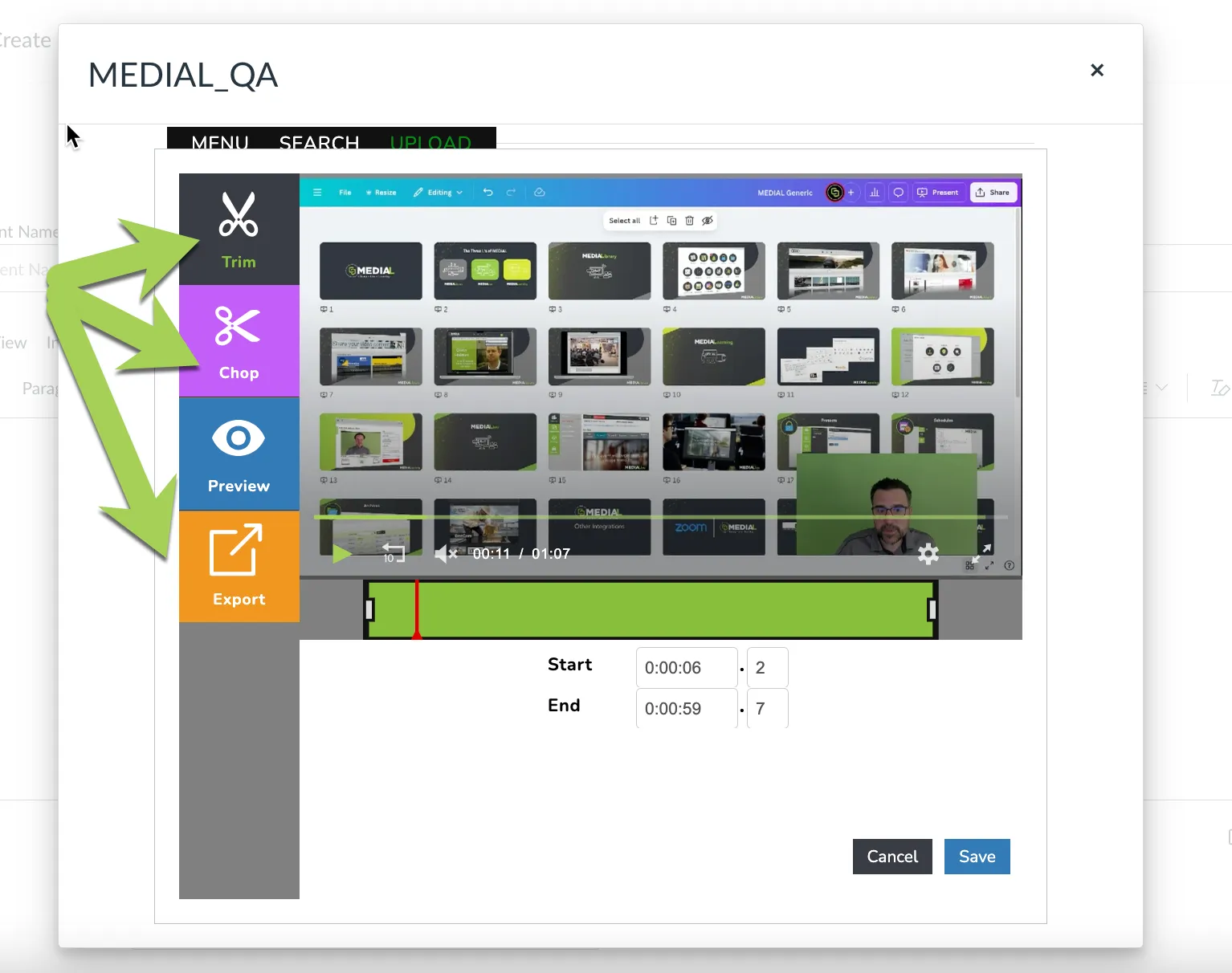
Sharing media outside of Canvas
Select the Share icon
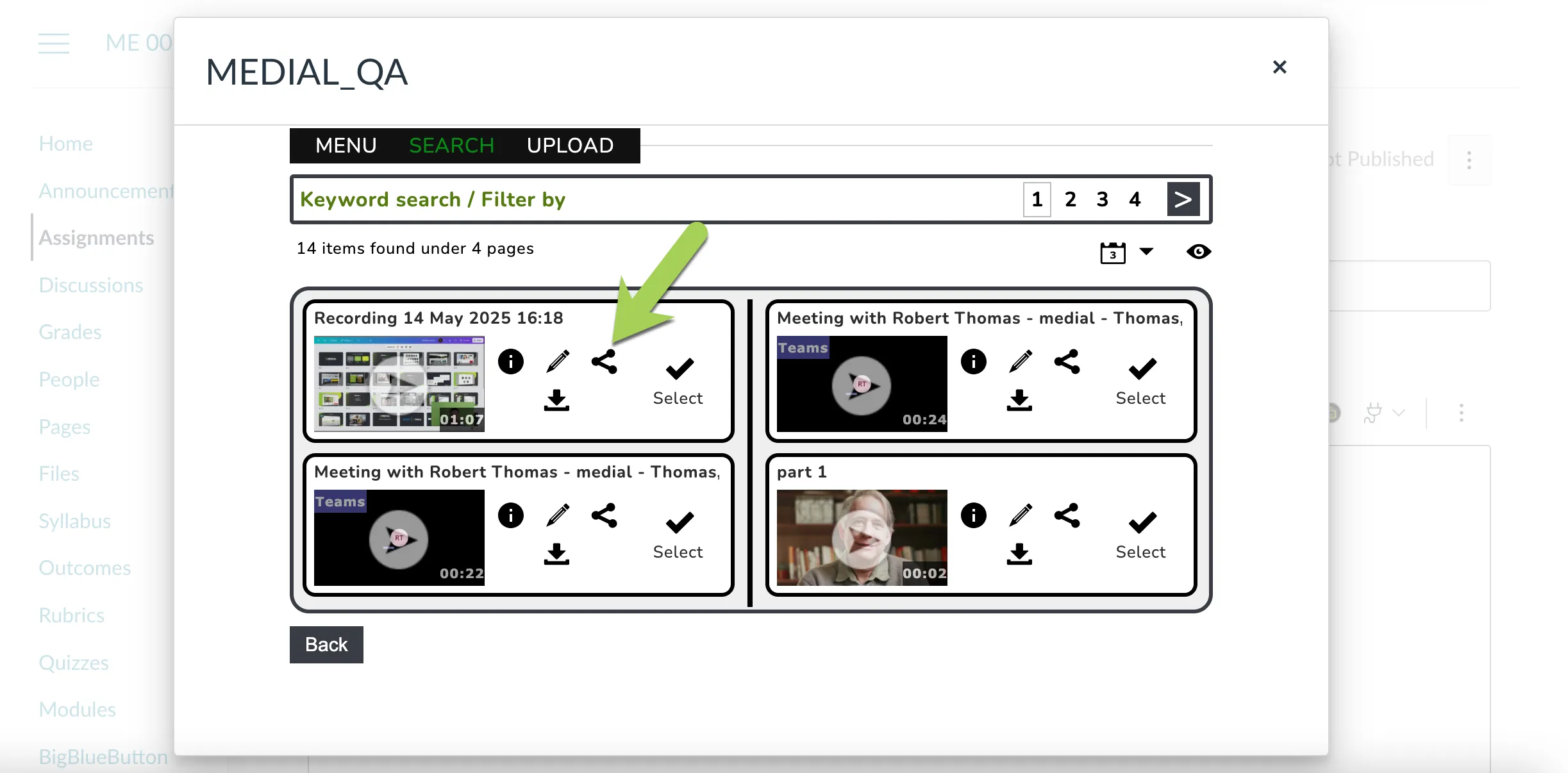
Then click Enable Public Access
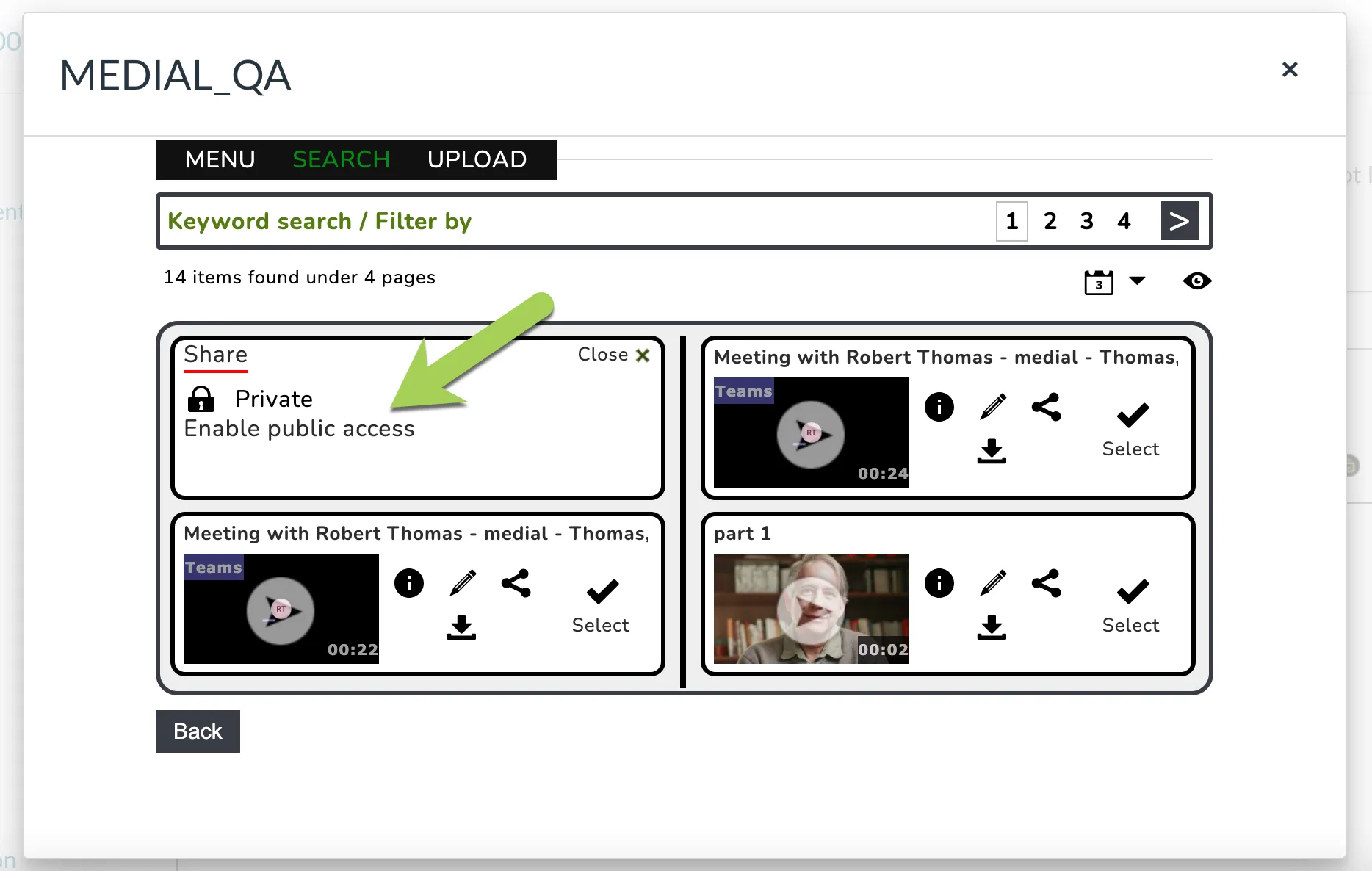
Then copy the link to the media playback page
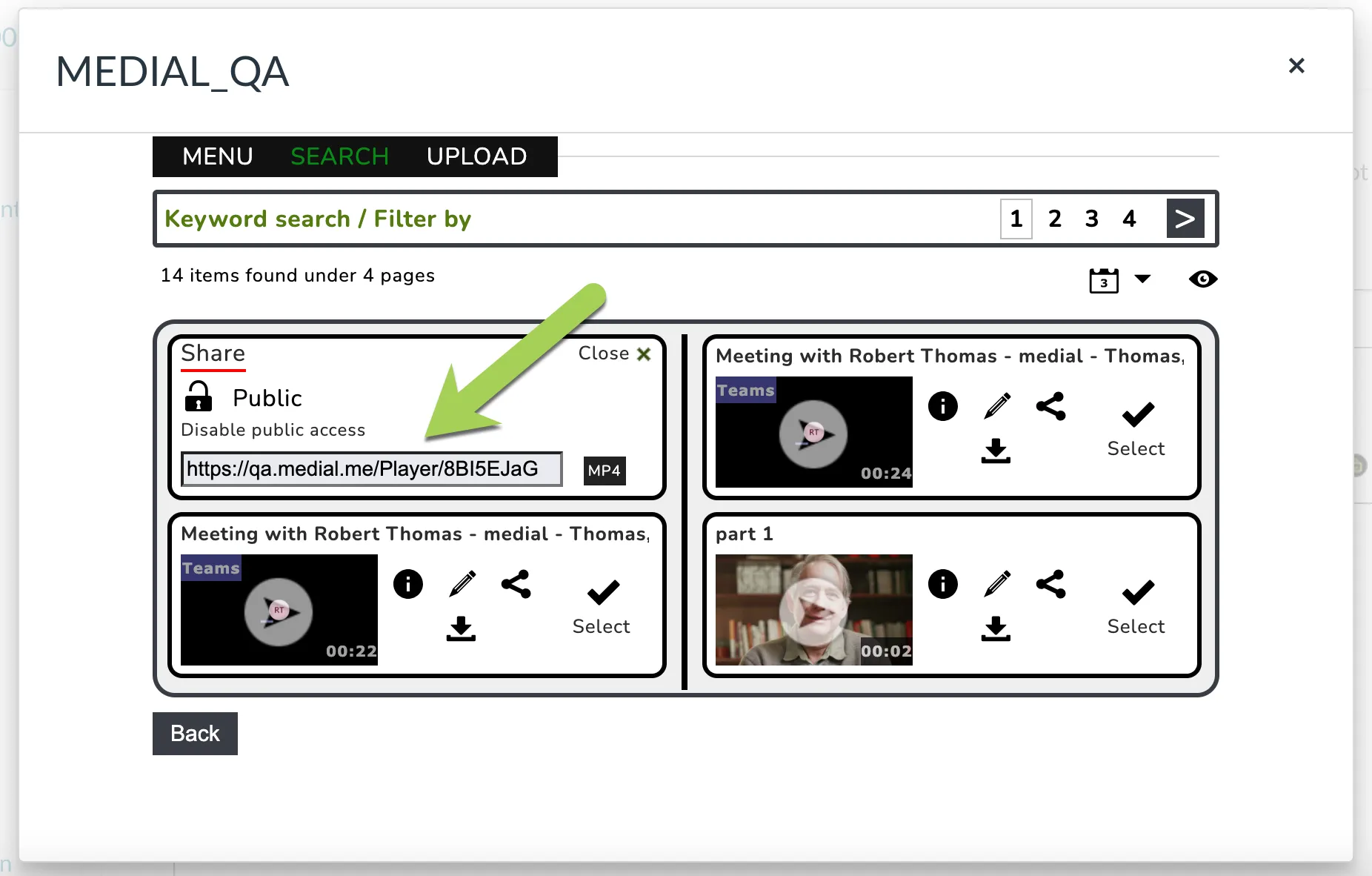
NOTE: By default, your media is completely secure in Canvas. By enabling public access it is now public and accessible by anyone who has the share link. It is not easily guessed but this is only security through obscurity
How to use Teams Recordings in Canvas through MEDIAL
Getting a Teams Recording to go into MEDIAL in Canvas
Record your meeting as usual. For the meeting to be ingested into MEDIAL, the meeting title must include the word "medial" or another word that your institution may have defined.
If you forgot to include the word "medial" in your meeting title you can change this retrospectively in OneDrive so that the recording is ingested. There may be a limit of 30 days or less on this capability.
Accessing your Teams Recordings
Launch MEDIAL through the Text Editor

Click Search
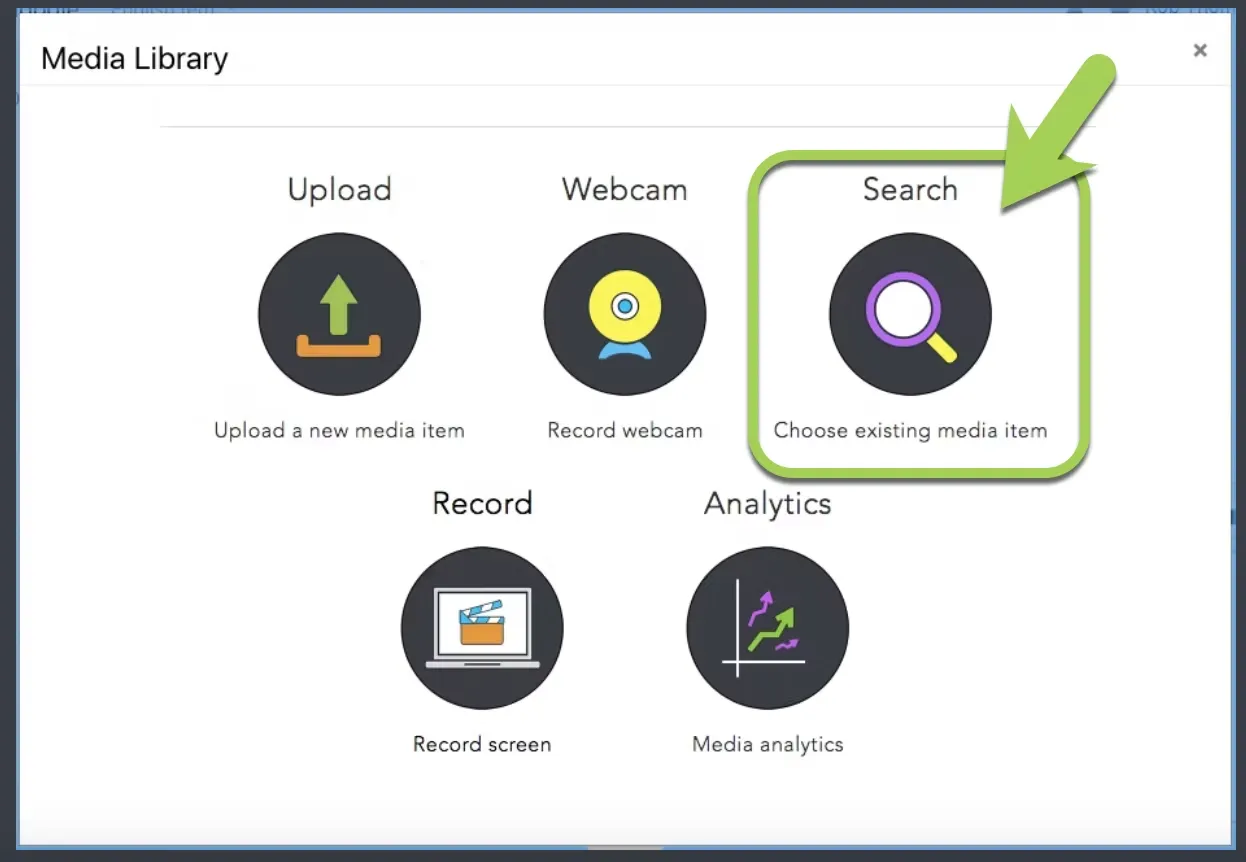
Teams Recordings are highlighted as shown below. Simply click select to add them to your Canvas course page
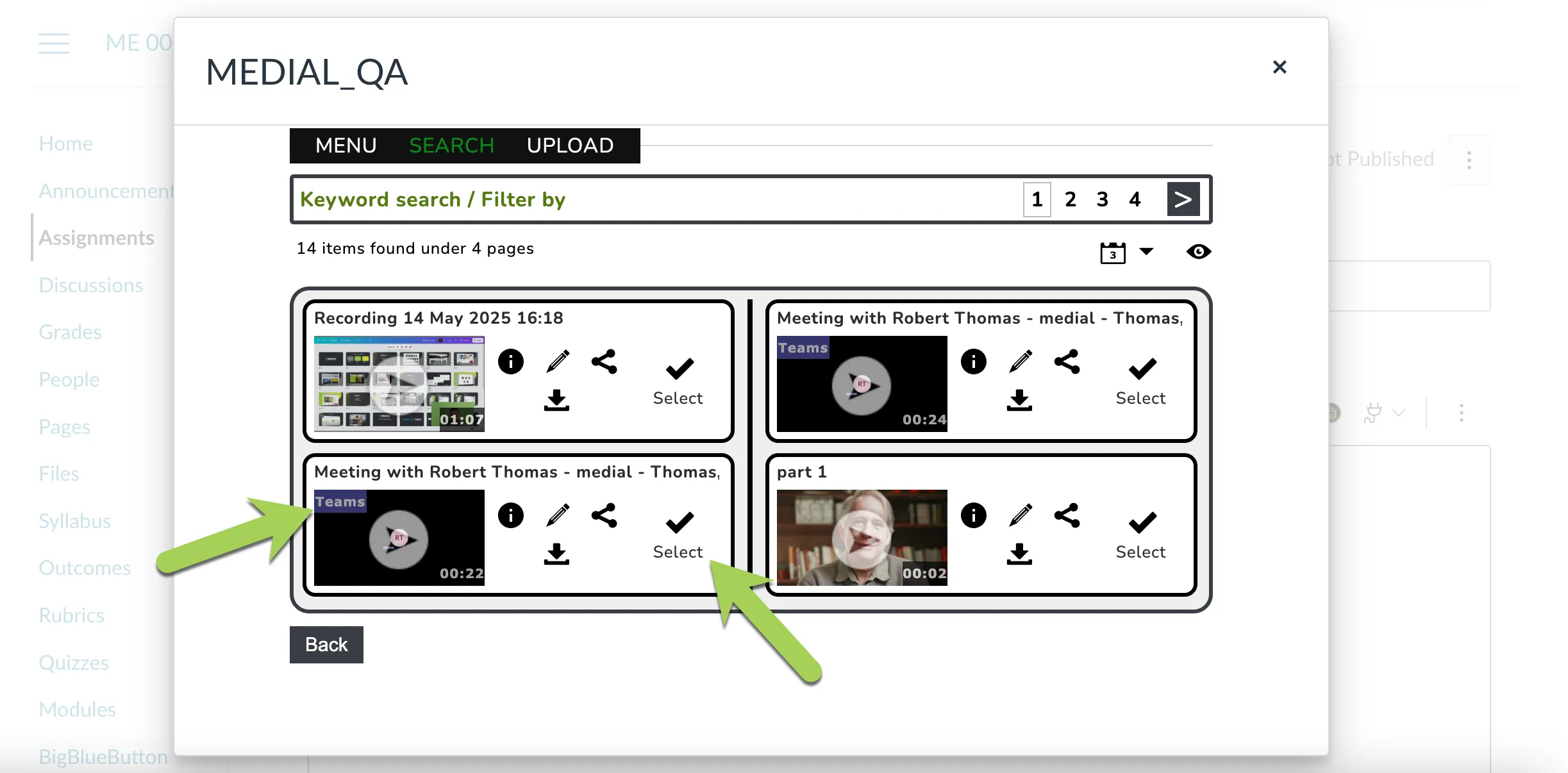
Editing your Teams Recordings
You can edit the recording by clicking on the pen icon as shown below
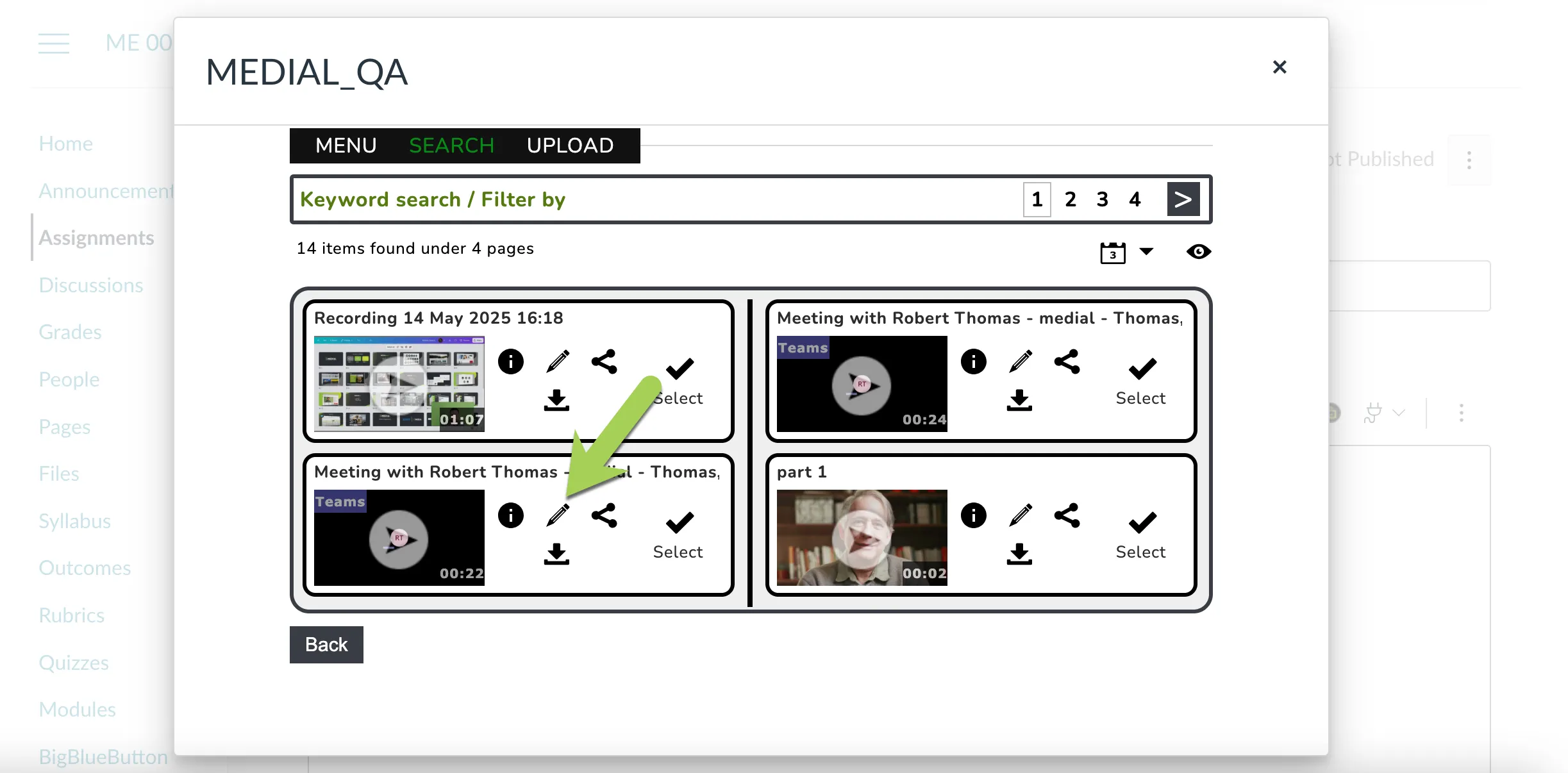
You will then get the ability to edit your recording, allowing Trim, Chop and Export functions
Creating Video Assignments in MEDIAL

If you would like your Student(s) to be able to do a Video Submission in response to the Assignment you have set, then recommended workflow is:
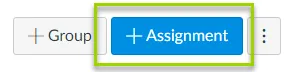
1. Login to Canvas as you would normally and navigate to the desired course then 'Add Assignment':
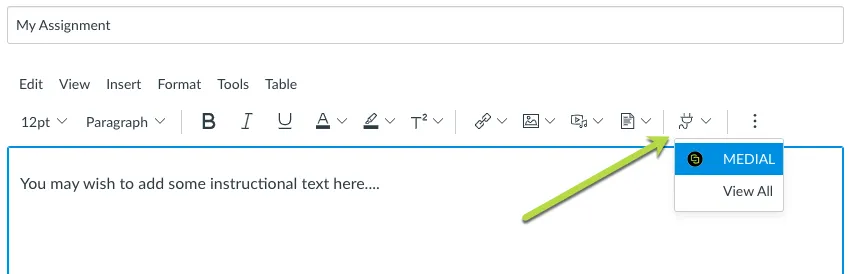
2. If you would like to add a video or screen capture to your assignment select the MEDIAL button on the text entry box (you can also check analytics on previously uploaded videos here too):
You will be given options depending on your permissions to do some or all of the following:
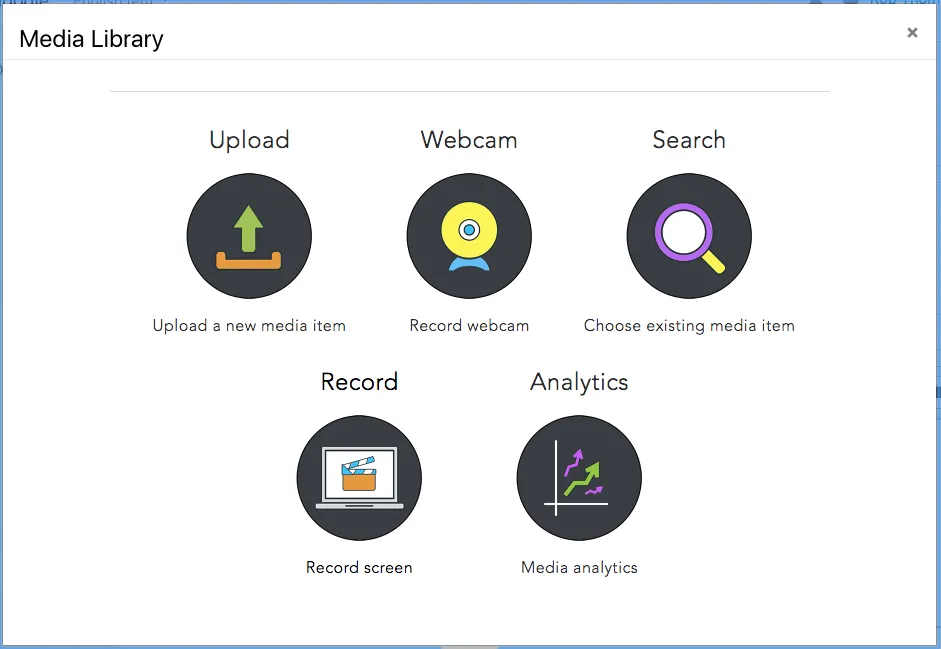
UPLOAD
This will guide you through an UPLOAD Wizard (tabs may vary depending on your establishments workflow):
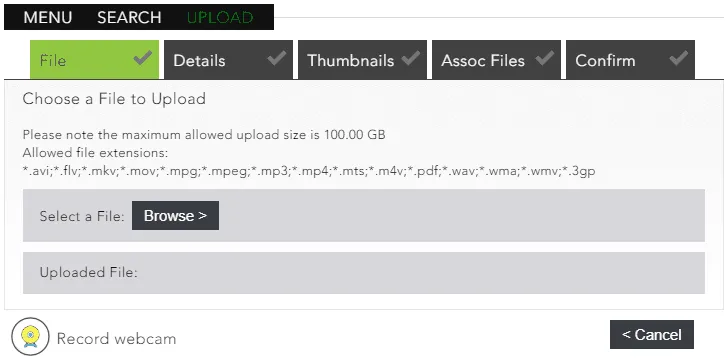
Once you confirm, this will add the video to the text editor
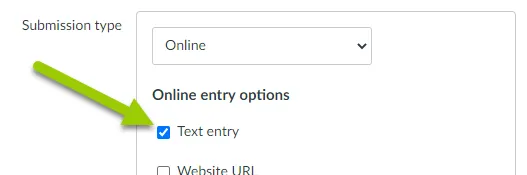
IMPORTANT: Ensure you check the 'Text Entry' box before you save as this allows the student to submit a video response:
And ensure you save the changes as you would usually:
WEBCAM
This option allows you to do an ADHOC webcam and audio (or just audio) recording:
Once you have stopped recording you can adjust the start and end times:
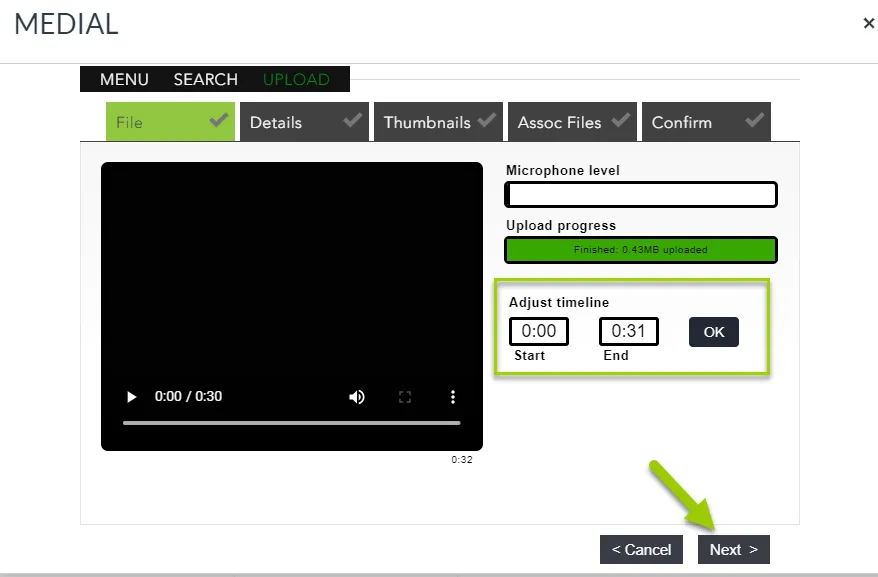
You can then select Next and be guided through the quick upload wizard
IMPORTANT: Ensure you check the 'Text Entry' box before you save as this allows the student to submit a video response:
And ensure you save the changes as you would usually:
RECORD
If you have the record option this allows you to record combinations of your screen, webcam and audio.
The MEDIALecture Screen Capture Tool interface looks like this:
You can get straight on recording by selecting any of the 3 options, and check you have the right webcam and mic selected
IMPORTANT: After recording ensure you check the 'Text Entry' box before you save as this allows the student to submit a video response:
And ensure you the save the changes as you would usually:
Students Submitting Video Assignments

Grading a Student Submission

If you have any issues please contact support@medial.com