MEDIAL: How to Create and Manage Content Policies

Managing a growing media library does not have to mean keeping every file in active storage forever. With MEDIAL content policies, you can identify content that is no longer needed day to day, move it into archived storage, and restore it quickly if it becomes relevant again.
This is especially useful for education providers managing student submissions across academic years. Once an assessment period has ended, archived submissions can free up valuable storage space while remaining available for situations such as academic review, moderation, or an examiner request.

Table of Contents
Why use a content policy?
A content policy gives you a consistent, controlled way to manage media based on rules you set. Rather than locating old files individually, you can create criteria that identify the right content automatically.
For example, you may want to archive all student submissions created during the 2024 to 2025 academic year. A policy can target those files by creation date, apply the rule specifically to student accounts, and move the selected content to archive storage.
This approach supports a cleaner, more manageable library. It also aligns well with a broader video content retention strategy, where active media remains easy to find and older material is retained appropriately without consuming unnecessary active storage.
Create a new content policy in MEDIAL
Start by logging in to MEDIAL and navigating to Content Policies. Select New to begin creating a policy.
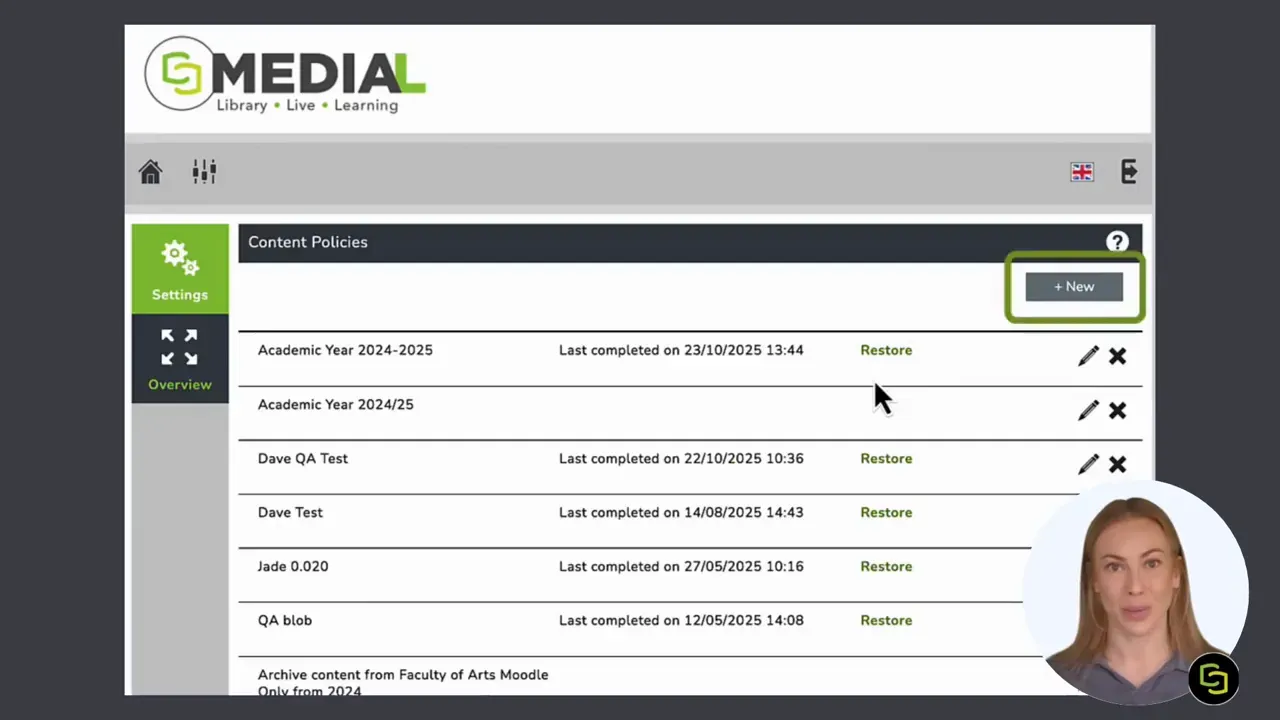
The first fields are straightforward but important. Give the policy a clear name and description so administrators can understand its purpose later. A descriptive title such as Archive Student Submissions 2024 to 2025 makes the rule immediately recognisable.
Set the period for the content you want to manage
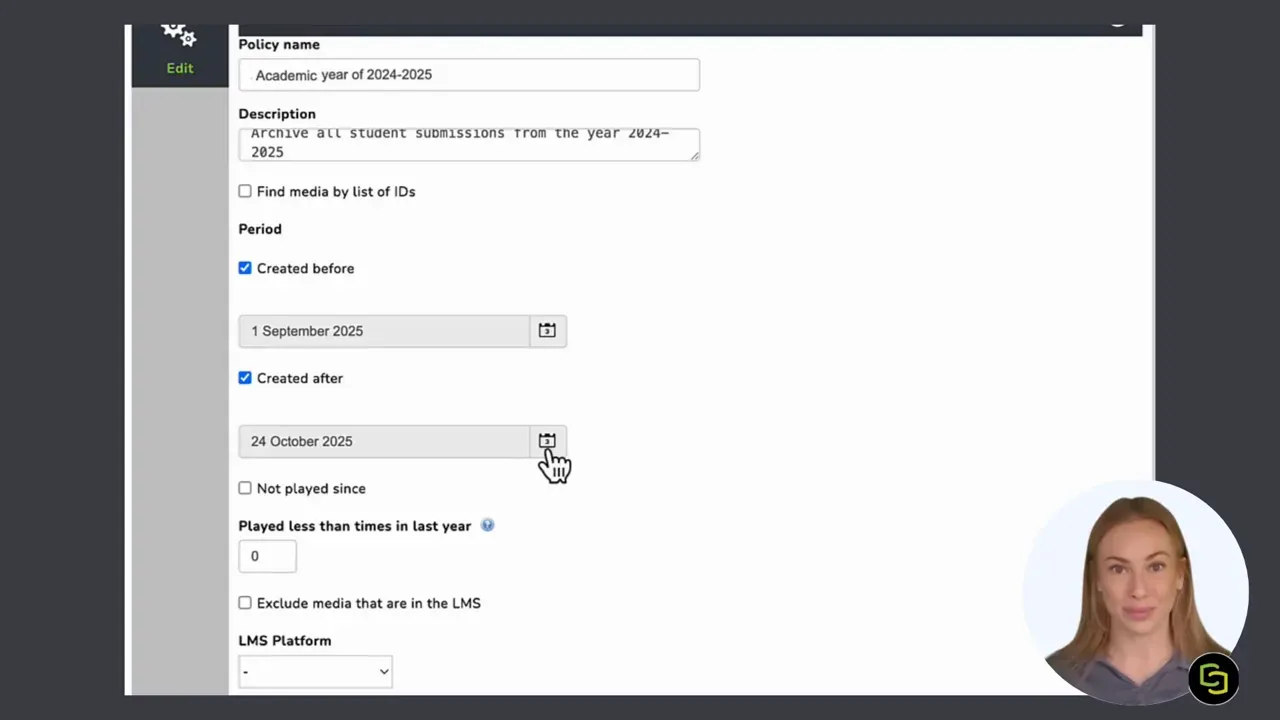
Next, use the Period section to define the date range. For an academic-year policy, you could set:
1 September 2024
1 September 2025
This identifies content created within that particular academic year. Defining both dates is useful when you need a precise boundary around submissions, course recordings, or other time-specific media.
Refine the policy with usage criteria
Date is not the only way to select content. MEDIAL also gives you usage-based options that can make a policy more targeted.
Archive content that has not been played since a specified date.
Archive content played fewer than a set number of times during the last year.
These settings are useful for identifying inactive media. If the play-count value is set to zero, MEDIAL ignores that criterion. This gives you the flexibility to focus only on date-based selection when that is all you need.
If your environment uses a learning management system, you can also select the relevant LMS platform as part of the policy configuration. The aim is to ensure the rule reflects the content, users, and systems that actually apply to your organisation.
Choose the users or categories the policy applies to
A good content policy is specific. After setting the period and optional usage conditions, choose the user group or category that the policy should affect.
Select the relevant assignment option, then choose the group from the available list. In the academic-year example, the appropriate group is Students. This prevents the policy from applying to unrelated content, such as staff media or institutional resources that may need to remain in active storage.
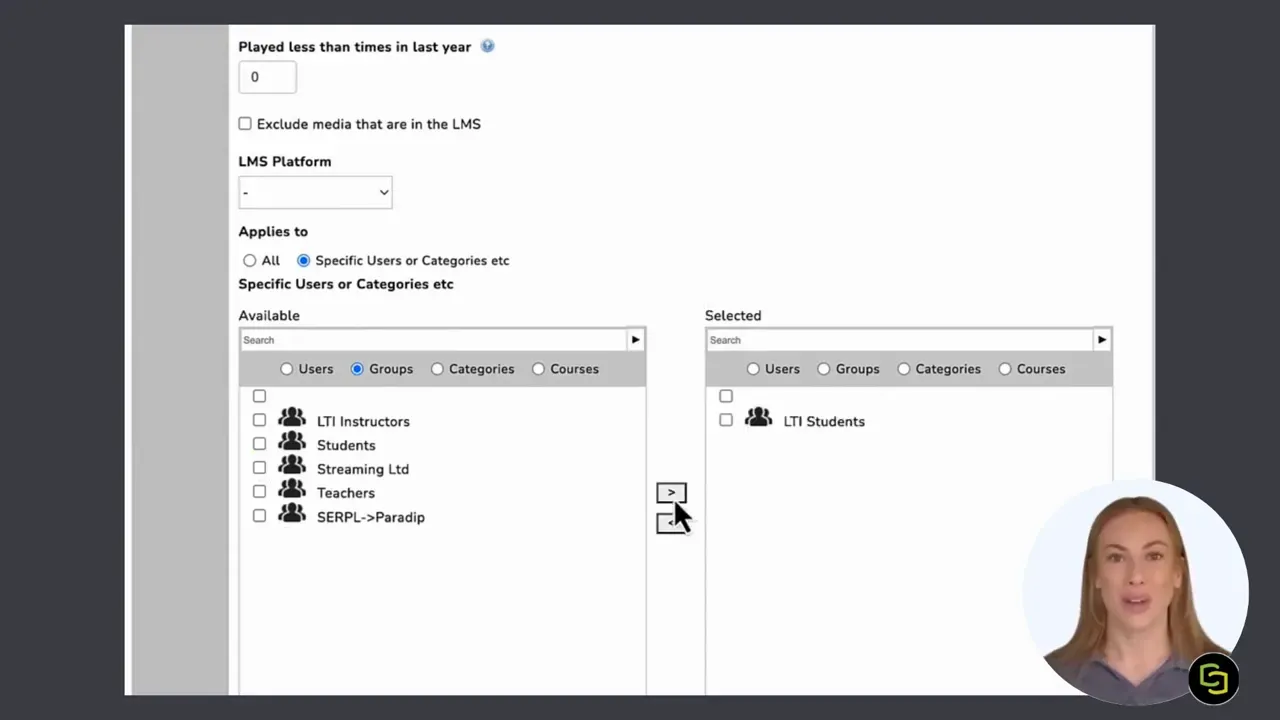
Careful targeting is an important part of media governance. Your content lifecycle rules should be clear, auditable, and aligned with who owns the content. Where access control needs reviewing alongside retention, the MEDIAL permission settings guide can help support a more secure configuration.
Choose whether to archive or delete content
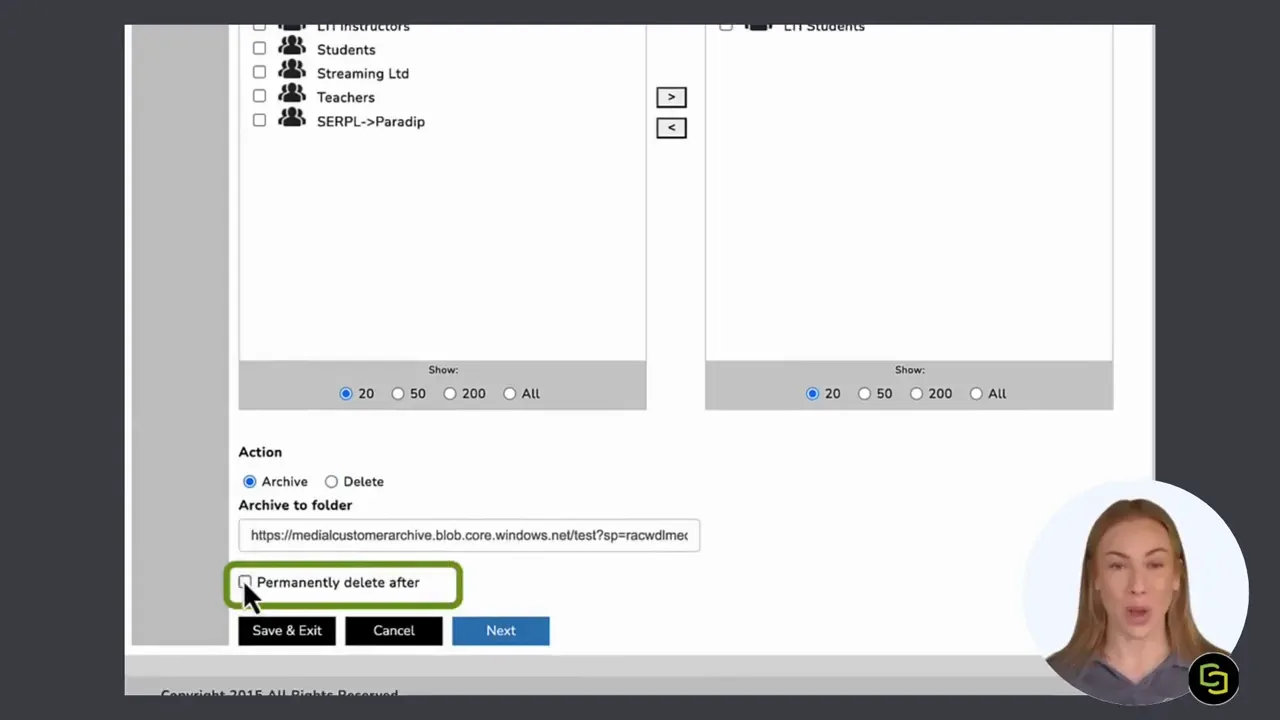
When you reach the action section, MEDIAL provides two distinct options:
Remove the selected content immediately.
Move the selected content into archive storage.
For most situations, archiving is the sensible option. It reduces the active storage footprint while keeping files available if they are needed later. Deletion may be appropriate where content has reached the end of its retention period and there is no further requirement to keep it.
You can also choose to permanently delete archived content after a specified number of days. This creates a defined final stage in the content lifecycle. Before enabling permanent deletion, make sure the period reflects your institution's retention requirements and internal processes.
Review the content before applying the policy
Select Next once the policy settings are complete. MEDIAL then presents a list of the files identified for archive storage.
This review step is valuable because it gives you a final opportunity to validate the rule. Check that the listed content matches your intention and deselect any individual files that should remain where they are.
MEDIAL also displays the disk space that will be saved by applying the policy. That makes the storage impact clear before any change takes place.
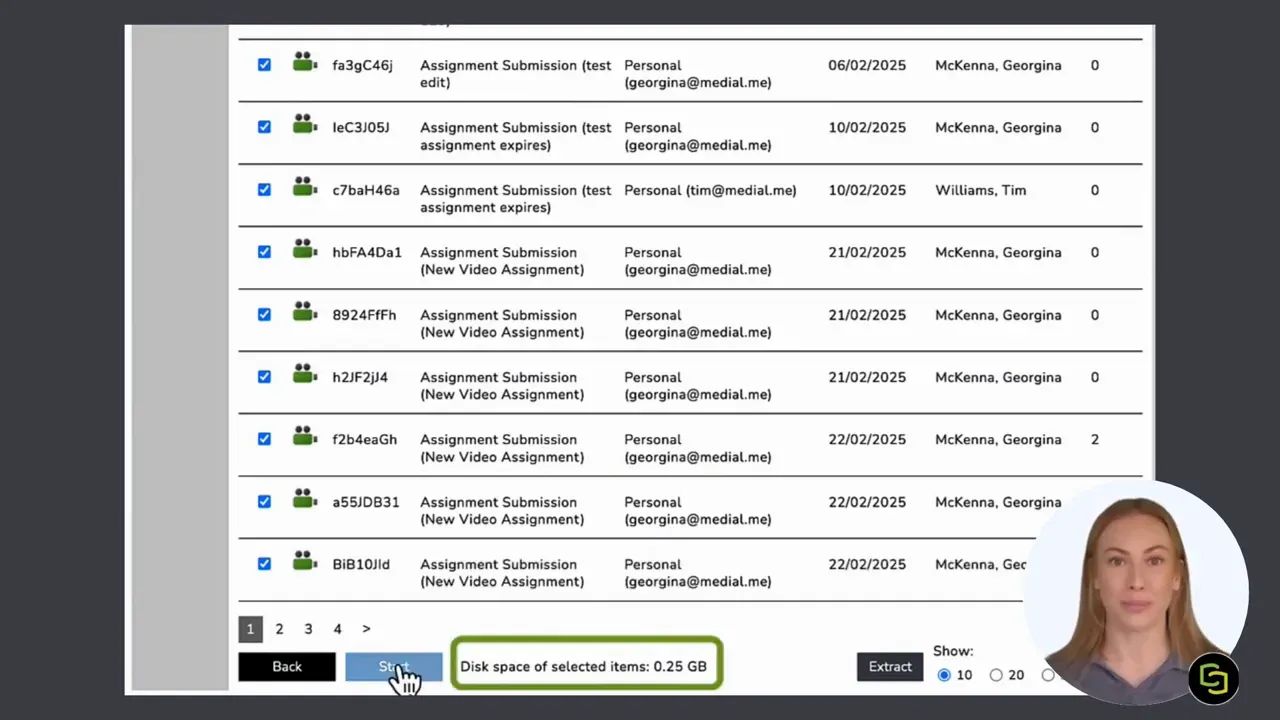
When you are satisfied with the selection, choose Start. MEDIAL begins moving the content to the selected archive storage. You can exit the page while the task continues to run, so there is no need to remain on the screen until every file has been transferred.
How to restore archived files
Archived content is still accessible when a legitimate need arises. A common example is an examiner asking to review a particular student's submission after the file has been archived.
To restore content, open the relevant content policy and select Restore. MEDIAL displays the archived files associated with that policy.
Use the search field to find the item you need. Searching by the student's name is a practical way to locate a particular submission quickly. Once the correct file appears:
Select the file from the archived-content list.
Choose
Restore
.
Confirm the restore action when prompted.
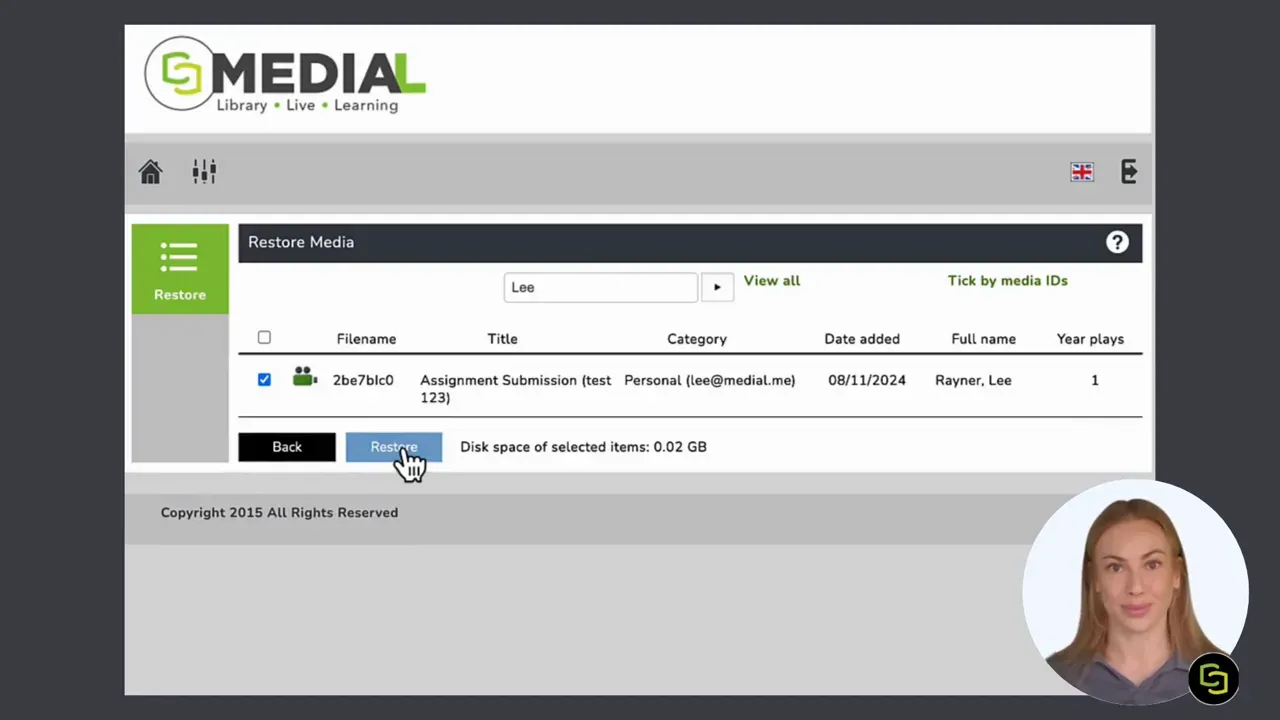
The selected file is then transferred back into the media library. This balances efficient storage management with the ability to retrieve essential media when required.
Build a practical media lifecycle
Content policies help MEDIAL administrators move from reactive storage cleanups to a repeatable process. A well-designed policy identifies the right content, applies clear criteria, preserves a route to restore, and can support permanent deletion only when the timing is appropriate.
For student submissions, an academic-year archive policy is a strong starting point. For larger media estates, the same principles can be applied to inactive recordings, outdated project media, or other content that no longer needs to remain in active storage.
The key is to be deliberate: name policies clearly, define dates precisely, apply rules to the correct user groups, review the proposed files, and archive before deleting whenever future access may still be needed.
Frequently Asked Questions About MEDIAL Content Policies
What is a MEDIAL content policy?
A MEDIAL content policy is a set of rules used to identify media based on criteria such as creation date, playback activity, LMS platform, and user group. It can then archive or delete the selected content.
Can archived content be restored?
Yes. Open the policy, select Restore, search for the required file, choose it from the archived list, and restore it to the media library.
What happens if the play-count value is set to zero?
MEDIAL ignores the played-less-than criterion when its value is zero. The policy can still use other criteria, such as date range and assigned group.
Should content be archived or deleted?
Archiving is usually the best choice when content may be needed again, such as student work required for review. Deletion is appropriate only when the content no longer needs to be retained.