MEDIAL Content Policies: Manage Rules and Archive Videos for Cost-Effective Storage
Video assignments create valuable evidence of learning. But once you have been using video submissions, recorded feedback and quiz videos for a while, another question becomes increasingly important: what happens to all that content afterwards?
Keeping everything in active storage indefinitely can make a growing video library expensive to maintain. Deleting older files, however, may mean losing material you need for a grading query or an external examiner’s review.
MEDIAL content policies help you manage that balance. They let you define retention and archiving rules, move older content into lower-cost archive storage, and restore it when it is needed again. The result is a more manageable library without sacrificing the accountability that video assessment depends on.

Table of Contents
Why Video Content Needs a Retention Plan
A completed assignment does not necessarily mean its submission and feedback have reached the end of their useful life. They may no longer need regular access, but they can still be important records of what was submitted and how it was assessed.
That creates three practical questions for any institution using video assignments:
Different material may need different retention periods.
Content that is rarely accessed does not have to remain in higher-cost active storage.
Retention is only useful if the right submission can be found when a query arises.
Content policies turn these decisions into rules rather than leaving someone to manage files individually. MEDIAL can move matching content into archive storage, helping institutions retain years of assignments and feedback more affordably.
For the broader planning considerations behind these decisions, our guide to implementing an effective video content retention strategy provides useful context.
Create a Policy with a Clear Purpose
Start by logging into MEDIAL and opening Content Policies. This is where you create and manage the rules used to archive library content and free up storage space.
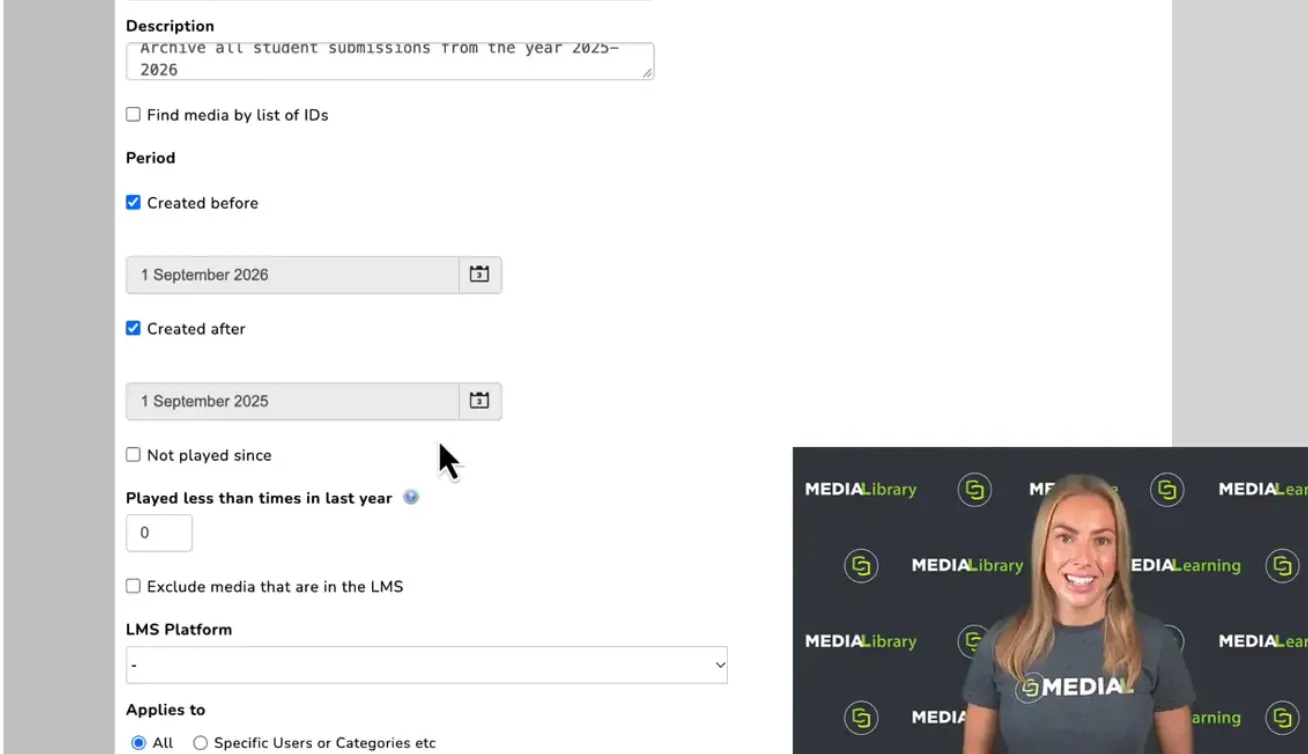
Select New, then give the policy a name and description. Make both specific enough that its purpose is easy to recognise later.
A straightforward example is archiving student submissions from the 2025 to 2026 academic year. The name identifies the academic year, while the description explains that the policy covers student submissions from that period.
This gives the policy a clear scope before you configure any filters. You are not simply moving “old videos”. You are identifying a particular set of assessment records and deciding how they should be stored.
Set the Date Range and Usage Filters
Next, use the Period settings to define which content should be included. For the academic-year example, configure:
1 September 2026.
1 September 2025.
Together, these settings target content created within the selected academic-year window. This is a useful starting point when your archiving decisions follow the academic calendar.
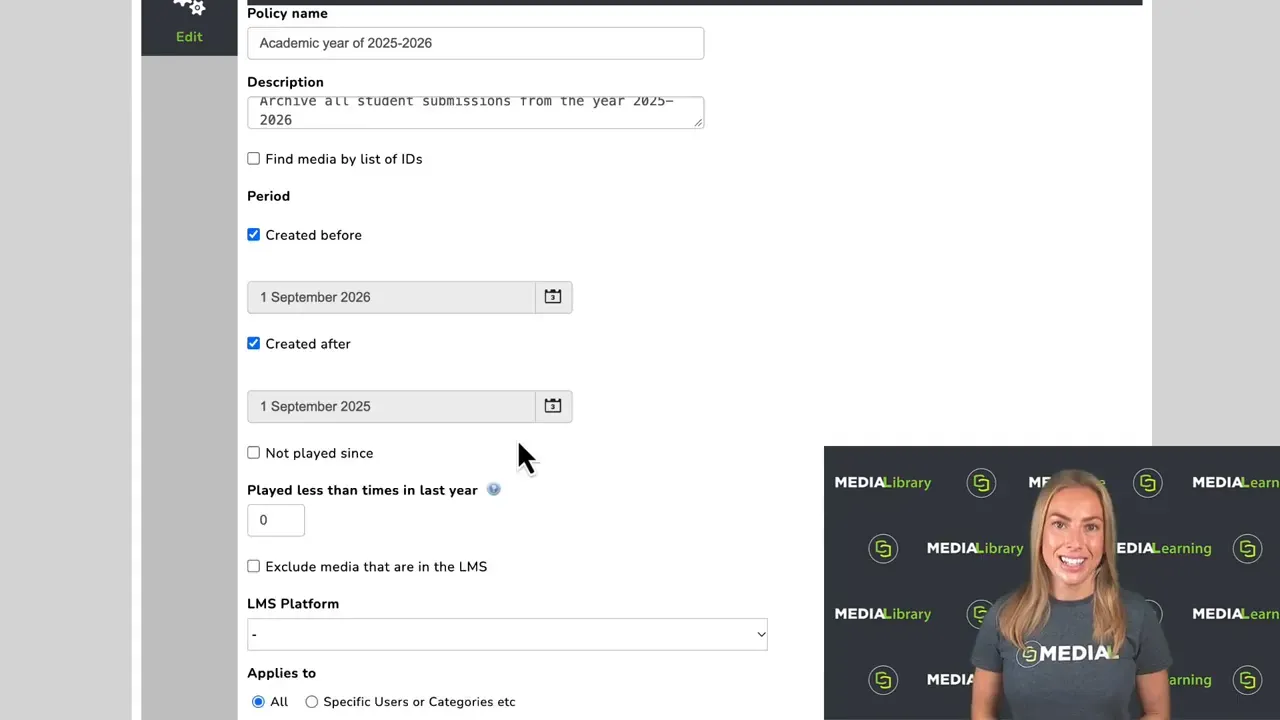
MEDIAL also offers usage-based triggers. You can target content that has not been played since a specified date, or content played fewer than a set number of times in the last year.
These filters address a different question from creation dates. A date range identifies when a recording entered the library; playback criteria help identify whether it is still being used.
A playback-count value of zero is ignored. It does not act as a rule to select only videos with no plays. If that criterion is not relevant to your policy, leaving it at zero keeps it out of the selection logic.
You can also filter by LMS platform where relevant. Choose the criteria that match the purpose of the policy, rather than adding filters simply because they are available.
Choose Who the Policy Applies To
The next important step is selecting the people or groups whose content the policy should cover. For this example, choose the option to apply the policy to a specific group and select Students.
This makes the academic-year rule more precise. The date range identifies the period, and the group selection identifies whose content belongs in the archiving operation.
That distinction matters in a library containing different kinds of recordings. A policy intended for student submissions should be scoped accordingly, rather than relying on dates alone.
Decide Between Archiving and Deletion
Once the selection criteria are configured, choose the action. MEDIAL provides options to archive or delete matching content.
Deletion removes the content straight away. Archiving moves it into lower-cost storage while retaining the option to bring it back into the media library later. For institutions that still need assessment evidence, archiving will often be the more appropriate choice.
There is also an option to permanently delete archived content after a specified number of days. This allows a policy to include a later cutoff, rather than keeping archived material indefinitely.
Archiving and permanent deletion serve different purposes. Decide whether you need to retain the recording before setting the action or enabling a future deletion period. Storage savings should not come at the expense of records you still need.
Preview the Content Before Starting
Select Next to see the full list of content that matches the policy. This review step connects your rules to the actual files they will affect.
You can deselect anything that should not be included. MEDIAL also displays how much disk space the selected content will free up, giving you a practical measure of the operation’s storage impact.
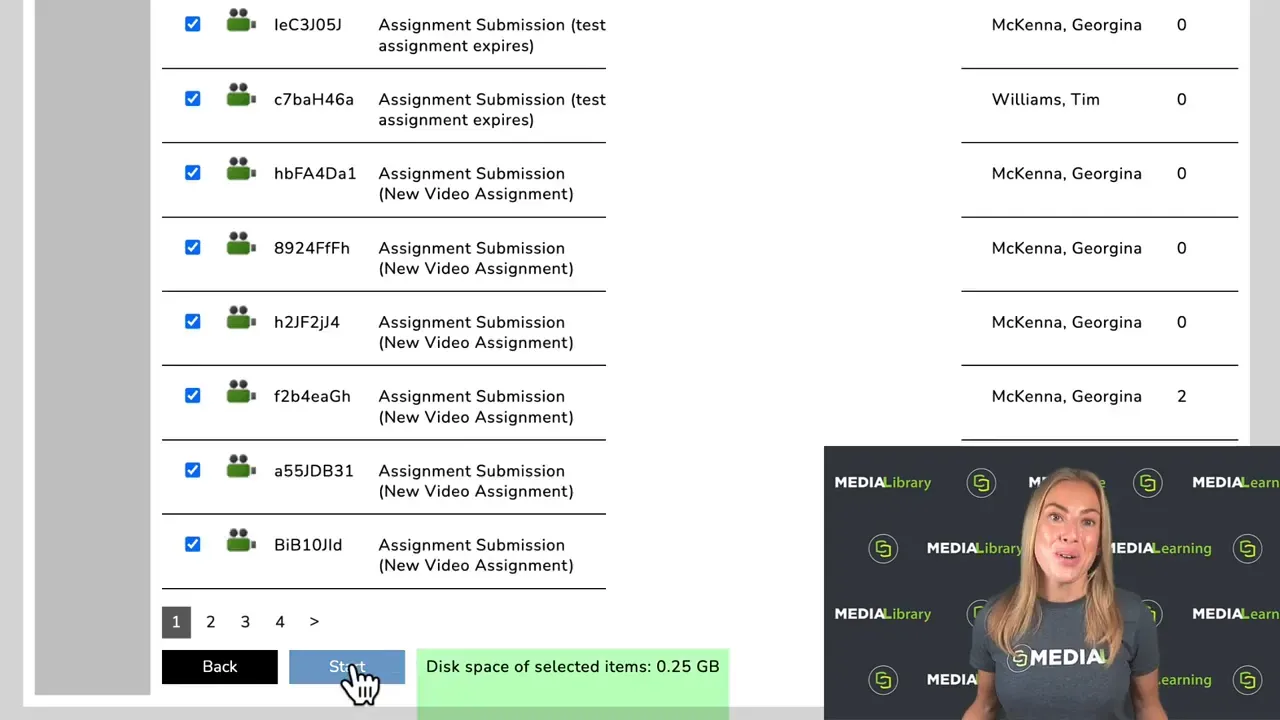
Before proceeding, check three things:
The list reflects the academic year or usage criteria you intended.
The selected content belongs to the correct group.
Any exceptions have been removed from the selection.
When you are satisfied, select Start. The content begins moving into archive storage. You can exit the processing screen while the operation continues in the background.
Our guide to creating and managing MEDIAL content policies provides another reference for the configuration, preview and management workflow.
Restore an Archived Submission When It Is Needed
Archiving is only half the story. Imagine that a year later, an external examiner needs to review a particular student submission as part of a grading query.
In MEDIAL, select Restore to open the archived-content list. Search for the student’s name, locate the relevant submission, select the file and choose Restore.
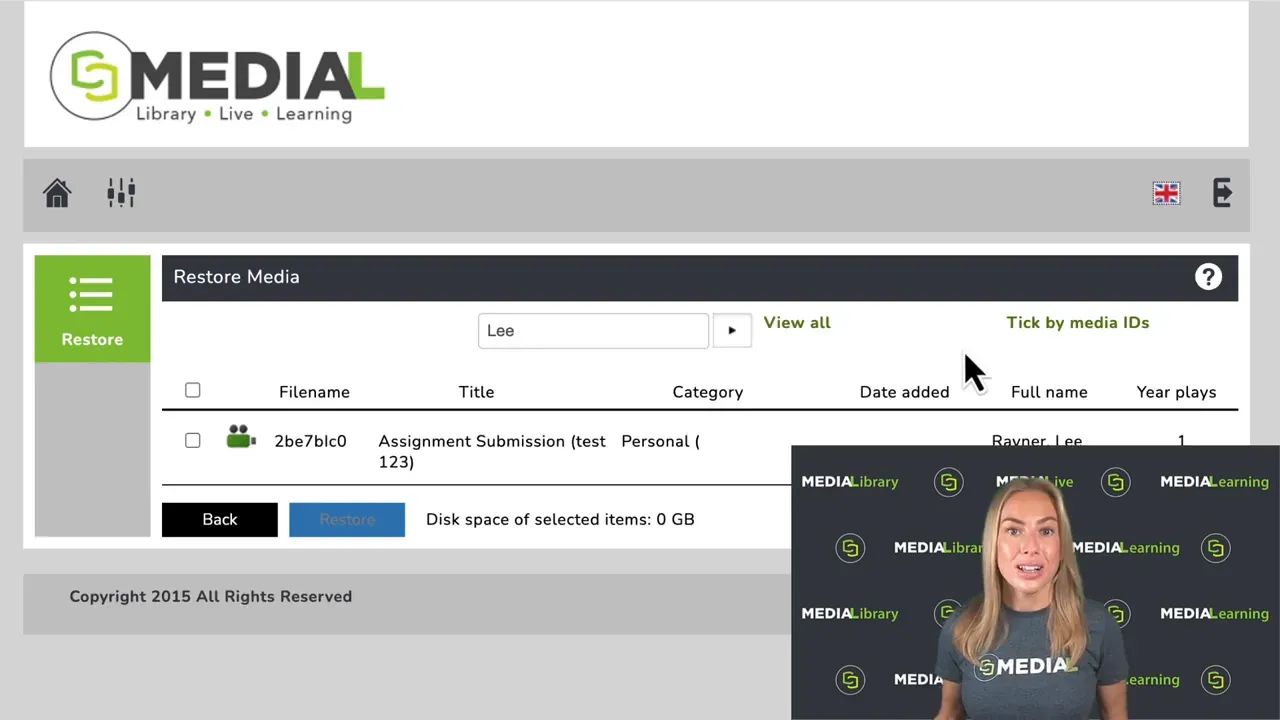
The content is transferred back into the media library, ready to access again. The submission and its original feedback return as they were when graded, preserving the assessment record rather than requiring someone to reconstruct it from separate files.
That is the real value of a content policy. A grading query does not have to become a search through old backups or a chase for files that seemed long gone.
Reduce Storage Costs Without Losing Accountability
A useful video retention process keeps current content available, moves less active material into affordable storage, and provides a clear route back to important records.
With MEDIAL content policies, you can define the period, refine the selection, choose the appropriate action and review the files before processing begins. When archived material is needed, the restore workflow brings it back into the library.
You do not have to choose between controlling storage costs and retaining assessment evidence. Thoughtfully configured archiving rules support both, keeping your video library manageable while preserving the submissions and feedback that matter.
Want to learn more?
See how MEDIAL can help you manage your video content, control access and reduce storage costs.