The Three Ls of MEDIAL | MEDIALearning- Capture, Create, Connect
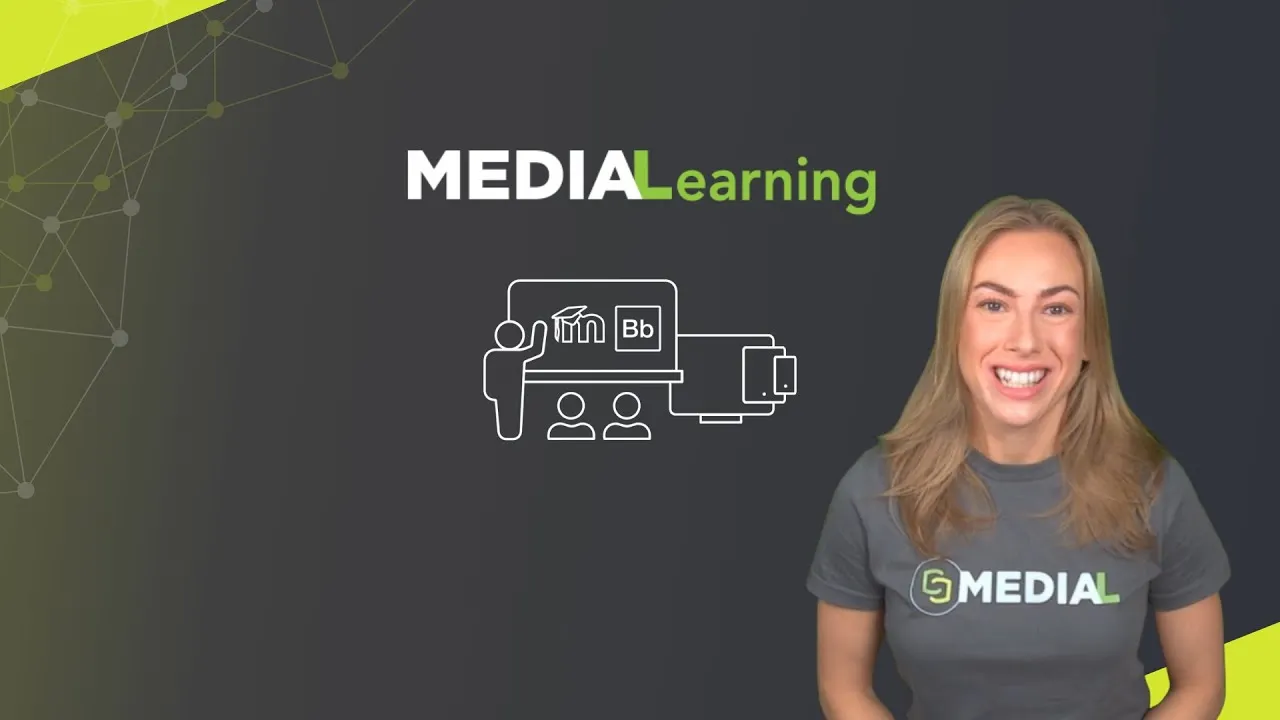
MEDIALearning brings video creation, management, and analytics right into the classroom tools instructors already use. If your institution relies on Blackboard, Moodle, Canvas, or Brightspace, MEDIAL integrates directly into the text editor so multimedia becomes part of everyday course authoring.

What MEDIAL integration looks like inside your LMS
Every supported learning management system shows a MEDIAL button in the text editor. That button might carry the MEDIAL name or logo. Click it and a compact, familiar interface appears, exposing the core MEDIAL functions without leaving the LMS environment.
From that single entry point instructors can upload new videos, select previously uploaded content, or record on the spot. That immediate access removes friction between lesson planning and media delivery. No separate logins, no switching platforms, and no need to embed external links manually.
Key features you can use right away
existing video assets directly in the course content editor.
using MEDIAL Lecture for quick lectures, demonstrations, and feedback.
showing who watched content and how engaged learners were.
captured in a single recording session for clear demonstrations or talking-head explanations.
Record directly in the browser
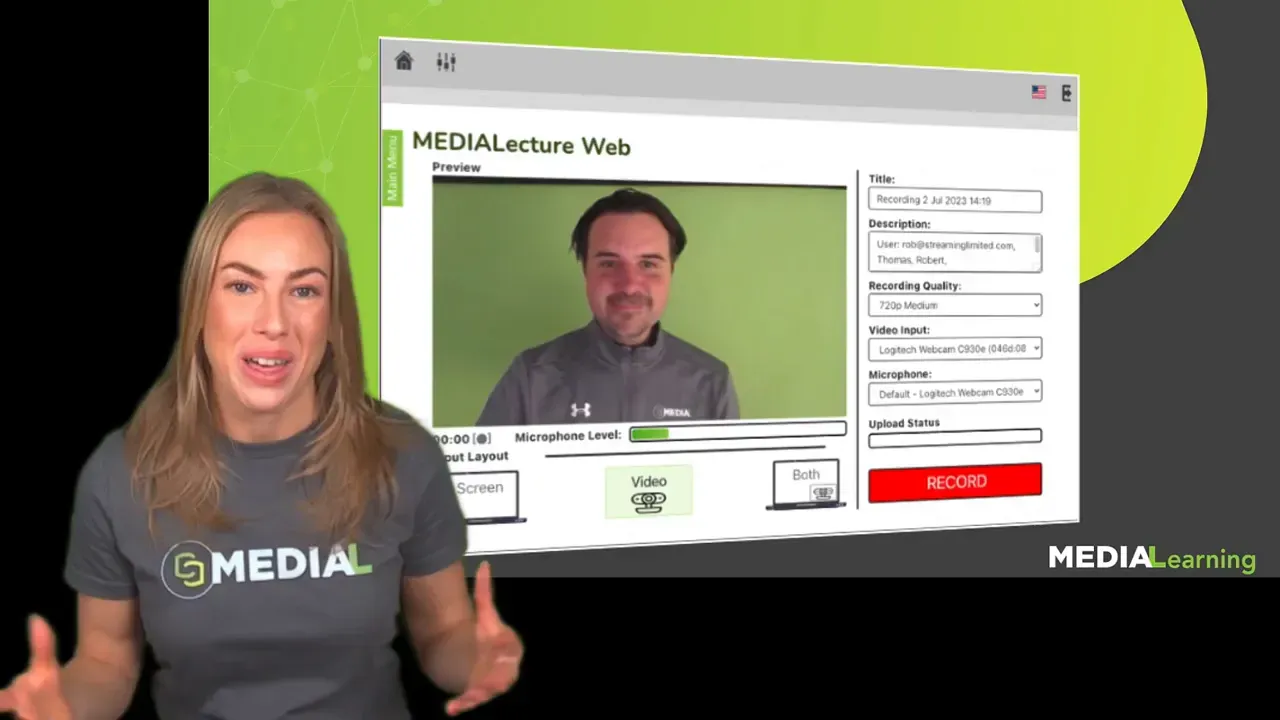
MEDIAL Lecture lets instructors record from the browser without installing software. Capture the screen, the camera, or both simultaneously. This is ideal for software walkthroughs, slide narrations, and personal check-ins. The simplicity encourages more frequent and varied use of video in courses.
Why embedding MEDIAL into the LMS matters
Embedding MEDIAL inside the LMS places media tools where instructors already spend time. That reduces the learning curve and increases the chance multimedia will be used consistently. It also centralizes management of media assets so course teams can maintain a single source of truth for videos.
Benefits for instructors
- Create and insert video content without leaving the course editor.
- Reuse approved media across multiple courses and sections.
- Use media analytics to refine content and identify where learners struggle.
Benefits for learners
- Videos appear inside course pages so learners do not need extra accounts or links.
- Instructors can mix screen captures and camera to create clearer, more personal explanations.
- Analytics help staff intervene earlier when engagement drops.
Media analytics that inform teaching
The analytics view shows who has watched a given video and provides engagement metrics over time. This data supports evidence-based decisions: revisit content that shows low engagement, create shorter reprise videos if learners skip sections, or schedule synchronous sessions to address common questions.
Practical tips for better lecture recordings
- Aim for short segments that address a single concept. Shorter videos increase completion and retention.
- Use screen capture for demonstrations and camera for quick personal connection. Switching between the two keeps content dynamic.
- If viewers consistently drop off at a certain timestamp, consider splitting the video or clarifying that section.
- Use clear titles and tags so reused media is easy to find when building new modules.
- A brief outline reduces retakes and results in tighter, more professional-sounding videos.
Implementation and adoption considerations
Integration is consistent across Blackboard, Moodle, Canvas, and Brightspace. Because the MEDIAL button appears in the LMS editor, institutions can deploy MEDIAL without retraining staff on a separate publishing workflow. Still, a short orientation for instructors helps accelerate adoption.
Consider pilot programs with a few instructors who frequently use multimedia. Collect their feedback and showcase successful examples to broader faculty teams. Highlight how analytics enabled targeted interventions or improved assessment outcomes.
Common use cases
- Quickly record a narrated slide deck and embed it in the weekly content area.
- Record a step-by-step software demo using screen capture and voiceover.
- Send targeted video comments to students to increase clarity and motivation.
- Build a reusable catalog of short topic videos for remediation or extension work.
Security, privacy, and accessibility
Integrations follow institutional authentication, so content permissions are managed within the LMS. Use captions and transcripts to meet accessibility best practices and improve discoverability. When sharing analytics, respect privacy policies and provide data only to authorized personnel.
Getting started checklist
- Confirm Blackboard, Moodle, Canvas, or Brightspace is available at your institution.
- Make sure the MEDIAL option appears in the course editor toolbar.
- Show instructors how to upload, record, and view analytics.
- Recommend video length, naming conventions, and captioning expectations.
- Use analytics to measure impact and iterate on support resources.
FAQ
Which learning management systems work with MEDIAL?
MEDIAL integrates with Blackboard, Moodle, Canvas, and Brightspace. The integration behaves consistently across platforms by adding a MEDIAL button in the LMS text editor.
How do I record a lecture without installing software?
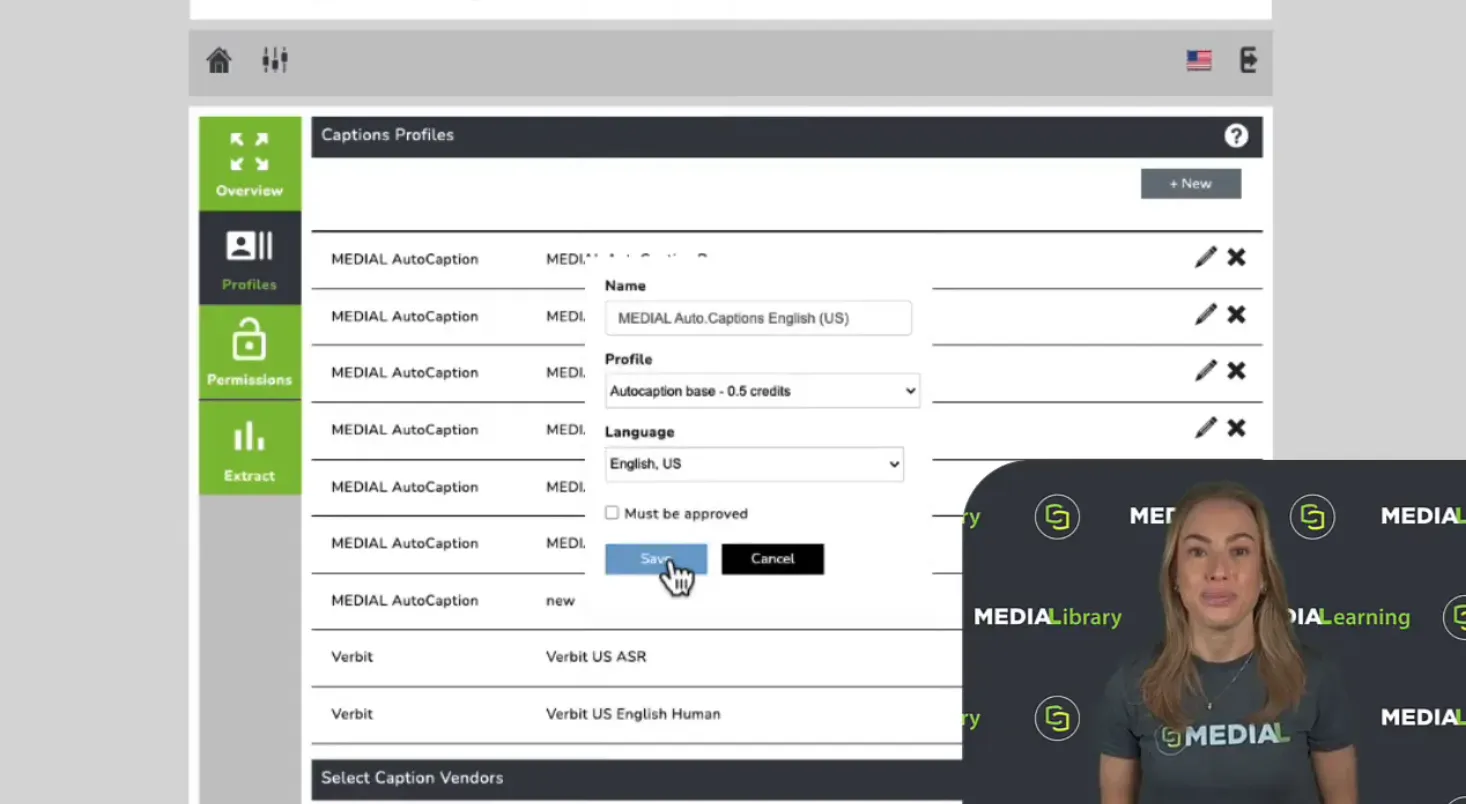
Use MEDIAL Lecture to record directly in the browser. Choose screen capture, camera, or both. The recorded file is saved to the MEDIAL media library for immediate use in course content.
What analytics are available for videos?
Analytics report who watched a video and provide engagement metrics that indicate which parts of a video learners watched or skipped. Use this information to refine content and target support.
Can I reuse media across courses?
Yes. The MEDIAL integration allows selection of existing videos, enabling instructors to reuse media assets across courses and modules.
Does MEDIAL support captions and transcripts?
Captions and transcripts are recommended and supported through MEDIAL tools or institutional captioning workflows. Adding captions improves accessibility and searchability.
MEDIAL makes multimedia a first class part of course design by putting capture, upload, and analytics directly where content is authored. The result is faster content creation, clearer instruction, and data that helps educators make smarter decisions about teaching and support.