MEDIAL | Plugin for Moodle | Student Submitting a Video Assignment

Video Tutorial
Instructions
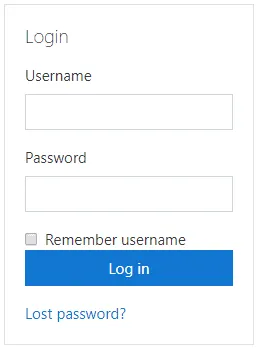
1. Login to your Moodle:
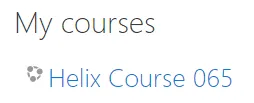
2. Go to My Courses:
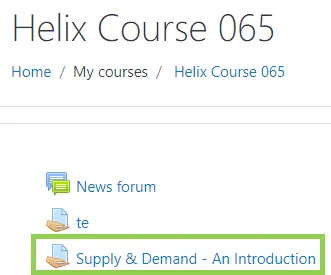
3. Then select the Assignment to which you wish to respond:
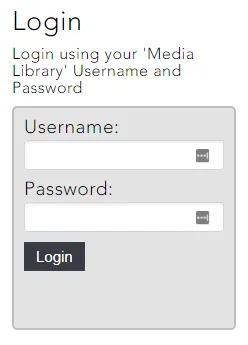
4. You may be prompted to login using your University, College or work login credentials. If prompted to do so type in your username and password and click Login:
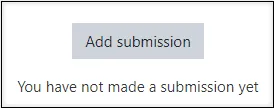
5. Scroll down to the bottom of the page to 'Add submission' to do your video response to the assignment:
6. Review video assignment or instructions. Scroll down and ‘Add Media’:
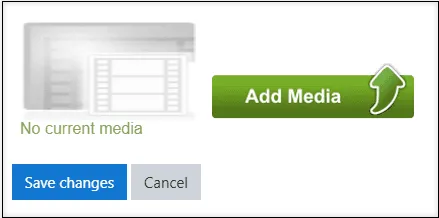
7. You will be given the following options depending on your permissions:
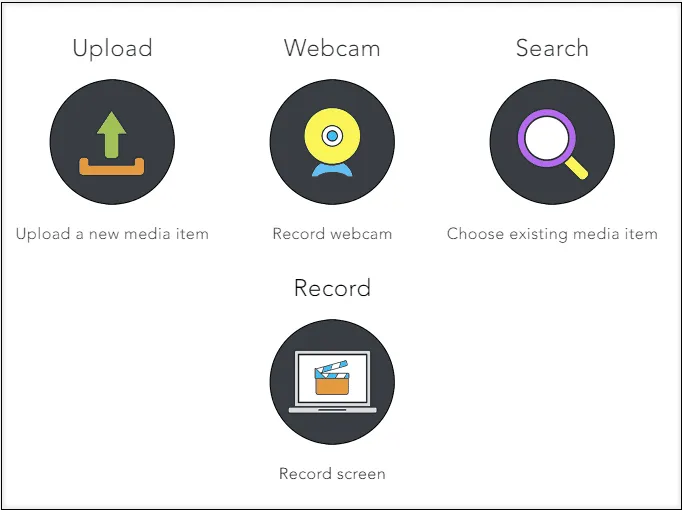
UPLOAD
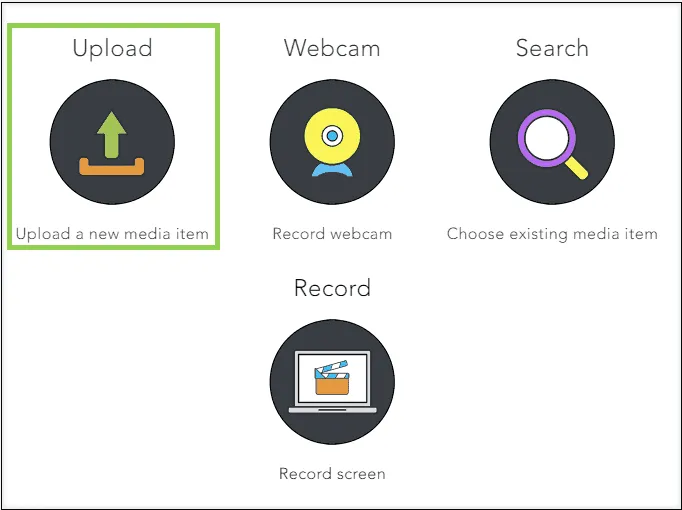
This will guide you through an UPLOAD Wizard (tabs may vary depending on your establishments workflow):
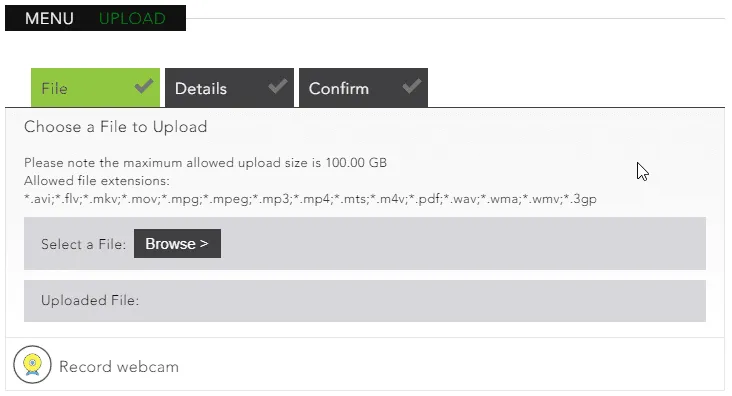
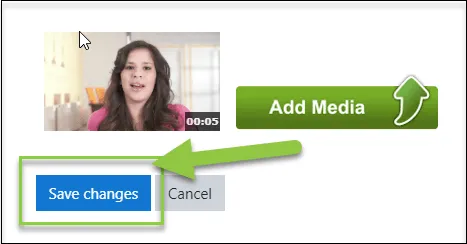
IMPORTANT: Once a file has been added, you MUST make sure you ‘SAVE CHANGES’ on the Moodle page:
WEBCAM
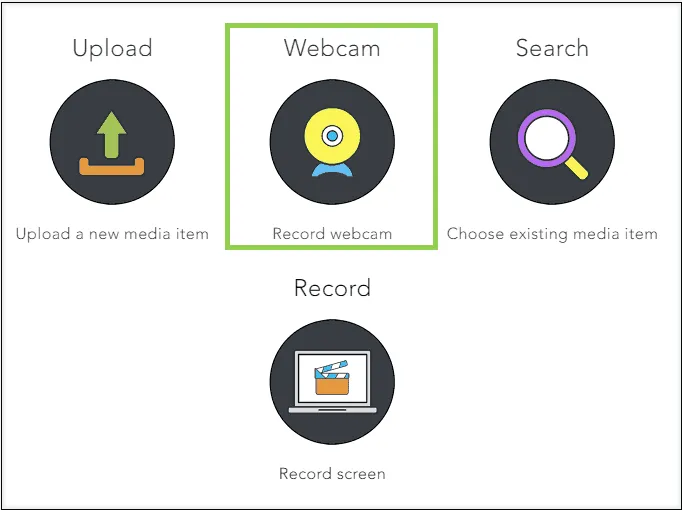
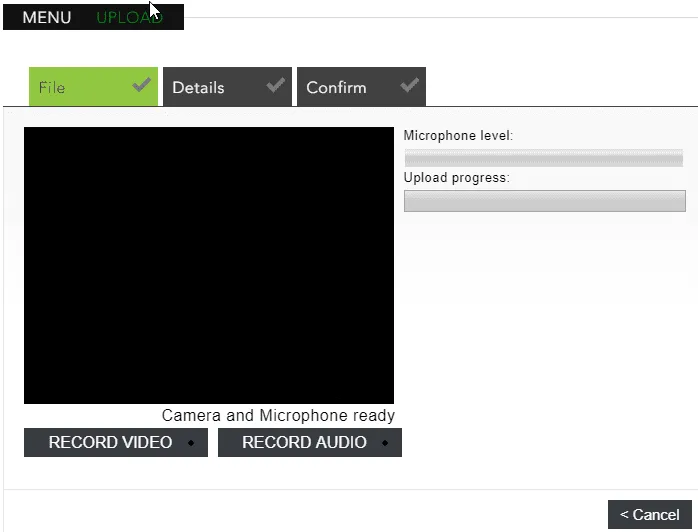
This option allows you to do an ADHOC webcam and audio (or just audio) recording:
Once you have stopped recording you can adjust the start and end times:
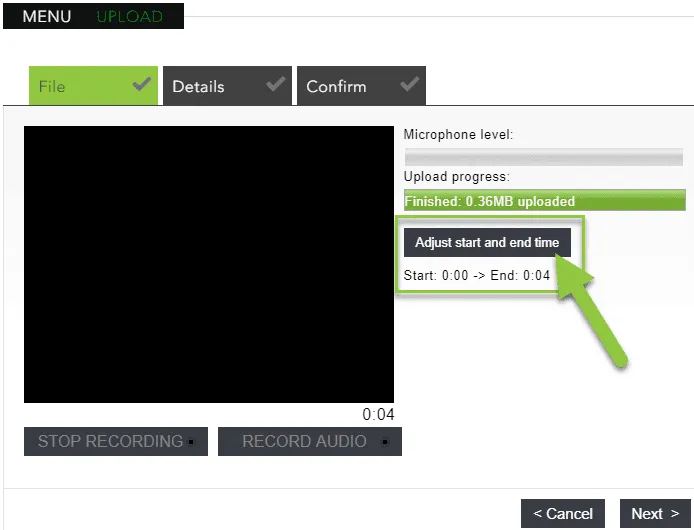
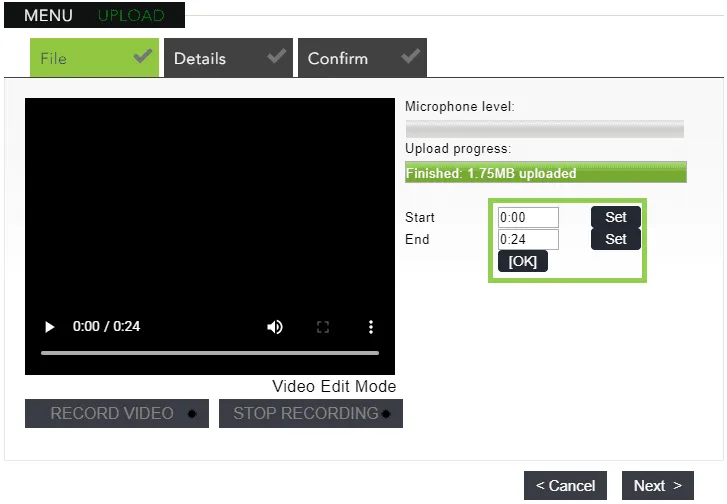
You can then select Next and be guided through the quick upload wizard
IMPORTANT: Once a file has been added, you MUST make sure you ‘SAVE CHANGES’ on the Moodle page:
SEARCH
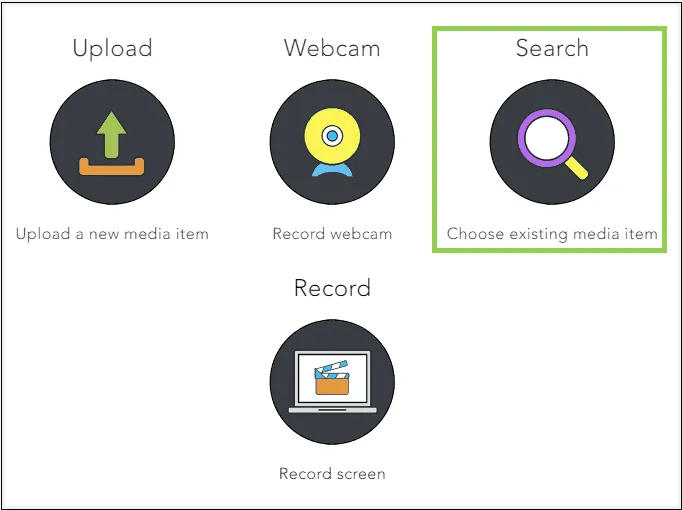
This option allows you to look through existing or previously uploaded video and audio files:
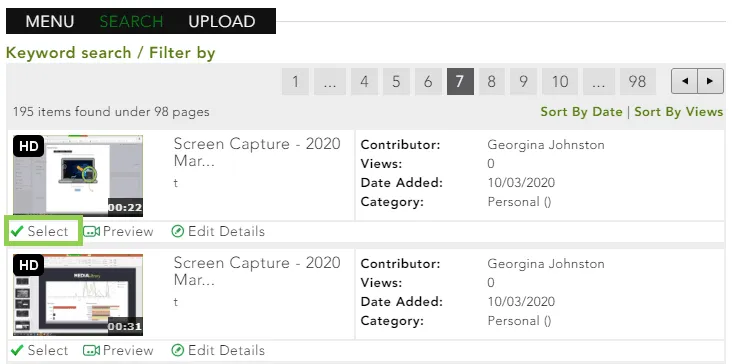
IMPORTANT: Once a file has been added, you MUST make sure you ‘SAVE CHANGES’ on the Moodle page:
RECORD - using MEDIALecture Screen Capture
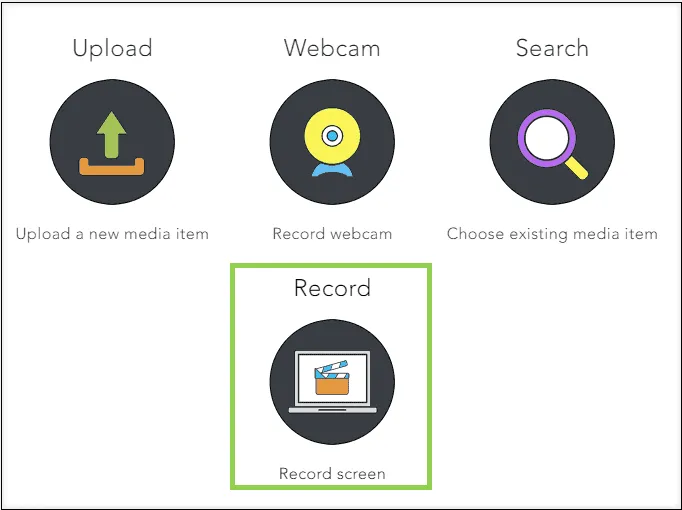
The MEDIALecture Screen Capture interface looks like this:
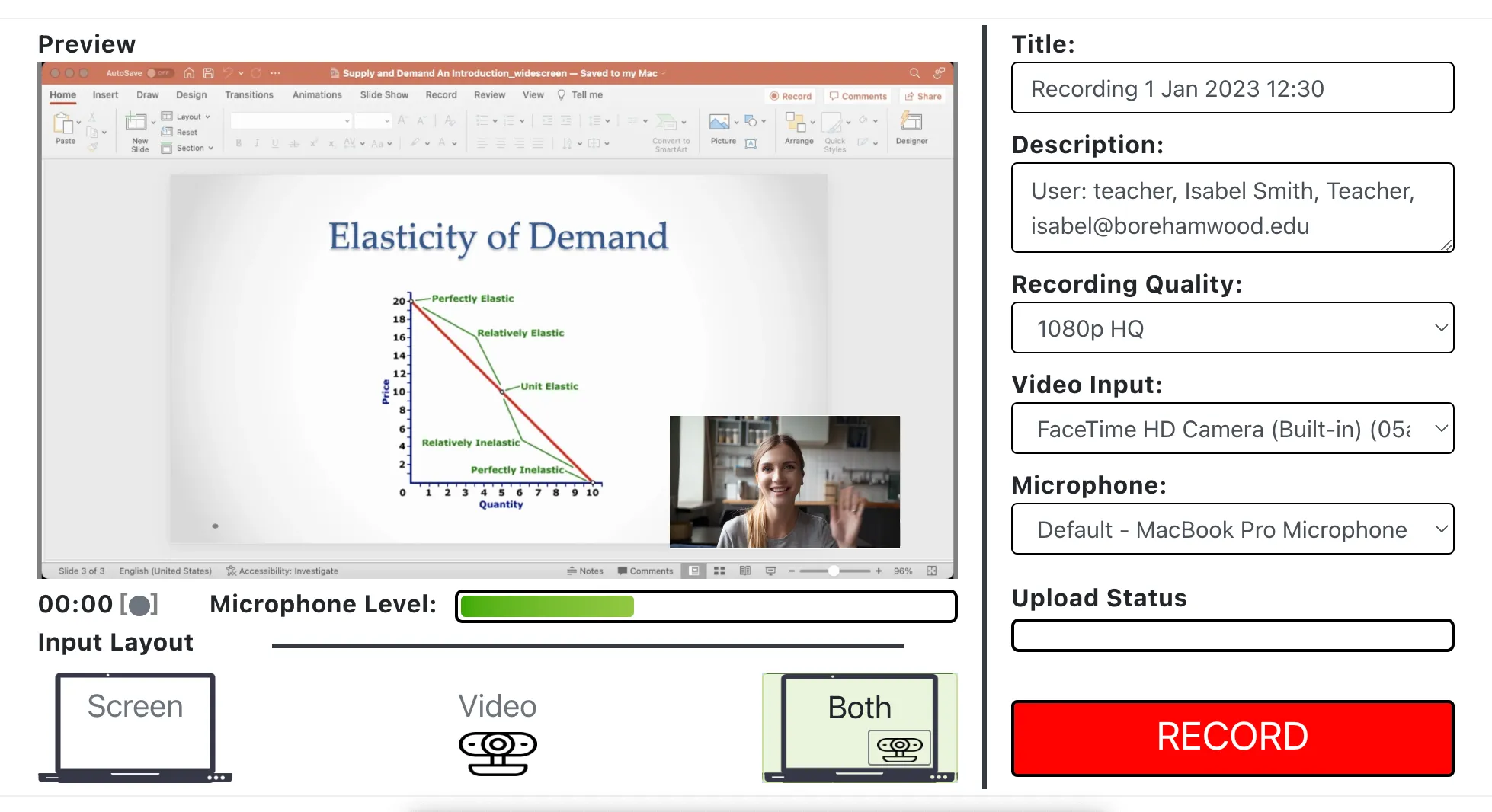
Click Finish once you are done with your recording.
IMPORTANT: Once a file has been added, you MUST make sure you ‘SAVE CHANGES’ on the Moodle page: