NASM Premier Global Video Submission

This article talks you through the steps required to do a Video Upload of your submission once you have produced your file.
For best practice on producing content on your device to significantly decrease the amount of time taken to upload your file click on the guides below:
IOS Guide:
https://www.medial.com/post/decrease-upload-time-of-your-submission-ios
Android Guide:
https://www.medial.com/post/decrease-upload-time-of-your-submission-android
Uploading your Submission:
1. Select the Assignment to which you wish to respond:
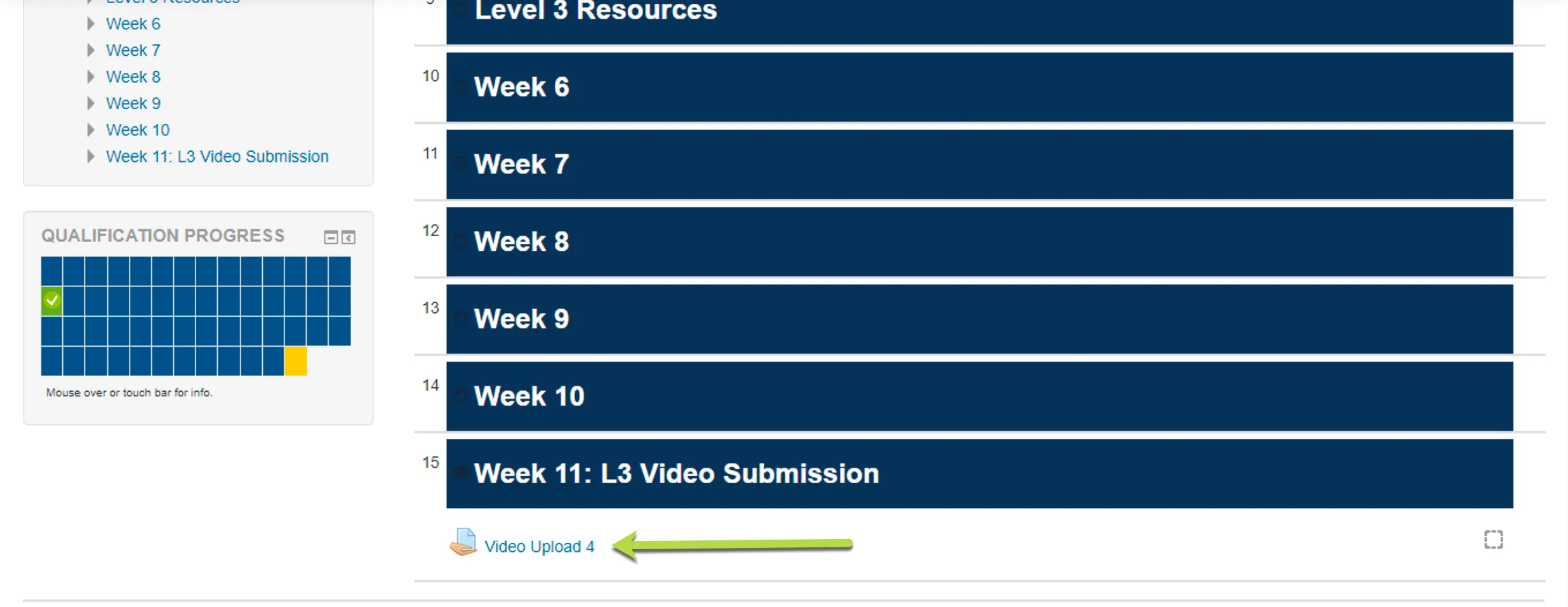
2. Scroll down to the bottom of the page to 'Add submission' to do your video response to the assignment:
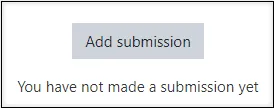
3. Review video assignment or instructions. Scroll down and ‘Add Media’:
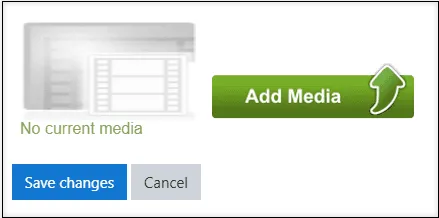
4. You will be given the following options:
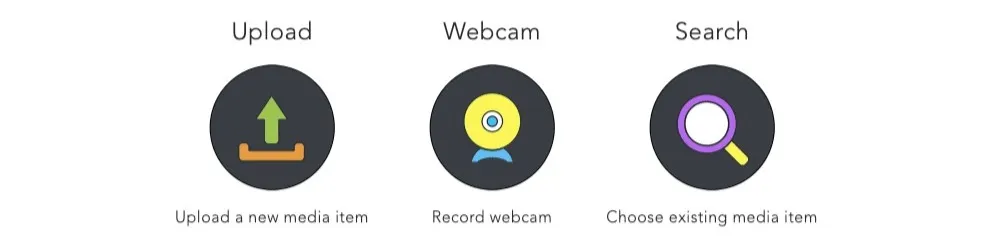
UPLOAD
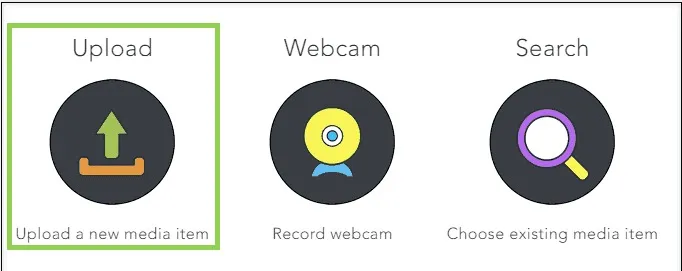
This will guide you through an UPLOAD Wizard:
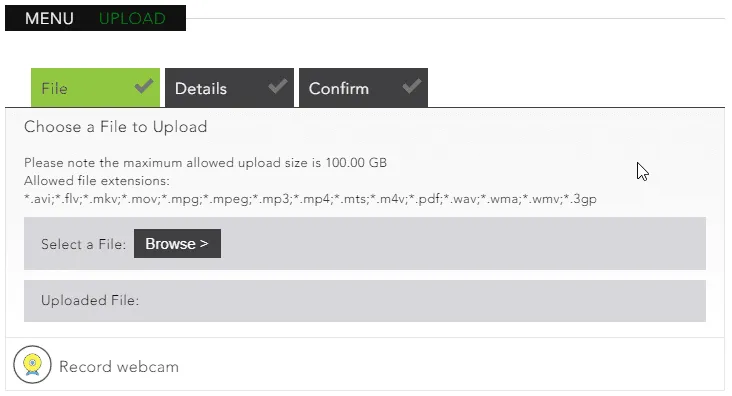
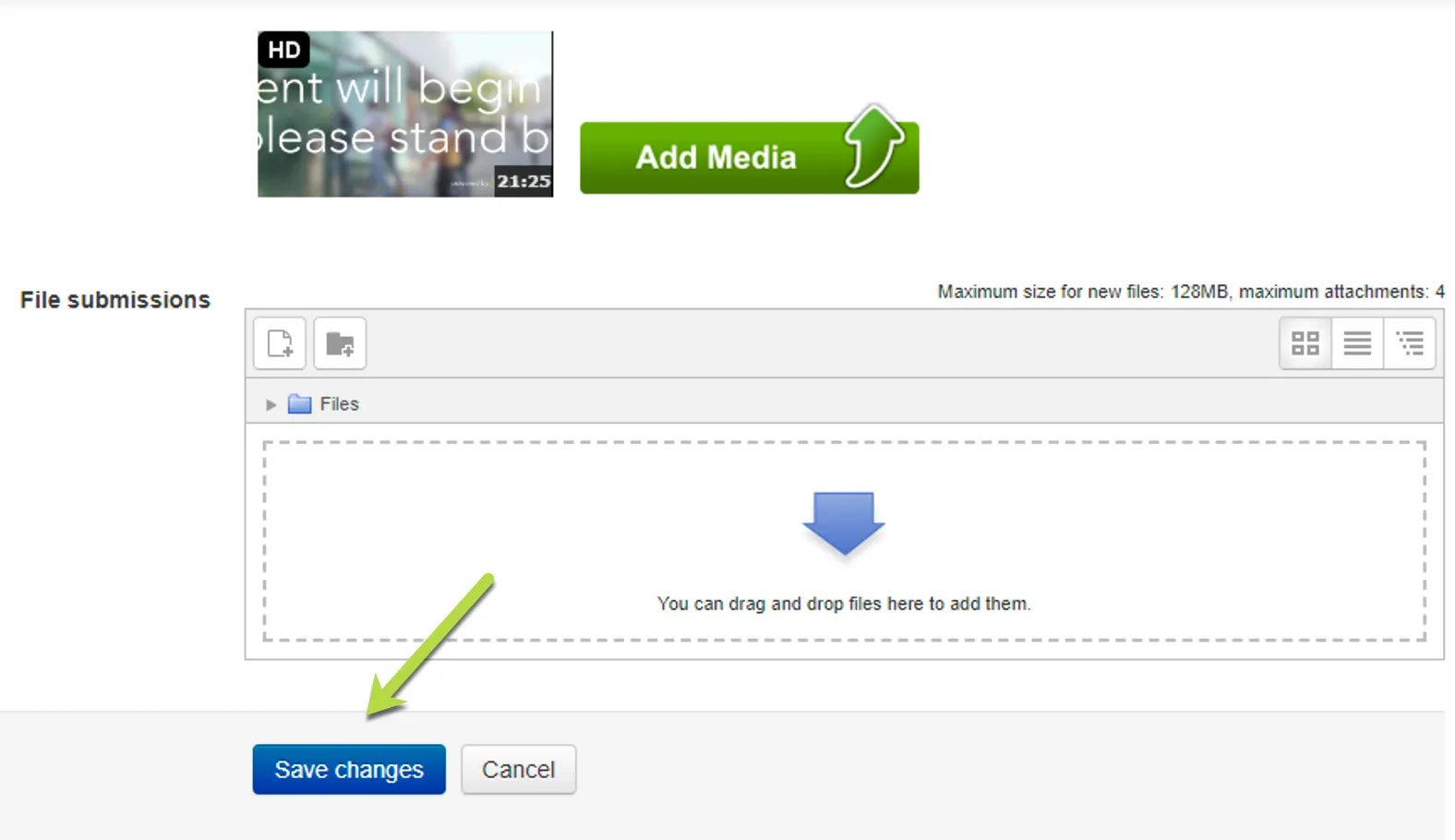
IMPORTANT: Once a file has been added, you MUST make sure you ‘SAVE CHANGES’
WEBCAM
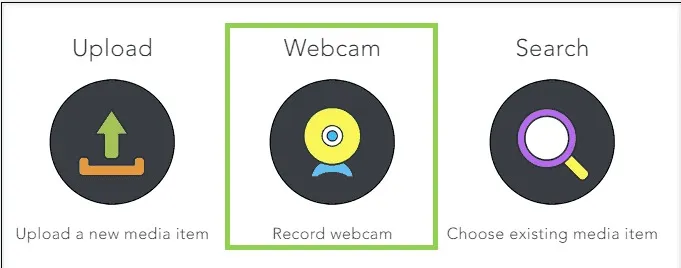
This option allows you to do an ADHOC webcam and audio (or just audio) recording:
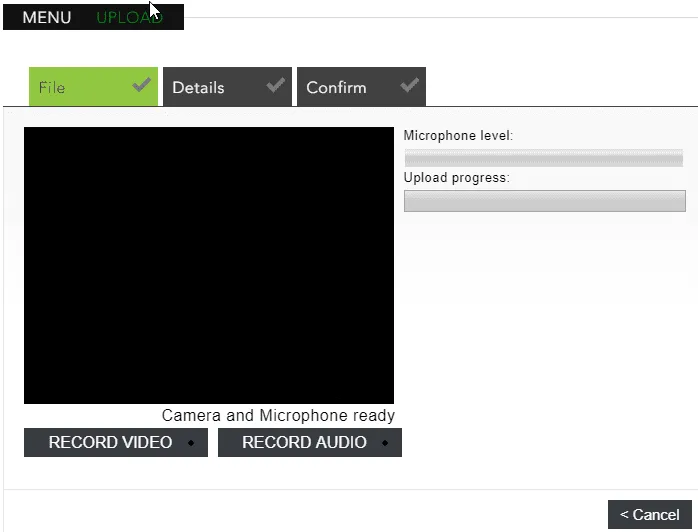
Once you have stopped recording you can adjust the start and end times:
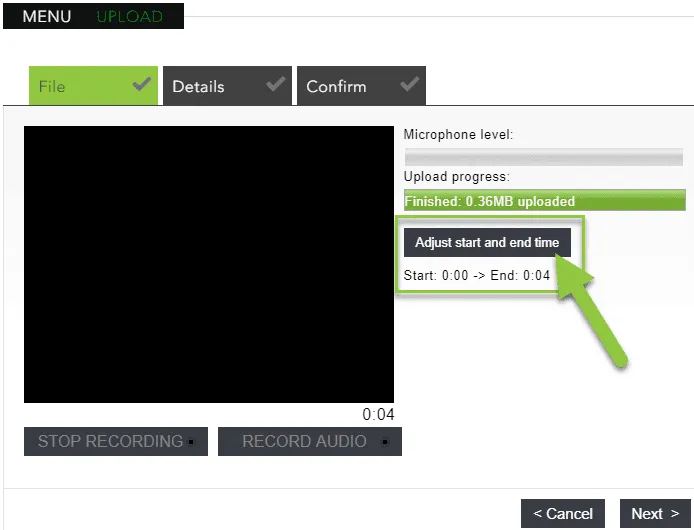
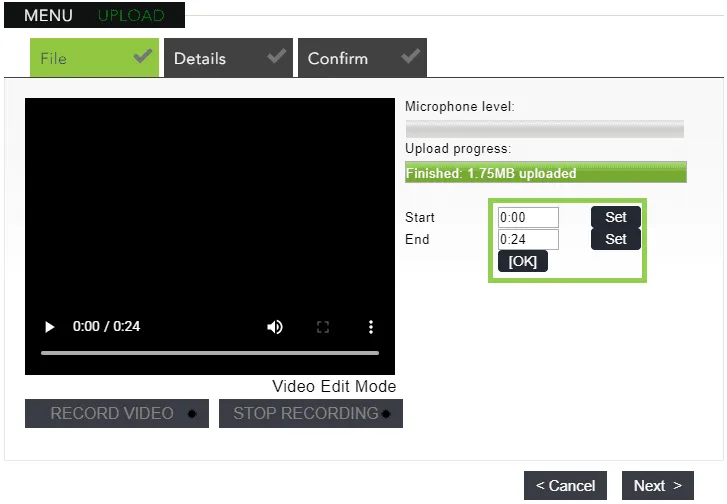
You can then select Next and be guided through the quick upload wizard
IMPORTANT: Once a file has been added, you MUST make sure you ‘SAVE CHANGES’ on the Moodle page:
SEARCH
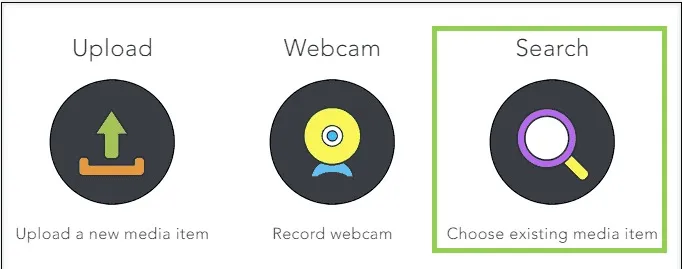
This option allows you to look through existing or previously uploaded video and audio files:
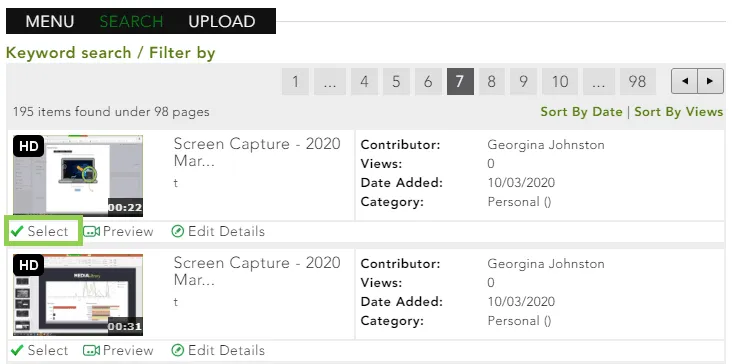
IMPORTANT: Once a file has been added, you MUST make sure you ‘SAVE CHANGES’ on the Moodle page: