WEBINAR: Live Streaming Made Simple with MEDIAL
Live streaming does not have to be complex, fragile, or resource heavy. With the right workflow, you can get from “we need a stream” to “it is live, branded, embedded, and even archived” without rebuilding your process every time.
This guide breaks down an end to end approach using MEDIAL and the familiar streaming tool OBS. You will learn how to launch your first live stream, automatically archive it for on demand playback, embed live and recorded sessions inside portals and LMS platforms, and scale from small internal events to global broadcasts with CDN delivery.
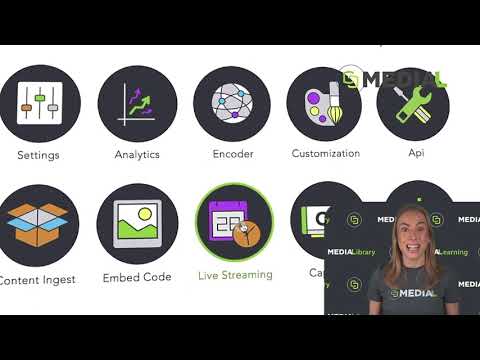
Table of Contents
1) Launch a live stream in minutes with OBS and MEDIAL
Start with a simple principle: keep the production side you already know (OBS), while letting MEDIAL handle the viewer experience, branding, archiving, and distribution.
Step A: Create and configure a live stream channel
In your MEDIAL dashboard:
Click the
icon
Create a new live stream channel if you do not already have one
Open your channel and click
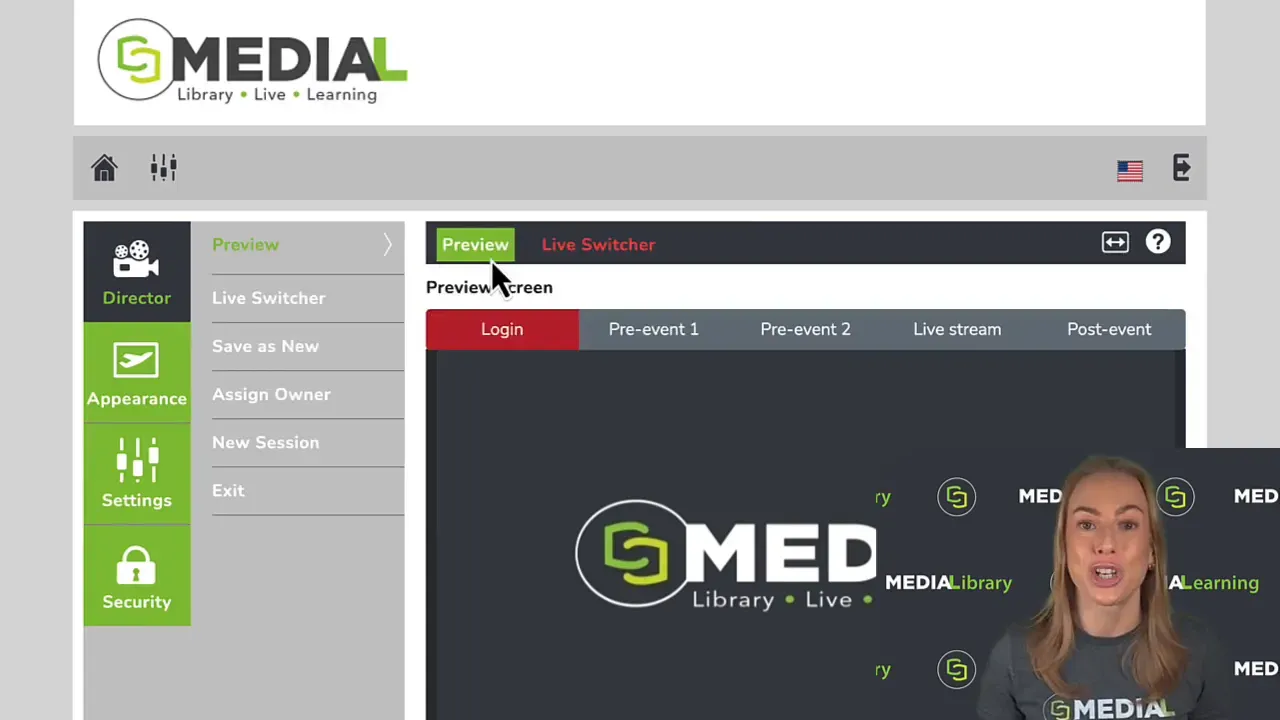
You will land in director view, where you can control what people see at different stages of your event. This is where “live streaming made simple” becomes real.
Step B: Use director view to control scenes safely
Director view gives you practical controls that keep your stream looking intentional, not improvised:
: switch between scenes without affecting the live stream. You can test what appears on each stage before pushing it live.
: automatically move between scenes at set times. For example:
At 4:00 p.m. show a pre event holding slide
At 5:00 p.m. start the live stream
At 6:00 p.m. switch to an interval scene
: let a specific person log in and manage the live stream. This is ideal if someone else is running production on the day.
At 4:00 p.m. show a pre event holding slide
At 5:00 p.m. start the live stream
At 6:00 p.m. switch to an interval scene
Step C: Configure what viewers see in each stage
Go to the appearances section to decide exactly what is displayed at each stage of the event.
Typical options include:
A pre recorded video
A static image
Custom HTML (such as links to your website)
MEDIAL default videos
Your own branded content
Step D: Add page modules for a polished branded experience
In page modules, enhance the viewing experience further. Common upgrades include:
Messaging prompts
Branded headers
Text overlays at specific moments
Hyperlinks
The key idea is simple: you control the on page presentation and the live stream is not just “a video element.” It feels like part of your brand.
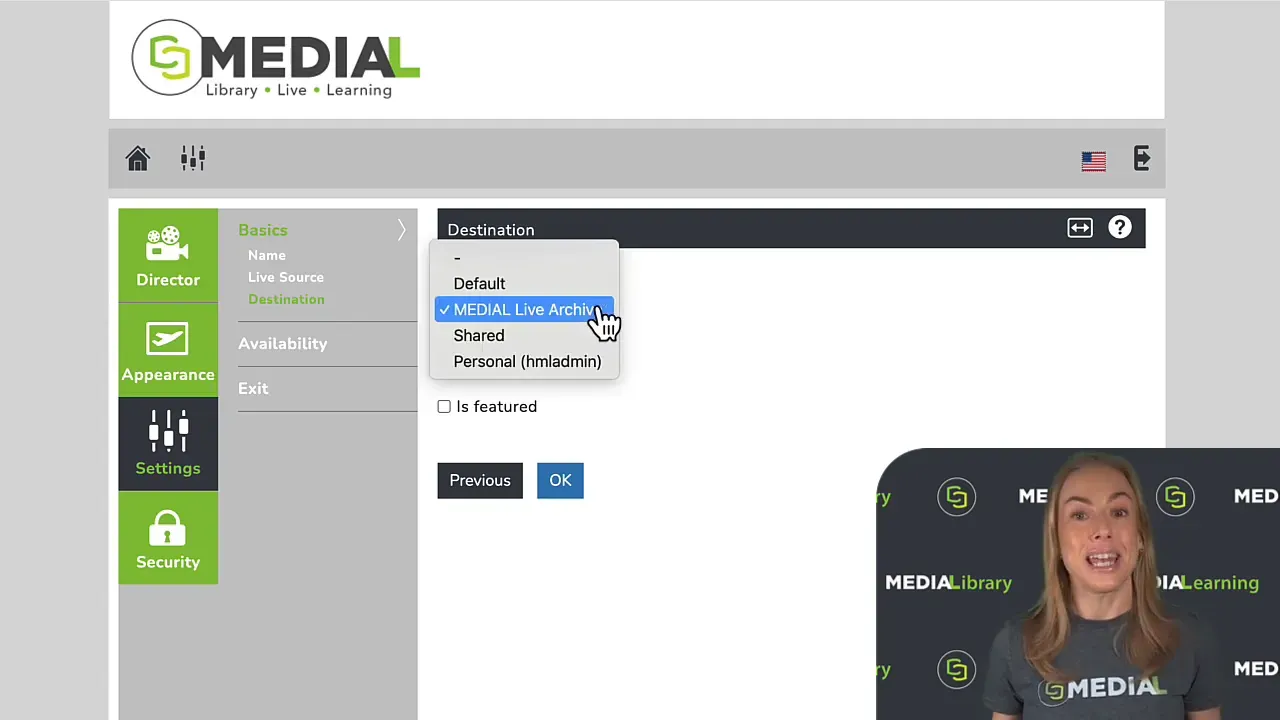
2) Turn on archiving so live becomes on demand automatically
Before connecting OBS, decide what happens when the live stream ends.
In settings, open destination. If you enable archiving, MEDIAL will automatically record the event and save it to your library for on demand playback.
This removes a common pain point: “Did we remember to record?” With archiving enabled, the workflow stays consistent.
3) Connect OBS to MEDIAL using RTMP details
Now for the part everyone recognizes: OBS configuration. The good news is that the OBS setup is straightforward and repeatable.
Step A: Make sure you are on the right playback page
In MEDIAL director view, confirm you are on the correct playback stage. This is the page viewers should see when the live stream starts.
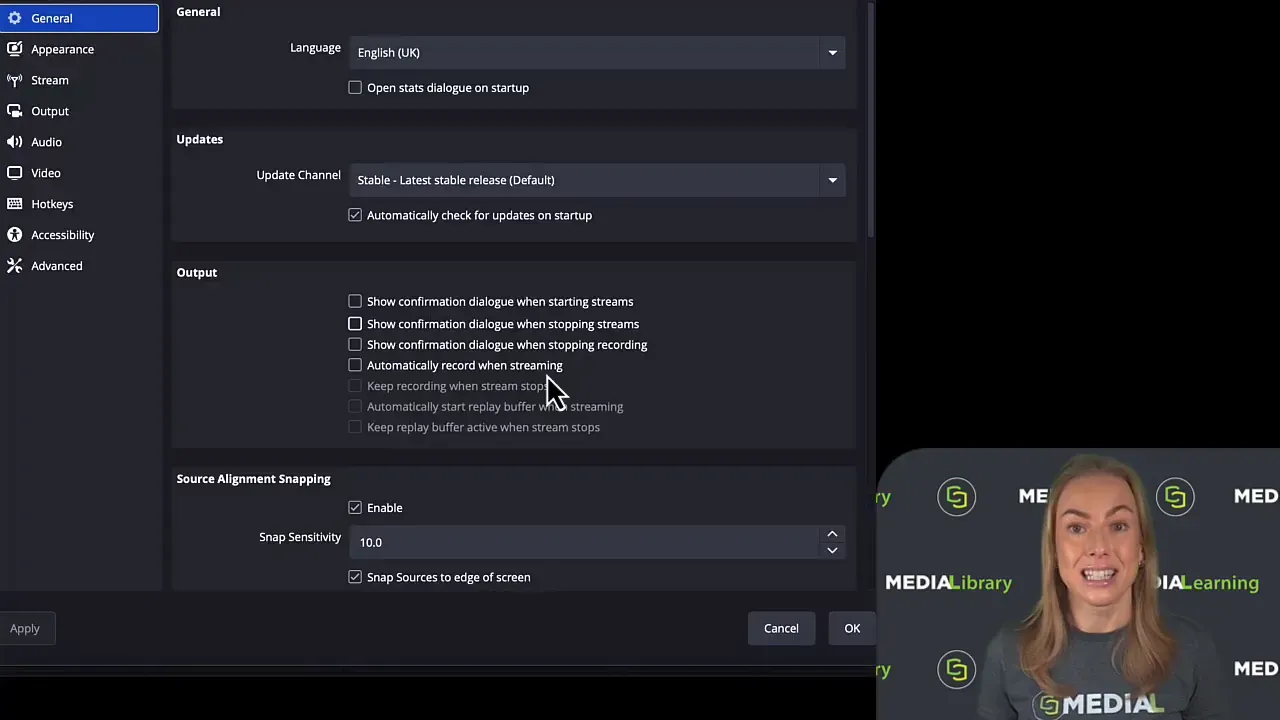
Step B: Configure OBS to stream to MEDIAL
In OBS:
Open
Go to
Set the
to
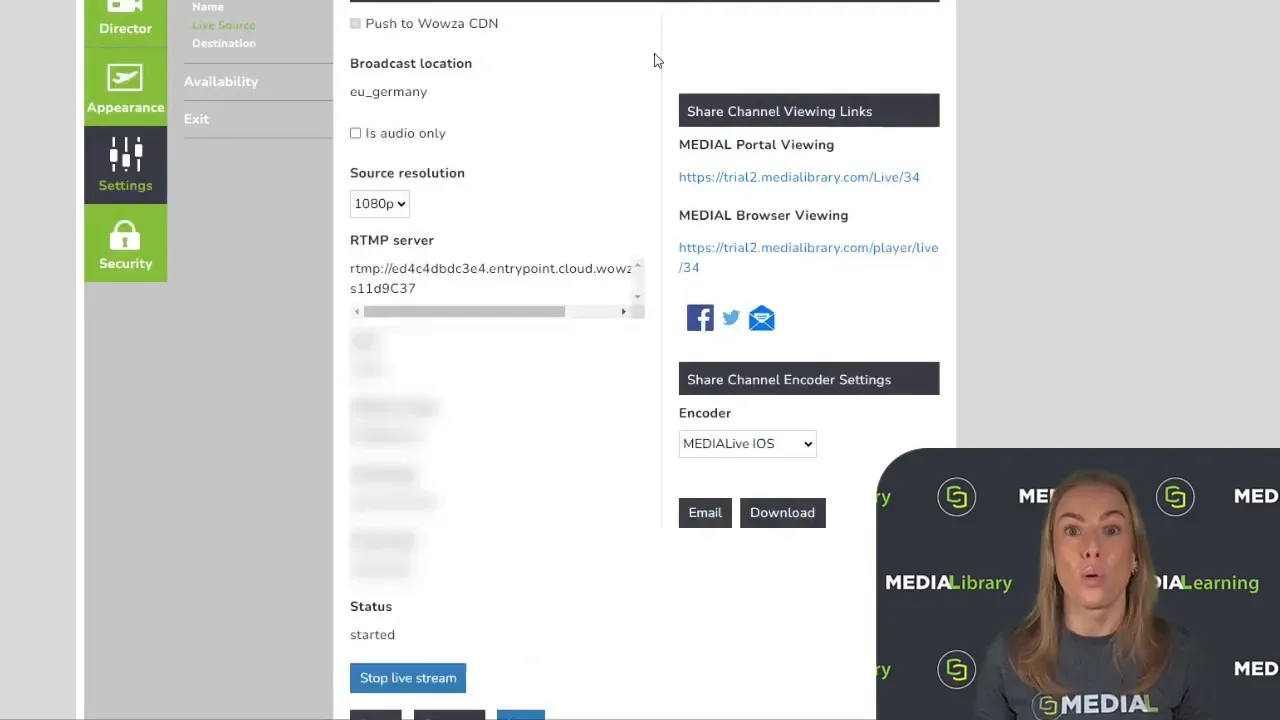
Back in MEDIAL, copy the RTMP connection details and paste them into OBS fields:
Copy the
and paste it into the
field in OBS.
Include
and
(two forward slashes) at the beginning.
Copy the
from MEDIAL and append it to the end of the server URL.
Copy the
from MEDIAL and place it into the
field in OBS.
The
are provided by MEDIAL support.
Include
and
(two forward slashes) at the beginning.
Then click start streaming in OBS. At that point, you are pushing your live stream into MEDIAL.
4) Embed live streams and playback anywhere with simple iframe code
Once your live event exists in MEDIAL, embedding it into other systems is a common requirement. Many teams do not want to reuse the default playback page layout or rely on a dedicated URL.
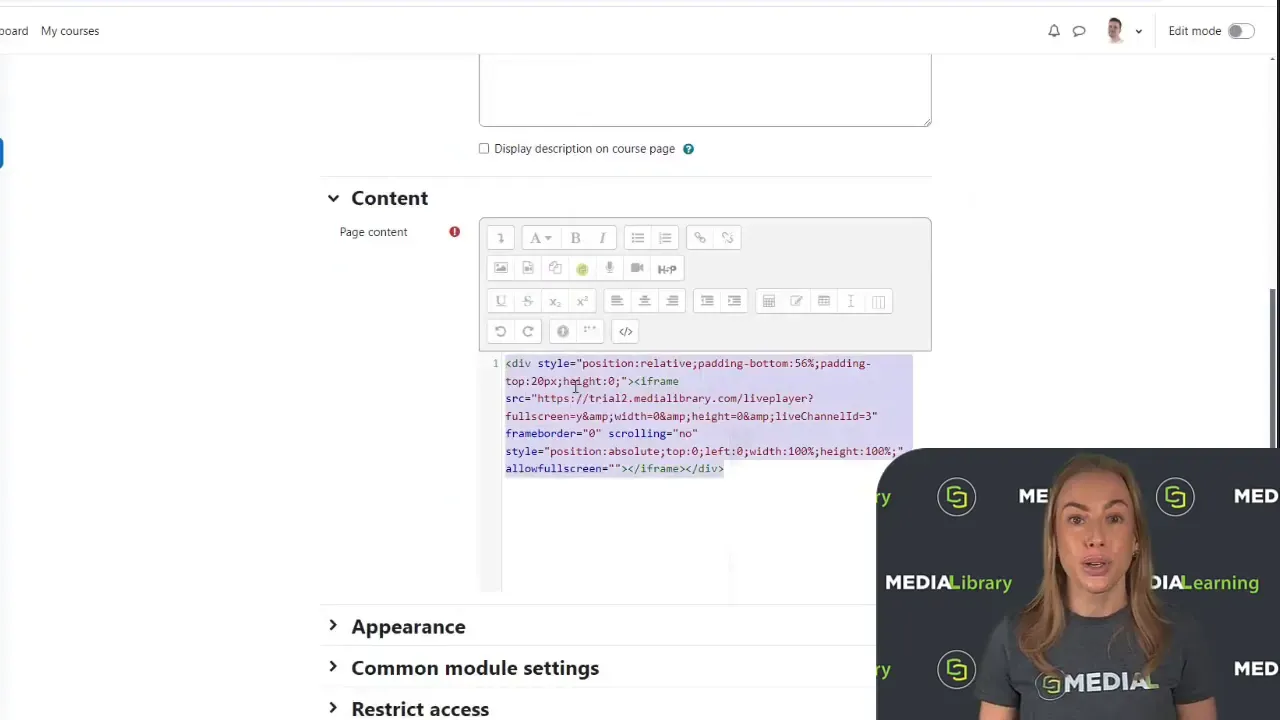
Instead, MEDIAL provides an embed code for the live event page.
Embedding into an LMS such as Moodle
Here is the workflow conceptually:
On the relevant live event page in MEDIAL, copy the
In Moodle, switch to the
Paste the embed code
Save and display the page
The result is a live feed inside Moodle using an iframe, which is both simple and seamless. The same approach applies to WordPress and most portals or LMS platforms.
5) Scale up with CDN delivery without changing your workflow
Streaming to a small internal audience can work fine with a direct stream. But when you are delivering to thousands of viewers, especially external viewers across regions, you need performance and reliability that your internal network does not guarantee.
This is where MEDIAL CDN scaling fits in. It is designed to keep the workflow consistent while improving distribution.
Why CDN matters
With CDN delivery, the live feed is pushed out to a CDN so streaming happens from the cloud rather than your internal network.
One customer example mentioned delivering to 15,000 employees using this setup.
How CDN scaling works (and what changes)
The process is almost identical to the direct OBS to MEDIAL workflow. The main difference is the destination.
When scaling:
In MEDIAL, select the
destination
Choose the
you want to stream from
Select the
Then you do the same core OBS steps:
Copy the
,
, and
Paste them into OBS
Apply the settings and start streaming
One extra step with CDN: start from MEDIAL first
With CDN streaming, you start the stream from the MEDIAL portal first so the CDN can prepare and receive the feed. After it is started in MEDIAL, click start streaming in OBS.
You can also schedule start and stop automatically when needed.
Extra advantage: archiving across the cloud
When the stream ends, it automatically archives from the cloud back to MEDIAL. That means your on demand library stays in sync with the live experience.
Quick FAQ
Do I need to learn a new streaming tool to use MEDIAL?
You can keep using OBS, which is free and open sourced. MEDIAL connects to OBS via RTMP details, and director view handles the on page presentation and event flow.
Can I automatically record live events without manual effort?
Yes. Enable archiving in MEDIAL destination settings. The event is recorded and saved to your library for on demand playback.
How do I embed a live stream in an LMS or portal?
Copy the embed code from the live event page in MEDIAL and paste it into your LMS or portal page using its HTML or code view. This is typically an iframe embed.
When should I use CDN scaling instead of direct streaming?
Use CDN when you need to scale to thousands of viewers, especially across regions and externally. CDN delivery improves performance, reliability, and global distribution without making your production workflow more complicated.
Put it into production, fast
The best part of this approach is consistency. Whether you are running a small internal OBS stream, embedding into an LMS like Moodle, or scaling through CDN delivery, the workflow remains straightforward.
You configure the event flow in MEDIAL, push the video from OBS using RTMP details, and let MEDIAL handle the polished page experience, archiving, and delivery at scale.