MEDIAL | How to Use MEDIALecture with PowerPoint
Recording a presentation that shows both your slides and your webcam can feel clunky when the slideshow takes over your entire screen and hides your camera. With a few quick settings in PowerPoint and MEDIAL, you can keep your webcam visible, position it where it does not block content, and produce a polished recording without extra software.

Table of Contents
Why run your slideshow in a window?
When PowerPoint runs full screen it becomes the topmost window and can hide your webcam overlay. Running the slideshow inside its own resizable window lets MEDIAL keep the webcam visible on top. This small change gives you control over layout during recording so your face never blocks important text or diagrams.
Step-by-step: record slides and webcam together
Follow these three simple steps to capture your slides and webcam simultaneously in MEDIAL.
1. Set your slides to widescreen
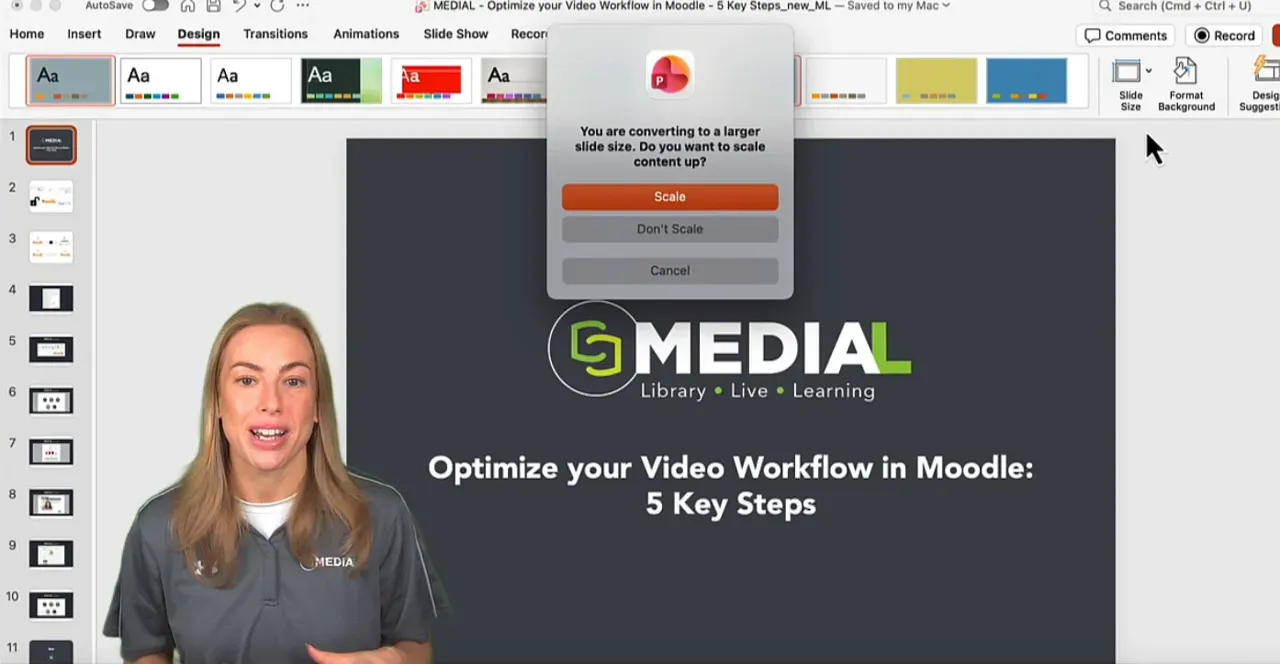
Open your PowerPoint file, then go to Design > Slide Size and choose Widescreen (16:9). Widescreen fills MEDIAL's recording area better and prevents awkward letterboxing or cropping.
2. Make the slideshow run in its own window
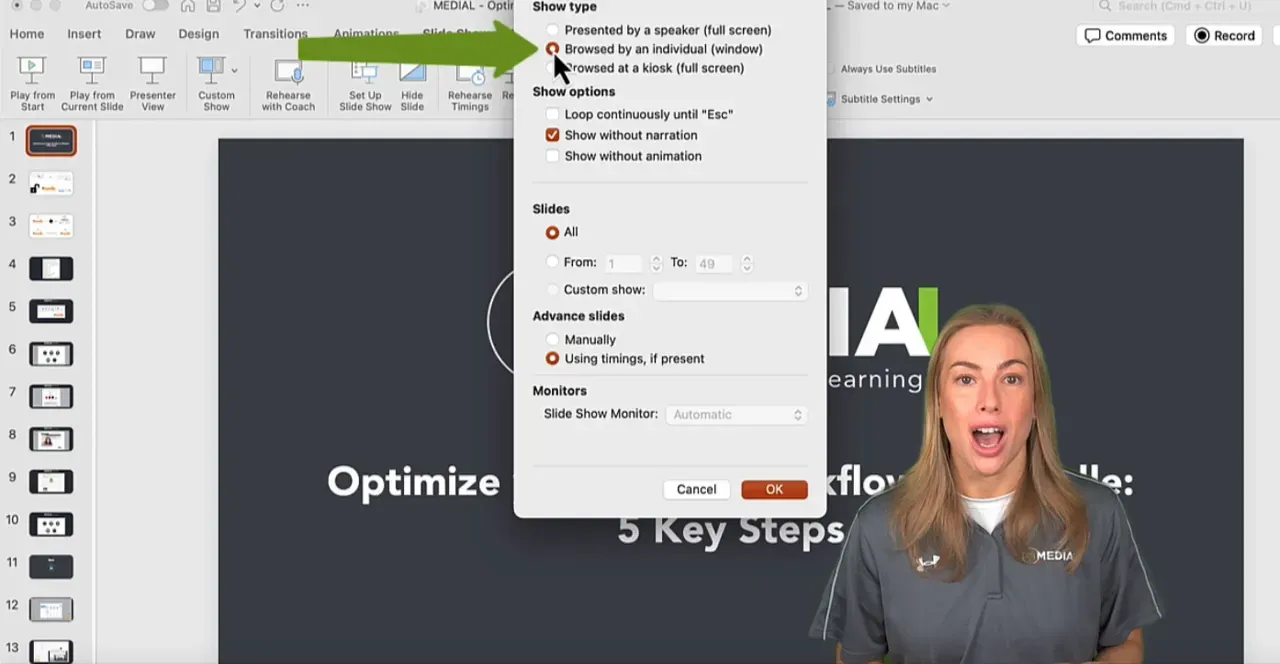
Go to Slideshow > Set Up Slide Show. Under Show type choose Browsed by an individual window and click OK. Now when you start the slideshow it opens in a normal, movable window instead of full screen. Move or resize that window so your webcam can sit beside or over a noncritical corner of the slide.
3. In MEDIAL choose to record both screen and webcam
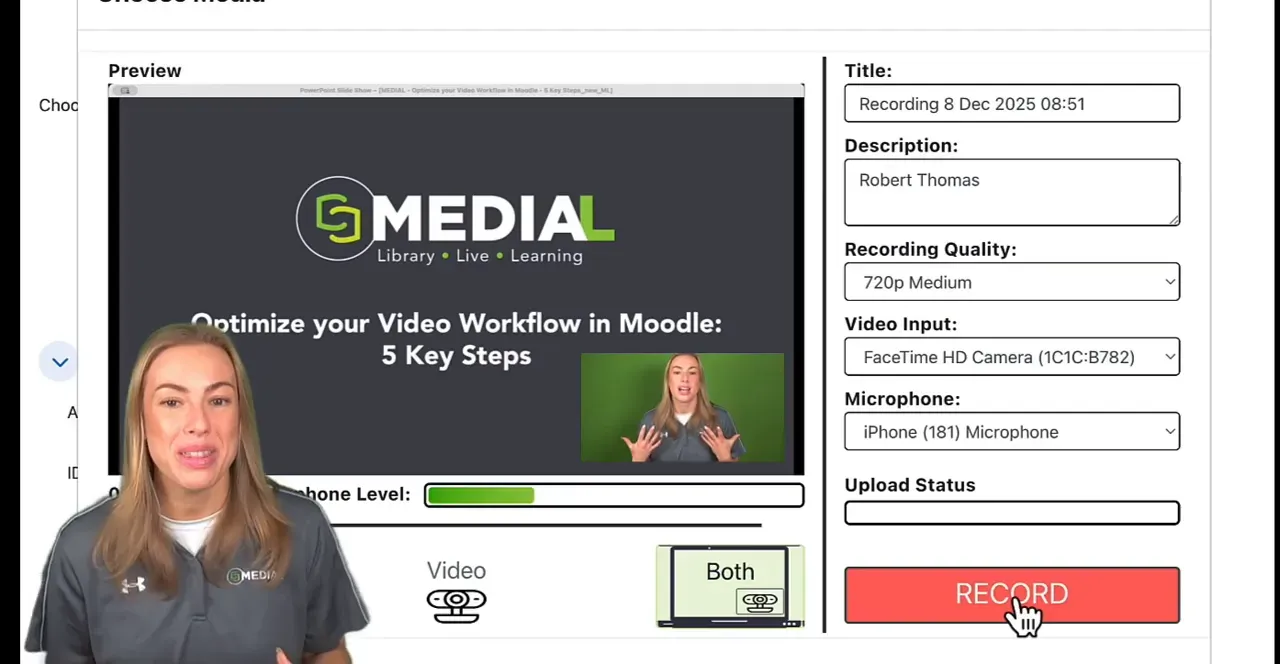
Open MEDIAL's recorder and choose the Record Screen option. Select Both so the recorder captures your screen and your webcam stream. When asked which screen or window to share, pick Window and then select the PowerPoint slideshow window you opened in step 2. Position the slideshow window so it does not cover important slide content and place your webcam where it is visible but unobtrusive.
1. Set your slides to widescreen
Open your PowerPoint file, then go to Design > Slide Size and choose Widescreen (16:9). Widescreen fills MEDIAL's recording area better and prevents awkward letterboxing or cropping.
2. Make the slideshow run in its own window
Go to Slideshow > Set Up Slide Show. Under Show type choose Browsed by an individual window and click OK. Now when you start the slideshow it opens in a normal, movable window instead of full screen. Move or resize that window so your webcam can sit beside or over a noncritical corner of the slide.
3. In MEDIAL choose to record both screen and webcam
Open MEDIAL's recorder and choose the Record Screen option. Select Both so the recorder captures your screen and your webcam stream. When asked which screen or window to share, pick Window and then select the PowerPoint slideshow window you opened in step 2. Position the slideshow window so it does not cover important slide content and place your webcam where it is visible but unobtrusive.
Recording tips for a smoother presentation
. Place critical information toward the center so it is never obscured.
to a compact size. A smaller webcam overlay is less distracting while still showing facial expressions.
by clicking inside the slideshow window during recording. You can still use presenter remote controls if the slideshow window has focus.
. If you use nonstandard sizes the slides may look stretched or have black bars.
Quick checklist before you hit Record
Slide size set to
16:9
.
Slideshow set to
Browsed by an individual window
.
MEDIAL recorder set to
Both
(screen and webcam).
The slideshow window selected in MEDIAL and positioned so the webcam does not hide text.
Common layout ideas
Depending on your content and style, try one of these layouts:
for slide-heavy lectures or data-rich visuals.
with slides on the left and a taller webcam frame on the right when you want stronger presenter presence.
webcam bar for a news-style feel without covering central slide content.
Troubleshooting quick fixes
If the slideshow still covers your webcam, confirm you selected
Browsed by an individual window
in PowerPoint.
If MEDIAL does not list the slideshow window, try restarting PowerPoint or MEDIAL and reopen the slideshow window.
If webcam overlay flickers or disappears, check your system's window management settings and any apps that force fullscreen behavior.
FAQ
Can I use this on Mac and Windows?
Yes. PowerPoint for both macOS and Windows includes a slide size setting and slideshow setup options. Menu names may differ slightly on some Mac versions, but the same principle applies: run the slideshow in a window and share that window from MEDIAL.
What if my version of PowerPoint looks different?
Look for slide size under design or page setup. For slideshow behavior search for options labeled set up slideshow, show type, or similar. The key setting is to open the slideshow as a separate window rather than as the full screen presenter mode.
Will MEDIAL capture my webcam audio and system audio?
MEDIAL captures webcam video and the microphone source you choose. If you need to record system audio, confirm MEDIAL is set to capture system sound or use an audio routing tool depending on your operating system and MEDIAL settings.
What if my slides contain animations or embedded media?
Animations and embedded media play normally inside the slideshow window. If you depend on precise timings, run a quick rehearsal to confirm animations and video playback behave as expected when the slideshow runs in a window.
Final thought
Keeping the slideshow in a movable window and recording both screen and webcam in MEDIAL is a small workflow change that makes recordings look much more professional. It gives you layout flexibility, ensures your webcam does not block important content, and keeps your presentation visually clear. Use the three quick steps and the checklist above to streamline your next recording session.