How to Submit a Video Assignment in Moodle with MEDIAL
Submitting a video assignment in Moodle does not need to be complicated. With the MEDIAL Video Assignment Plugin, students can respond to an assignment in the format that suits their work best: upload a completed video, record directly with a webcam, or create a screen recording with a presentation.
The important thing is to begin in the right place, choose the right recording method, and complete the final save step. This guide walks through the full process from opening the assignment to confirming that it is ready for grading.

Table of Contents
Open the Assignment and Review the Instructions
Start by logging in to Moodle with your student account. From the Moodle dashboard, navigate to the relevant course and select the video assignment.
At the top of the assignment, the teacher may have included video instructions. Play these before beginning so you understand the task, the expected response, and any details you need to cover. If there is no recorded instruction, read the written brief carefully.
When you are ready to send your work, scroll down the assignment page and select Add submission. This opens the MEDIAL media chooser, where you can decide how to create or add your response.
Students have three main options:
a video that has already been recorded and saved on a device.
record a new response with audio, video, or both.
Screen record
a presentation, browser window, or other on-screen material, with the option to include webcam video.
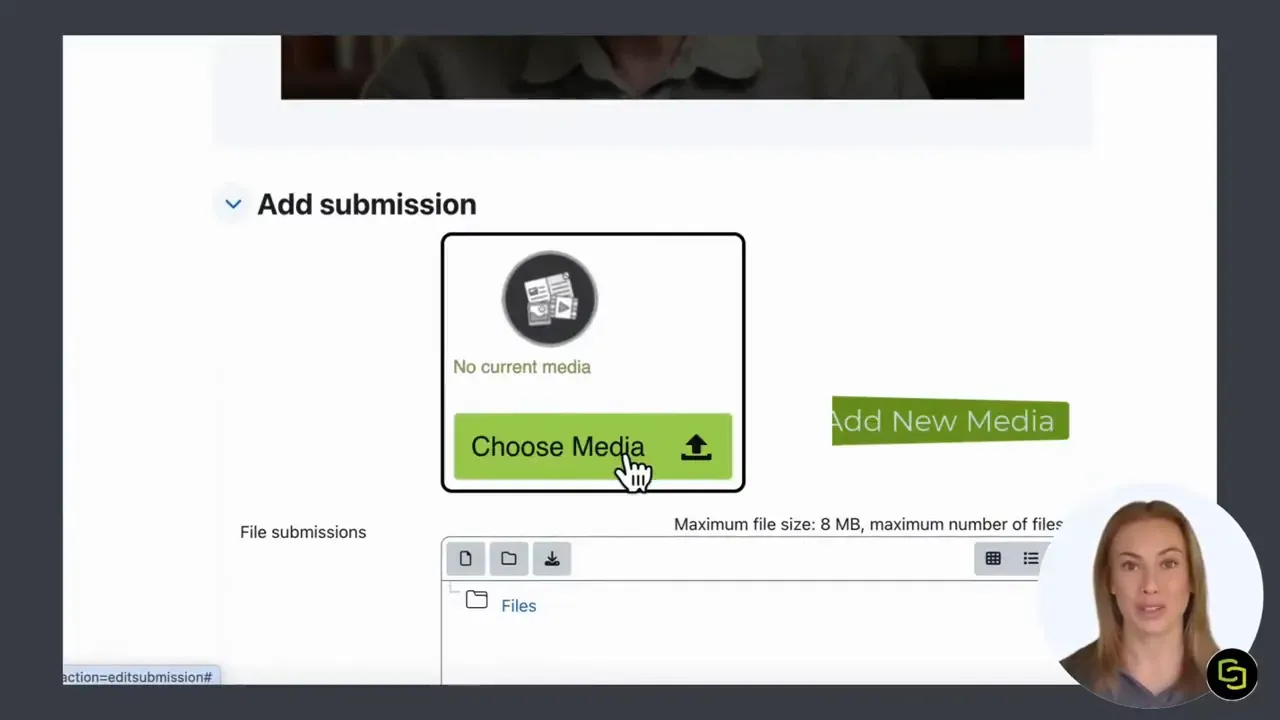
Choosing the best method depends on the assignment. An edited project or a video recorded elsewhere is ideal for upload. A short spoken response can be captured directly with a webcam. A presentation, software demonstration, or visual explanation is a strong fit for screen recording.
Option 1: Upload a Pre-Recorded Video
If you have already made your video, choose Upload in the media chooser. Select the option to browse files, find the video on your device, and confirm the file you want to submit.
Once the upload is complete, MEDIAL takes you to a final details screen. Review the information shown, then continue through the confirmation steps. This is the point to make sure the right video has been selected before moving on.
Uploading is especially useful when a video has been produced using another recording or editing tool. It keeps the Moodle submission process simple while allowing the work to be prepared in advance.
For a more detailed walkthrough of the available student submission methods, including uploading files and recording media, see this guide to submitting video assignments through Moodle.
Option 2: Record a Video with Your Webcam
To record a response directly in MEDIAL, select Webcam. The recorder lets you choose whether to capture audio, video, or both. For most video assignments, select both so your teacher can see and hear your response.
Before you begin, take a moment to check that your camera framing and audio setup are suitable. When ready, start recording and deliver your response.
After recording, MEDIAL provides an opportunity to trim the video. Use this step to remove unwanted material at the beginning or end, then select OK once you are happy with the result. You can then add the final details and click Next to confirm the submission.
This route is practical for personal reflections, explanations, language tasks, interviews, and other assignments where a direct recorded response is the most effective format.
Option 3: Record Your Screen and Present Alongside It
Screen recording is designed for assignments where the content on screen is part of the response. Select Record from the media chooser, then choose the screen recording option.
You can record your screen on its own or record both your screen and webcam. Combining the two is particularly useful for a presentation. For example, you can keep a PowerPoint presentation on screen while appearing in a smaller video window to explain each slide.
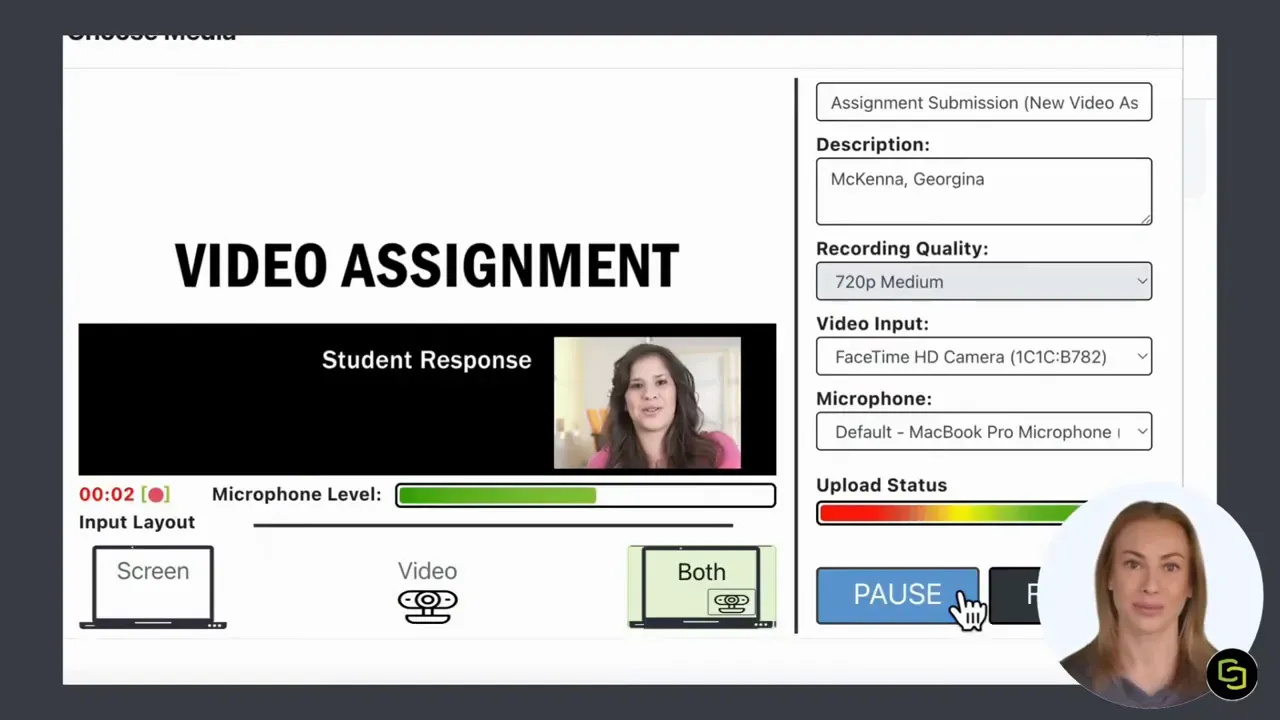
During the recording, you can switch between screens if required. You can also pause when you need a break, then continue when ready. This makes it easier to create a calm, structured explanation rather than trying to complete everything in one uninterrupted take.
When the recording is complete, select Finish. MEDIAL will prepare the recording for upload. Follow the final on-screen confirmation steps to add the media to your Moodle assignment.
Screen recording gives students a straightforward way to demonstrate knowledge visually. It can support slide presentations, design work, walkthroughs, research explanations, and practical demonstrations where simply describing the work would not be enough.
The Final Step: Save Changes in Moodle
Adding the video in MEDIAL is not the final action. Once your selected or recorded video appears in the Moodle submission area, scroll to the bottom of the page and click Save changes.
This step is essential. Saving changes confirms the submission in Moodle and makes it available for grading. After the page refreshes, check the submission status to confirm that your work has been submitted for grading.
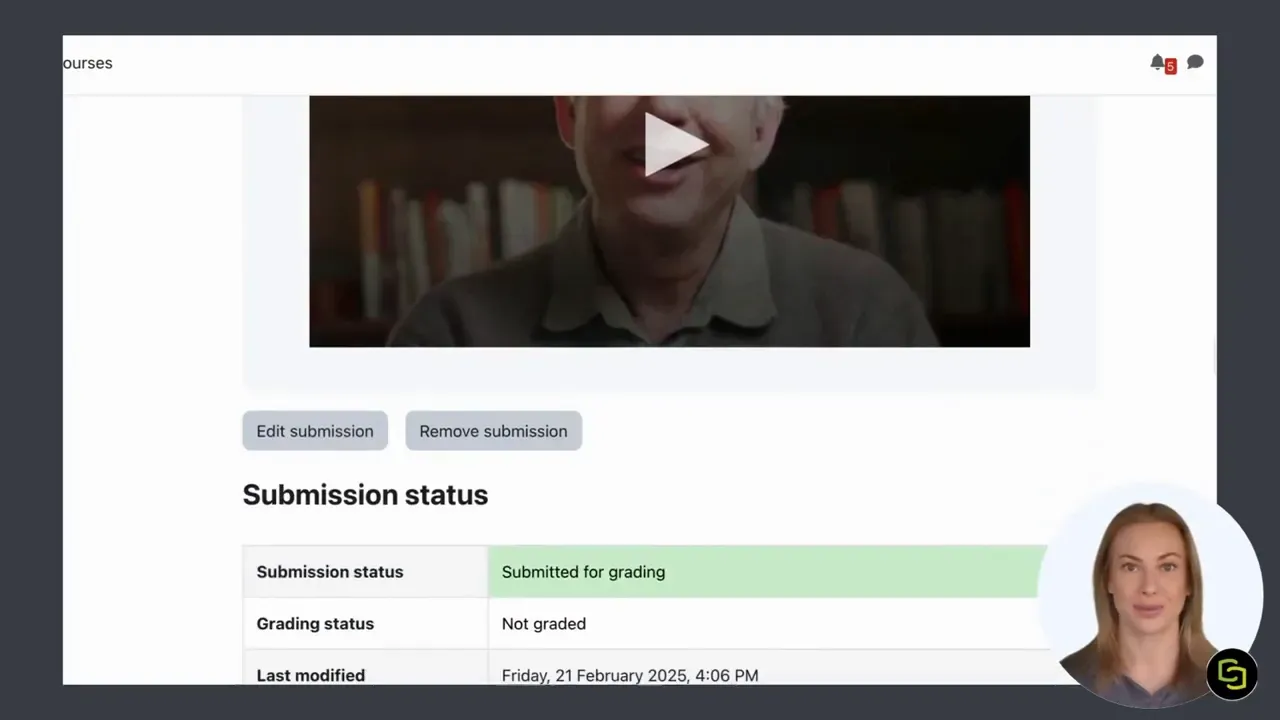
You should also see the submitted video displayed in the assignment area. This provides a useful final check that the correct media has been attached and the submission has been completed.
A Simple Checklist Before You Submit
Before leaving the assignment page, take a few seconds to run through this checklist:
Confirm that you opened the correct Moodle course and assignment.
Review the teacher's video or written instructions.
Choose the appropriate method: upload, webcam, or screen recording.
Check that the selected or recorded video is the right one.
Complete any final media details and confirmations in MEDIAL.
Click
Save changes
in Moodle.
Check that the status shows the submission is ready for grading.
That final Moodle save is the key detail. A video may be uploaded into the submission area, but it is not ready for your teacher until the changes have been saved.
Making Video Assignment Submission Easier
MEDIAL gives students flexibility without forcing everyone into a single format. A polished video can be uploaded, a quick answer can be recorded by webcam, and a visual presentation can be captured through screen recording. Each method follows the same overall workflow: add the media, confirm it, save changes, and verify the submission status.
For educators and Moodle administrators planning their own workflows, our guide on how to collect video submissions in any LMS covers practical considerations around recording, assessment, privacy, and grading. Educators can also explore effective video feedback for students to make assessment more personal and actionable.
Frequently Asked Questions
What are the three ways to submit a video assignment with MEDIAL?
You can upload a pre-recorded video from your files, record directly with a webcam, or create a screen recording. Screen recording can include both your screen and webcam video.
Can I present PowerPoint slides in a MEDIAL video assignment?
Yes. Select screen recording and choose to record both your screen and webcam. This allows a PowerPoint presentation to appear on screen while you present alongside it.
Can I trim a webcam recording before submitting it?
Yes. After recording with the webcam, MEDIAL provides a trimming step before you confirm the media and continue with the submission.
Why do I need to click Save changes in Moodle?
Save changes confirms the submission in Moodle. After saving, check the submission status to make sure the video is ready for grading.
See MEDIAL in Action
Make video assignments simple for students and effortless for educators with seamless Moodle integration.