Moodle RHUL Login: A Practical Step-by-Step Guide
You're probably here because Moodle was working yesterday, or last week, and now it's suddenly refusing to accept your login on the morning you need lecture notes, an assignment brief, or a deadline submission. At Royal Holloway, that's usually not one mystery problem, it's one of three: the wrong Moodle page, the wrong username format, or a browser or session issue.
The good news is that Moodle at RHUL sits inside a very mature learning system, not a fragile one-off portal. Moodle's public stats counter shows 511,844,972 users on the platform, and Moodle's reporting model is built around authenticated access and logged activity rather than anonymous browsing, which is why universities use it as the gateway to course materials and assessments Moodle statistics. For a quick explainer on why a single sign-on setup can make university logins simpler once it's working, SSO benefits for online courses is a useful background read.
When Moodle Just Won't Let You In
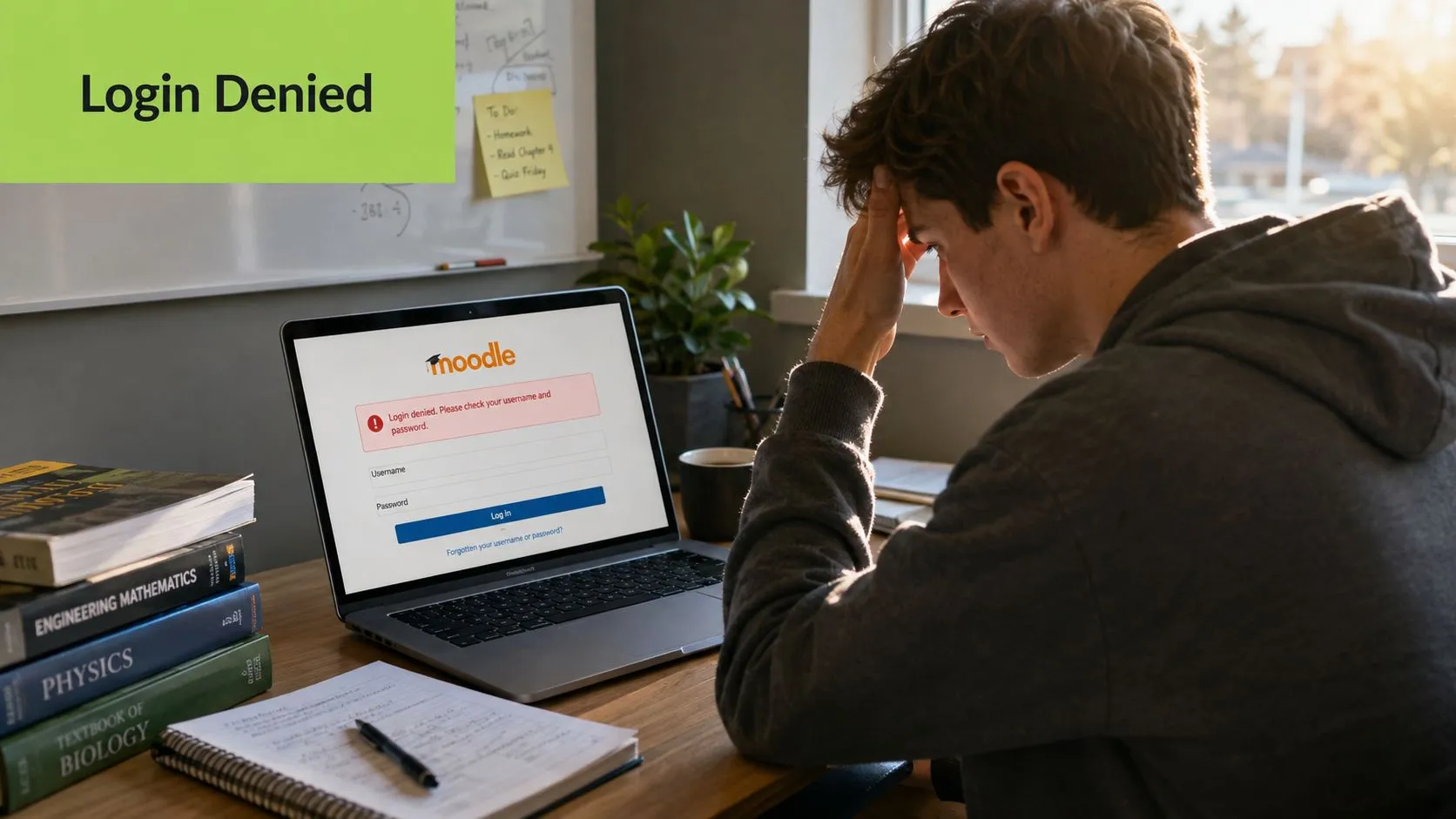
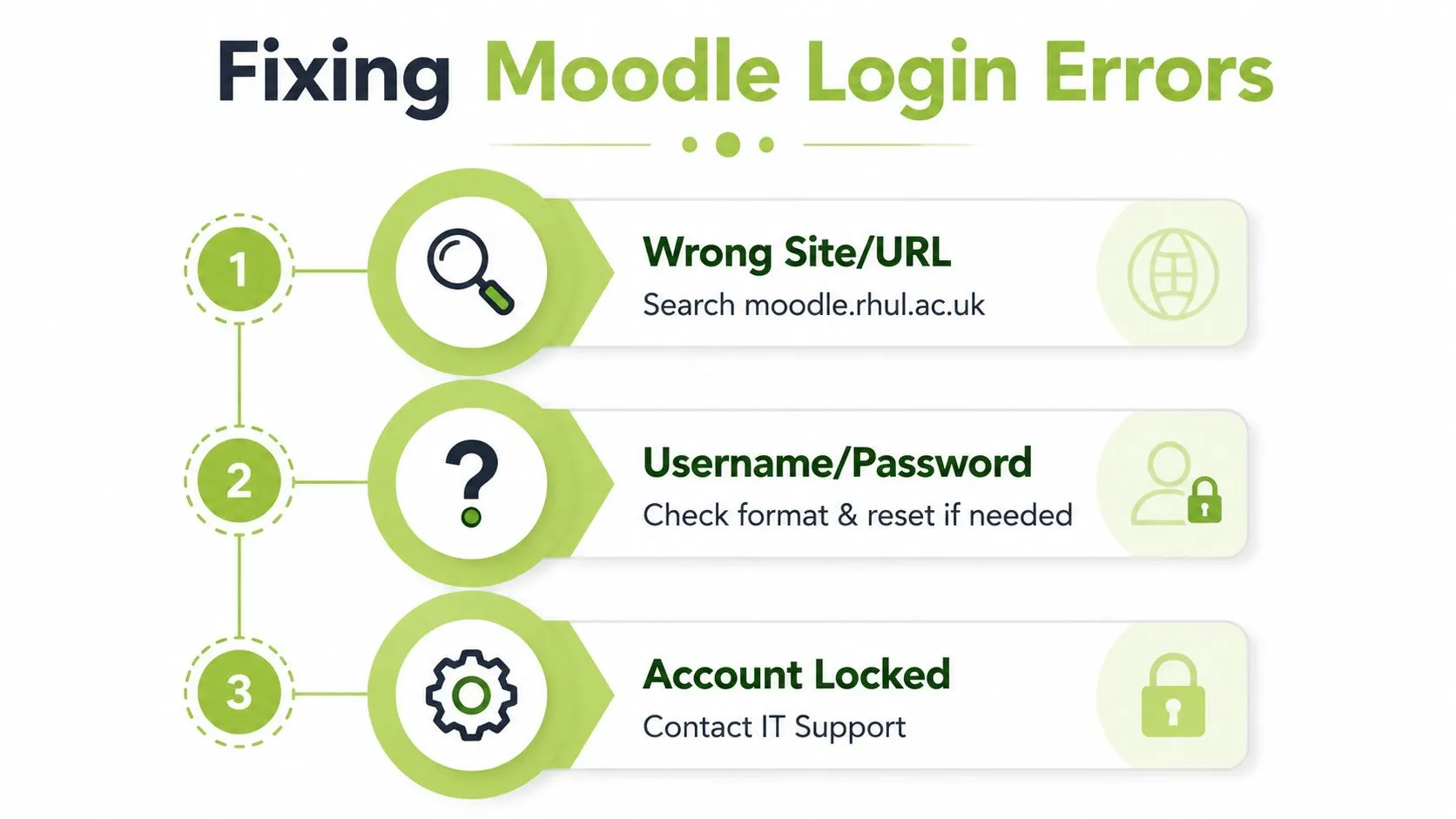
You open Moodle, type what looks like the right details, and still get stopped at the login screen. At Royal Holloway, that usually comes down to one of three things, the wrong Moodle address, the wrong username format, or a browser session that has gone stale. Each one fails in a different way, so it helps to separate them instead of treating every error as a password problem.
Royal Holloway's Moodle is the university's Virtual Learning Environment, and it is the place where taught courses keep their content, activities, and course communication. Students are automatically enrolled on their units, so once you get past sign-in, you should land in the course area you need, not a blank holding page What is Moodle at RHUL.
Practical rule: check the page first, the username second, and the browser third. That order saves a lot of unnecessary password resets.
The page matters because a login screen is only the front door to a bigger access system. Moodle's own documentation explains that statistics are enabled by a site administrator, processed daily, and then shown through the Reports area Moodle statistics documentation. That is why a login failure can point to the entry point or the browser session, rather than the account itself.
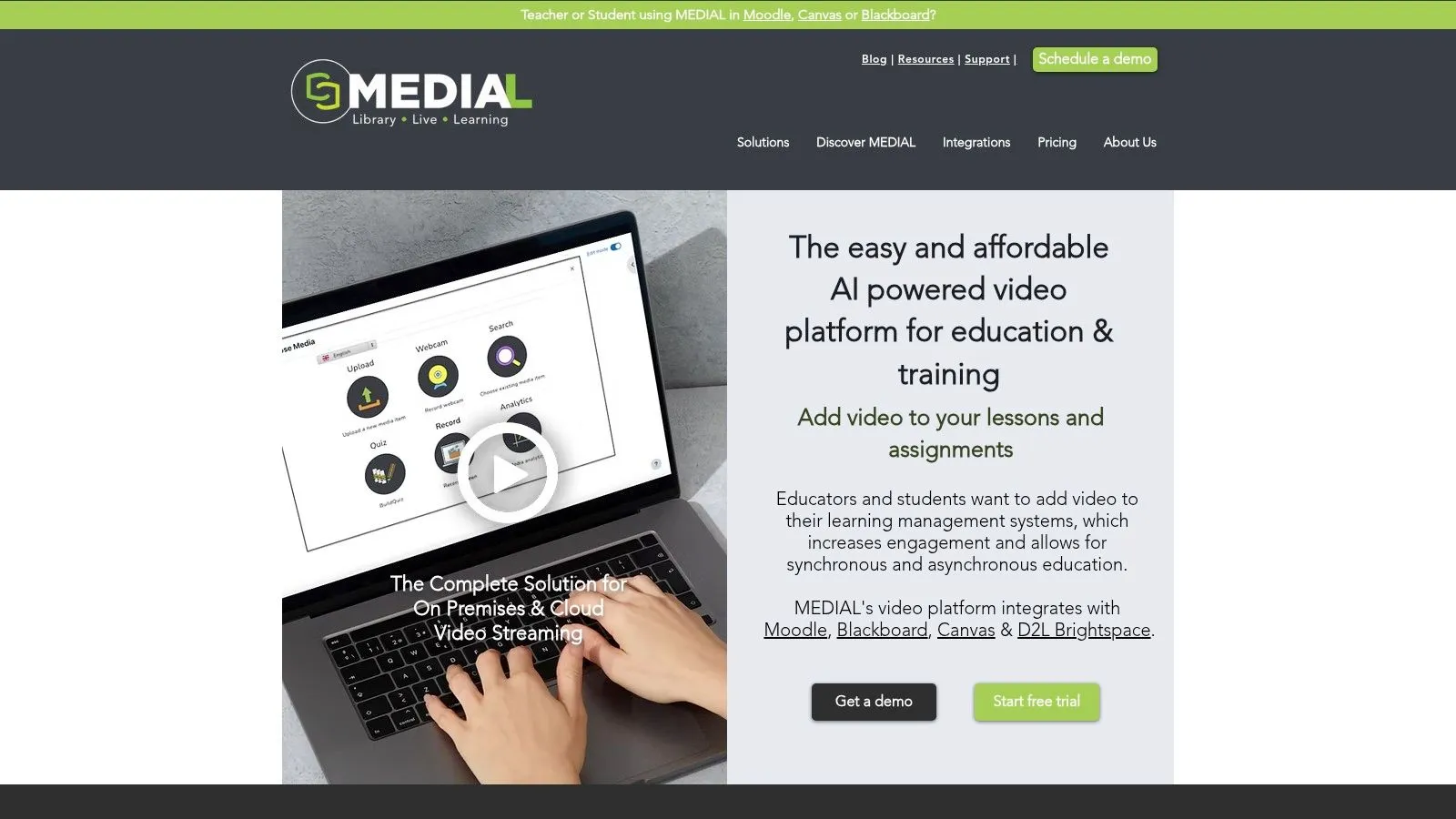
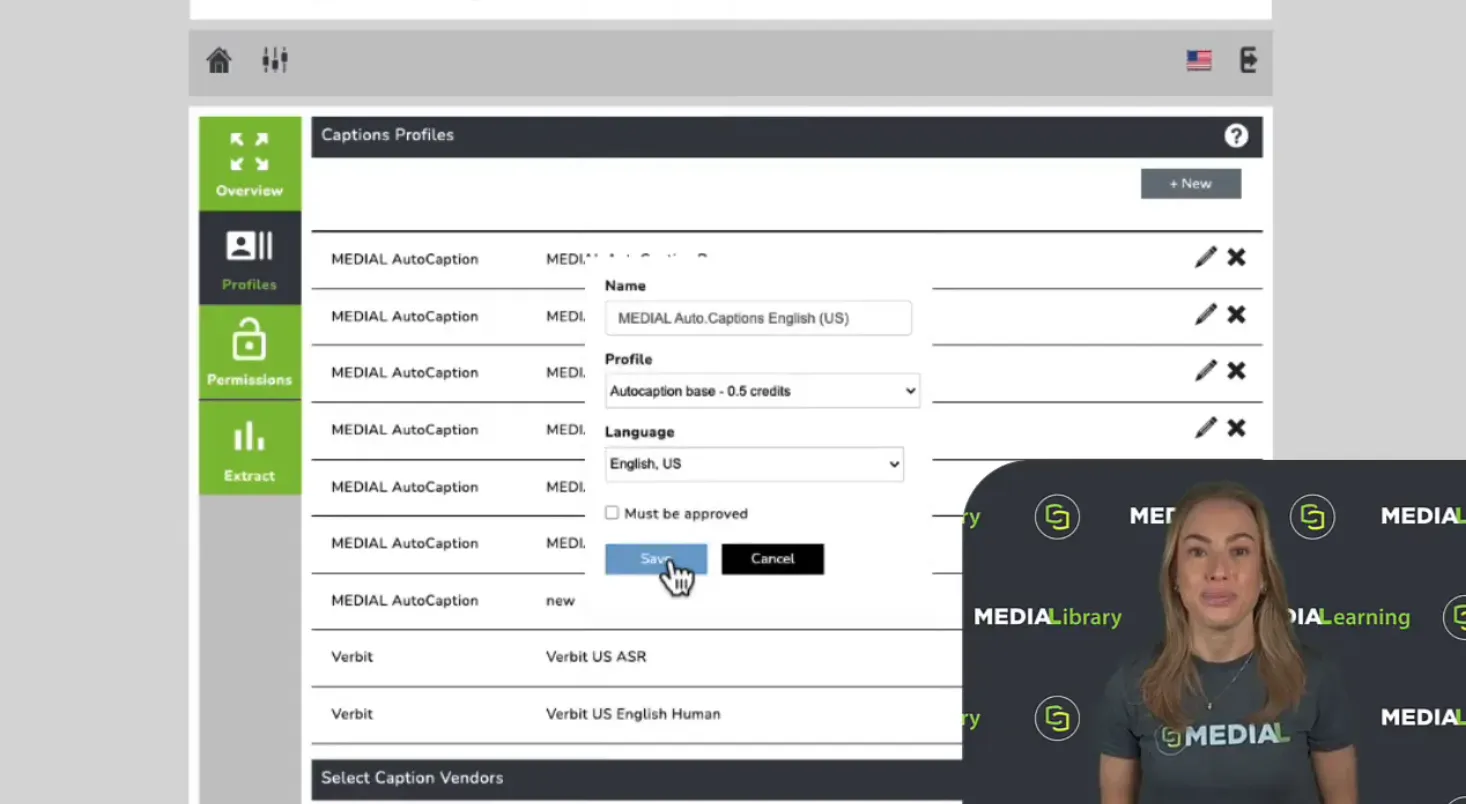
If you want a sense of how authenticated access affects tools that sit inside the same learning environment, SSO benefits for online courses is a useful background read. After login, embedded services such as MEDIAL follow the same general pattern described in MEDIAL's Moodle user guides, where access depends on reaching the platform through the correct account and session.

How to Sign In to RHUL Moodle the First Time
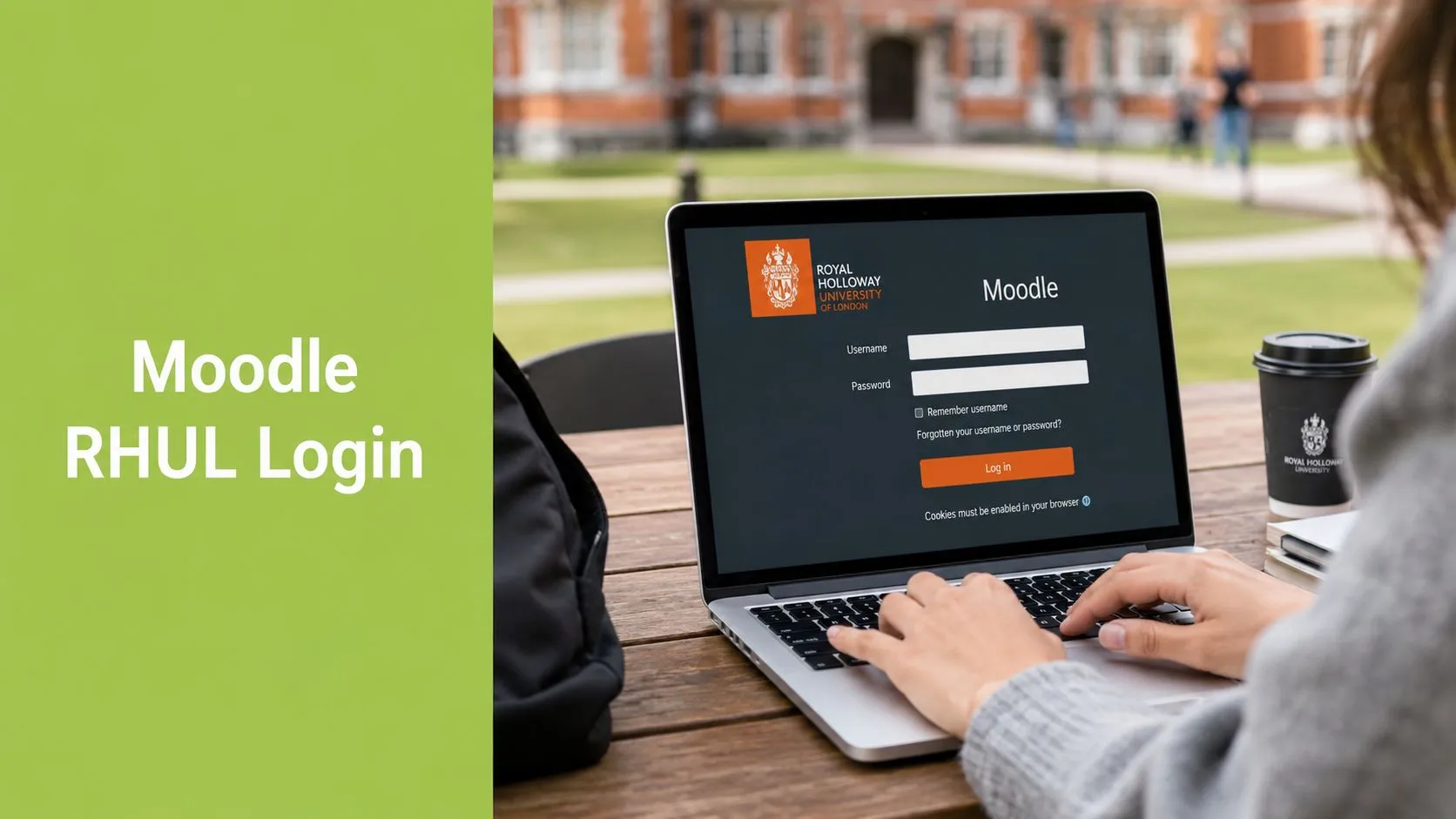
Open the Royal Holloway Moodle page in your browser and check the address bar before you type anything. The university's quick guide points students to moodle.royalholloway.ac.uk, and the intranet also identifies moodle.rhul.ac.uk as the service location, so the safe habit is to use the official RHUL address you've been given rather than a search result or an old bookmark RHUL quick guide RHUL Moodle overview. Once the Royal Holloway branding appears, sign in with your university identity, not a personal email account.
Royal Holloway's Moodle login uses the full Microsoft 365-style format, abcd123@live.rhul.ac.uk. That suffix is not decoration, it's part of the identity Moodle expects for RHUL access, and it's one of the most common reasons a login fails even when the password is correct RHUL account format. After you enter the address, you'll be taken through Microsoft sign-in, which is the normal path for university services tied to that identity.
A practical first login often looks like this, even if it happens on a single page. You enter abcd123@live.rhul.ac.uk, type your password, then respond to a Microsoft Authenticator prompt if your account has MFA enabled. Royal Holloway's guidance says students should download the Microsoft Authenticator if possible because each login can trigger a security response, so that second factor is part of routine access, not an extra complication RHUL MFA guidance.
After sign-in, Moodle should drop you into your dashboard or into the course area you need, because enrolled students are automatically tied to their taught units. If the page keeps bouncing back to login, pause and check whether you are on the right site and using the full university identity before you retry.
The safest habit is to bookmark the correct page once you've confirmed it works. That avoids fake lookalike pages, old search results, and the kind of login loop that starts with a perfectly good password and ends with a lot of frustration.
Which Username Format Goes Where at RHUL
A login can fail even when the password is right if the username format does not match the service. At Royal Holloway, that mismatch shows up most often when students reuse the same address everywhere and expect every portal to treat it the same way.
| Service | Username format | Login flow |
|---|---|---|
| Moodle | abcd123@live.rhul.ac.uk | University account, then Microsoft sign-in if prompted |
| Office 365 | abcd123@live.rhul.ac.uk | University account, then Microsoft sign-in |
| Library services | abcd123@live.rhul.ac.uk | University account, then service-specific access |
| VPN | abcd123@live.rhul.ac.uk | University account, then authentication |
| Students' Union login | abcd123@live.rhul.ac.uk | University account, then portal access |
| CampusNet Wi‑Fi registration | abcd123 | Short username only |
The table is the quickest way to spot the difference. Moodle sits with the services that use the full @live.rhul.ac.uk identity, while CampusNet registration still uses the short username. Royal Holloway's account format page and the online learning quick guide show that split clearly, which helps explain why a correct short username can still fail on Moodle RHUL account format RHUL quick guide.
A useful way to read the table is to match the service first, then type the format it expects. If you open the right site but enter the CampusNet-style username on Moodle, the system may reject the account before it even reaches the password check.
Use the username that matches the service, not the one you remember from the last place that worked.
That same pattern shows up across identity systems more broadly. IAM solutions from Accelerate IT Services gives a useful industry context for why one person can have more than one login shape in separate portals. At RHUL, the practical rule is straightforward, Moodle uses the full Microsoft 365-style address, while CampusNet registration does not.
Resetting Your Password and Recovering Your Account
If the site opens correctly and the username format is right, password recovery is the next place to check. A reset helps only when the password itself is the problem. It does not fix a login attempt aimed at the wrong service or the wrong identity, so start with the account you are trying to use.
If you still have access to your Microsoft 365 account, use the normal password recovery route for that identity. If you recently changed a campus password in another setting, check whether your browser or password manager is still offering an older saved password. That small mismatch can make a correct new password look wrong on the Moodle page, like a key cut for the right door but copied from an older version.
When self-service is not available, contact IT Services with the details that help them sort the problem quickly. Give them your university username, the exact page you tried to sign in to, the device you used, and whether Microsoft Authenticator appeared. Those details let support separate a password issue from a browser issue or an identity issue without guessing.
If your phone has been replaced or lost, re-enrol Microsoft Authenticator as soon as you can get back into the account. RHUL's MFA guidance shows that Authenticator is part of the usual sign-in process, so a new device can stop access even when the password is correct. The same pattern appears in MEDIAL's classroom cloud login guidance, where the trusted device often needs to be set up again before the login can work.
If you are an alumnus, a postgraduate research student with extended access, or someone moving between account states, check whether you are dealing with a password change or an account reactivation. Those are different situations, and they need different fixes. Support can help faster when you say which state you think your account is in and what changed just before the login stopped working.
Fixing the Most Common RHUL Moodle Login Errors
Wrong site or wrong URL
Ask yourself, are you definitely on the official RHUL Moodle page, or did a search result, old bookmark, or copied link send you somewhere else? Royal Holloway's Moodle address is the university service page, and the safest move is to type the official address directly rather than trust an outdated shortcut RHUL Moodle overview.
The fix is simple. Close the tab, open a fresh browser window, and go straight to the official RHUL Moodle address from the university guide. If the login page looks generic, has the wrong branding, or keeps redirecting through a different site, you're probably not on the portal you meant to use.
Wrong identity format
Ask yourself, did you enter abcd123@live.rhul.ac.uk, or did you use the shorter username because it worked somewhere else? Royal Holloway's own account information makes clear that Moodle uses the full identity format, while some services use the short form RHUL account format.
The fix is to retype the full address carefully and avoid autofill if it keeps inserting a personal email or a shorter campus username. If your browser has remembered multiple accounts, sign out completely and sign back in with the RHUL identity you need. That one correction solves a large share of “wrong password” messages that aren't really password problems at all.
Browser, cookies, and session problems
Ask yourself, does Moodle work in one browser but not another, or on your laptop but not your phone? Generic Moodle help says login failures can come from cookies being blocked, stale cache, extensions, or repeated redirects, and browser privacy settings can keep a valid session from sticking Moodle can't log in. UK-style browser restrictions can make this show up as a loop rather than a clear error.
The fix is to clear cookies for the Moodle site, try a different browser, and temporarily disable extensions that interfere with sign-in. If the desktop browser works but the mobile browser fails, that points to a device-specific session issue rather than a broken account. For a practical walkthrough of cookie cleanup in Chrome, clear cookies in Chrome is a straightforward reference.
If the site, username, and browser all check out, the problem is usually on the institution side.
At that point, contact IT Services and tell them which device, browser, and account format you used, plus any exact error text. That's more useful than saying “Moodle doesn't work”, because it narrows the fault much faster.
Mobile Access and Reaching Tools Like MEDIAL After Login
Once Moodle opens properly, the next challenge is making sure it stays usable on the device you carry around campus. The Moodle app can be convenient for checking course updates, but a mobile browser and the app do not always behave the same way, especially when Microsoft sign-in or cookie settings get involved. If one works and the other doesn't, that doesn't automatically mean your account has changed.
On a phone, the safest approach is to test the browser first, then the app. If the app keeps bouncing you back to sign in, it may be reacting differently to saved credentials, privacy settings, or an interrupted session. Keep Microsoft Authenticator nearby if your account uses MFA, because a push prompt can still appear even when you're already on mobile.
After login, students can move into course tools without juggling a separate account for every activity. Royal Holloway uses Moodle as the main entry point to taught course areas, so once you're in, you can find linked activities, assignment pages, and connected tools from inside the course rather than starting from a fresh portal. That's useful on patchy campus Wi‑Fi, because the browser only has to hold one authenticated session instead of several.
In courses that use video tasks, MEDIAL is one example of a connected tool that sits inside the wider Moodle workflow. Students can open it from the relevant course activity, work with media-based assignments, and stay inside the learning environment rather than moving between disconnected logins. If you're recording on a phone, finish the recording in a stable browser session first, then upload it through the course activity so you're not forced to restart halfway through a draft.
Quick Checklist Before You Contact IT
Run through these checks before you send a support request.
Correct page: You're on the official RHUL Moodle address, not a search result or old bookmark.
Correct username format: You used abcd123@live.rhul.ac.uk, not the short campus username.
Correct password: You entered the current Microsoft 365 password, not an older saved version.
Authenticator prompt: You approved the Microsoft Authenticator sign-in if MFA is enabled.
Browser session: Cookies are allowed, the cache isn't trapping old sign-in data, and no extension is blocking the login.
Network path: VPN or proxy settings aren't interfering with the sign-in flow.
If those are all right and Moodle still won't open, IT Services can help much faster when you include the exact page, the device, the browser, the username format you used, and any message that appeared. Most RHUL Moodle login problems are sorted once those three failure buckets are checked carefully, and you won't waste time guessing at the wrong fix.
If you're building course video tasks, lecture capture, or assignment workflows around Moodle, MEDIAL sits neatly inside that environment and helps keep media tied to the same university login students already use. It's a practical next stop if you want to see how video tools plug into Moodle without adding another separate sign-in to manage.