MEDIAL Plugin for Moodle™: How to Grade a Video Assignment and Leave Video Feedback
Video assignments give students a practical way to demonstrate knowledge, explain their thinking, and communicate in their own voice. For teachers, the grading process needs to remain just as straightforward as marking any other Moodle activity.
The MEDIAL Plugin for Moodle™ keeps the entire workflow connected to the assignment area. You can locate a student submission, review the video, enter a grade, add written comments, and record a personalised video response without leaving the grading process.

Table of Contents
Start in Your Moodle Course
Begin by logging into Moodle with a teacher account and opening the relevant course. Locate the video assignment that needs marking, then select the option to view submissions.
This opens the submissions list, where each student’s status and assignment details are displayed. Find the student whose work you want to assess and select View submission. Their video opens in a dedicated window, ready for review.
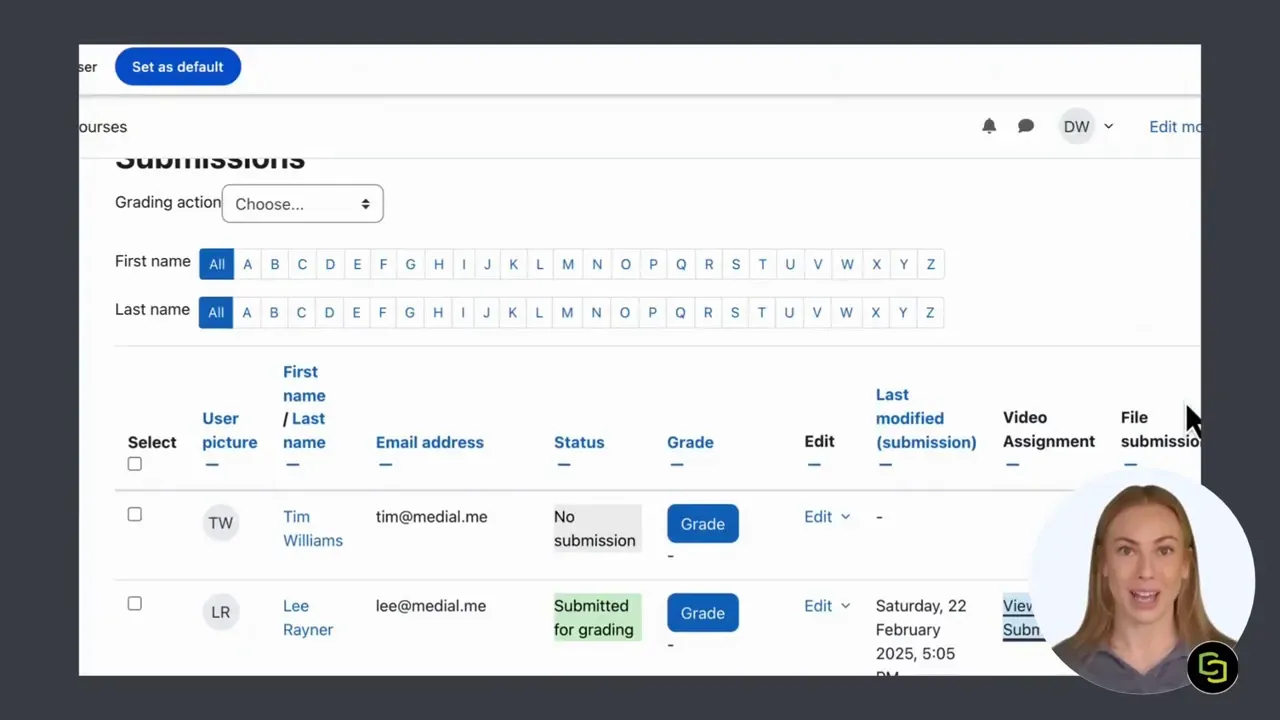
Reviewing the actual submission first gives you the context needed to grade accurately and provide feedback that is relevant to the student’s work. When you are ready, close the submission window and continue to the grading area.
Open the Grading Screen
There are two simple ways to move forward after reviewing a submission. You can leave a comment directly from the submissions list, or select the Grade button to open the full grading screen.
The grading screen brings the student’s video and assessment controls together. From here, you can return to the submission if you need to check a point, enter the grade as normal, and add written feedback in the feedback comments field.
This familiar Moodle grading experience is important. MEDIAL adds video feedback as an option within the existing process rather than requiring a separate system or a complicated handoff between tools.
Video feedback is especially useful when spoken explanation can make feedback clearer. A brief recording can help you point out strengths, clarify where a response could be improved, or give next steps in a more personal format. For practical guidance on planning and delivering useful responses, explore our guide to video feedback for students.
Add Video Feedback with MEDIAL
To record a video response, select the Add Feedback button in the MEDIAL Plugin for Moodle™ area. This opens the MEDIAL feedback options.
You can choose the method that best fits the feedback you need to give:
for a direct face to face response.
when you need to refer to material on screen.
when spoken commentary is all that is required.
for a complete recorded response.
For a straightforward personal response, select the webcam option. Choose whether to record audio, video, or both, then begin recording. Keep the message focused on the assessment criteria and the most useful next action for the student.
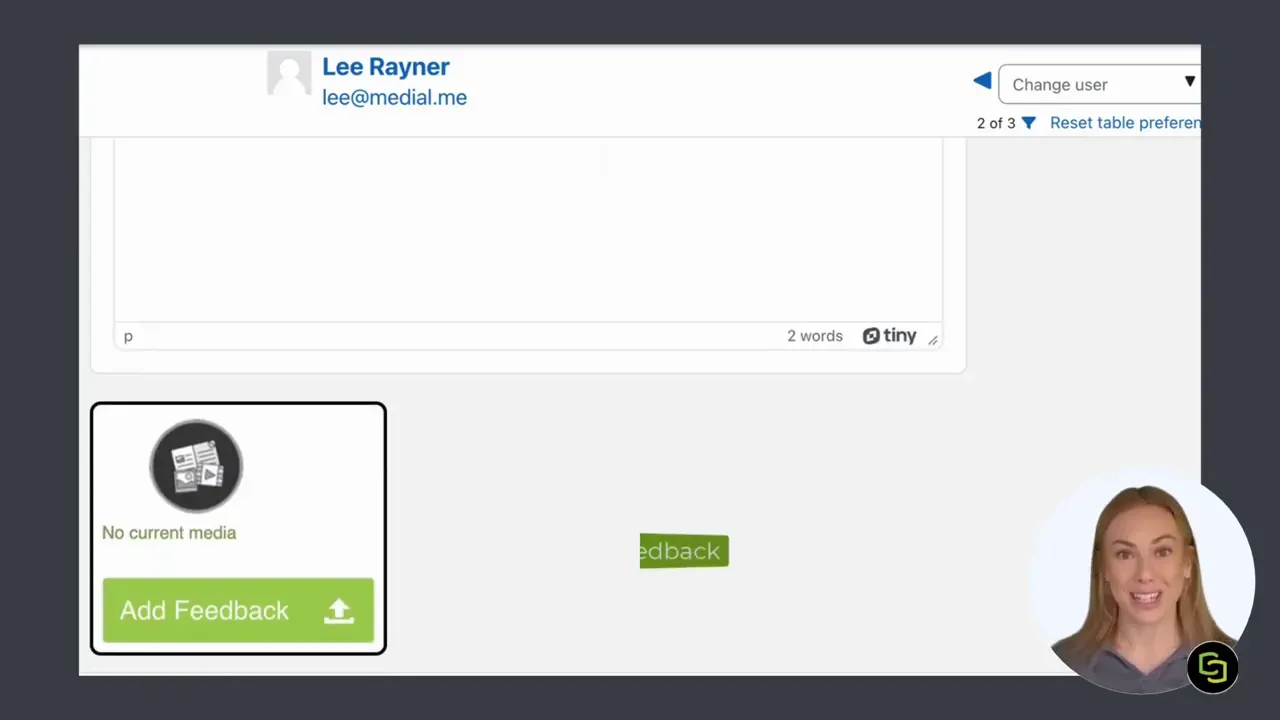
The goal is not to replace every written comment with a long recording. A concise, clear response can complement the grade and written notes, helping the student understand what went well and what to work on next.
Review and Trim Your Recording
Once the recording is complete, MEDIAL provides an opportunity to review it before it is attached to the assignment feedback. If needed, trim the recording to remove unwanted sections at the beginning or end.
This simple review stage helps keep feedback polished and purposeful. If you included a pause before beginning, repeated a point, or finished with extra recording time, trimming lets you share a cleaner final message.
When the recording is ready, select Next to move to the final details.
Complete the Feedback Details
Before confirming the video feedback, MEDIAL gives you a few options to prepare the media item:
Select a suitable
thumbnail
for the video.
Add any relevant
extra files
.
Review the feedback details before confirming.
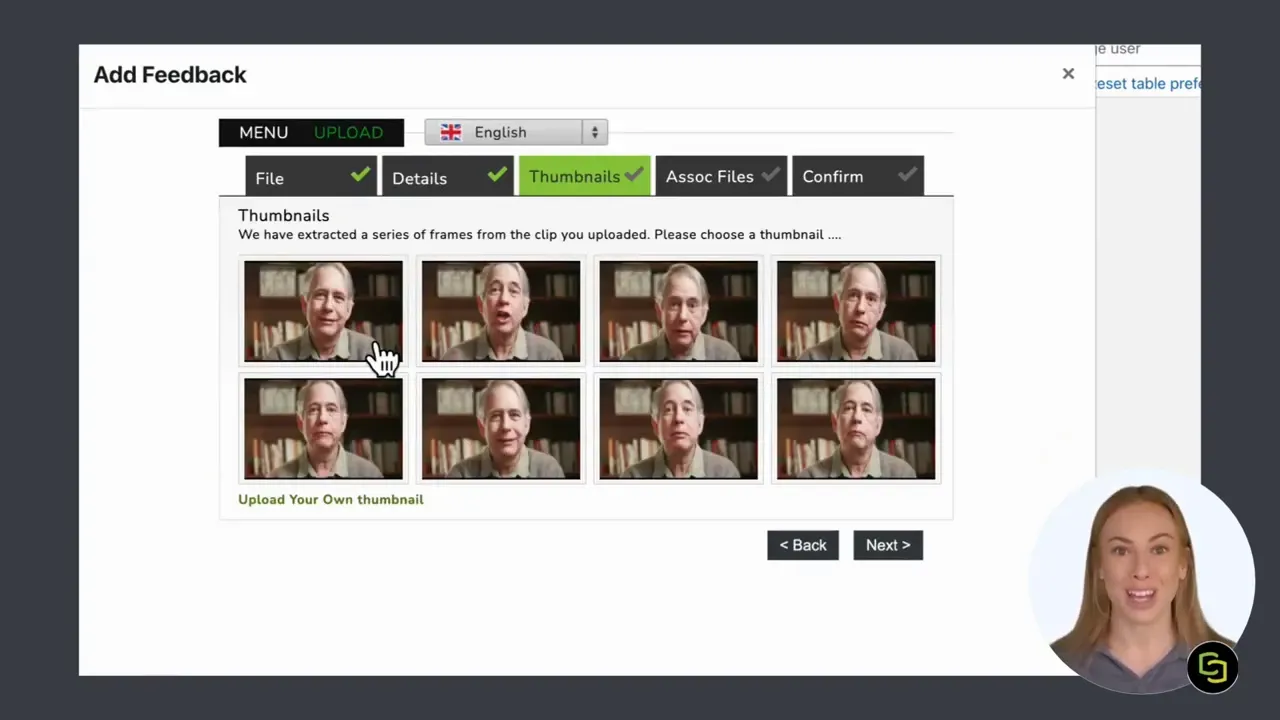
Choose a thumbnail, add any supporting files that are appropriate for the feedback, and confirm the item. MEDIAL then processes the recording and returns you to the Moodle grading page, where the video feedback appears as an attached response.
The student’s original submission, grade, written comments, and video response are now connected in one place. This makes it easier to give feedback that feels complete while maintaining the familiar Moodle assignment workflow.
Save Changes to Publish the Grade and Feedback
The final step is essential: select Save changes on the Moodle grading page. This saves the grade and makes the feedback response available to the student.
Before saving, take a quick moment to check that the grade is correct, any written comments are complete, and the MEDIAL feedback video is attached. Once saved, the assessment has been completed and the student can access the response alongside their submitted work.
MEDIAL supports a more natural feedback process while preserving the structure teachers already use for Moodle assessment. The result is a simple workflow: review the video, grade the work, record a response where it adds value, and save.
Making Video Assignment Assessment More Manageable
Video assessment does not need to create a disconnected or time consuming marking process. With the MEDIAL Plugin for Moodle™, teachers can work from the assignment submission list, access video work directly, and add media based feedback from the same grading screen.
The same integrated approach also supports the wider video assignment journey. Students can submit work through Moodle by uploading a file, recording from a webcam, or selecting existing media. Our walkthrough on submitting video assignments through Moodle covers each of these options.
For institutions building a stronger video workflow across courses, MEDIAL combines video creation, management, secure delivery, and analytics within Moodle. Learn more about how to optimise your video workflow in Moodle.
Frequently Asked Questions
How do teachers grade a video assignment in Moodle with MEDIAL?
Open the course assignment, select View submissions, locate the relevant student, review their video submission, then select Grade to enter the assessment screen.
Can teachers leave video feedback on a Moodle assignment?
Yes. From the grading screen, select Add Feedback in the MEDIAL Plugin for Moodle™ area. You can record feedback using a webcam, screen recording, audio, or a combination of audio and video.
Can a video feedback recording be edited before it is shared?
Yes. After recording, MEDIAL allows you to trim the video if needed before moving on to the final feedback details and confirmation steps.
What is the final step after attaching MEDIAL video feedback?
Confirm the feedback item, return to the Moodle grading page, and select Save changes. This saves the grade and makes the video response available to the student.
Give Better Feedback with MEDIAL
Make video assessment more personal and engaging with easy grading and video feedback, all within your existing learning environment.